
Resetting player data removes saved information for one player, such as their inventory, position, health, XP, Ender Chest contents, advancements, or stats.
To find the UUID for a player, use this tool: Minecraft UUID and username lookup tool.
Remove player data
- Stop the server and take a backup, then open Files in the control panel.
- Open your world folder. On most Java servers this is called
world. If you are not sure, checklevel-nameinserver.properties. - Open
playerdata. Some newer or custom layouts may show aplayersfolder instead. Advancements and stats are stored separately inadvancementsandstats.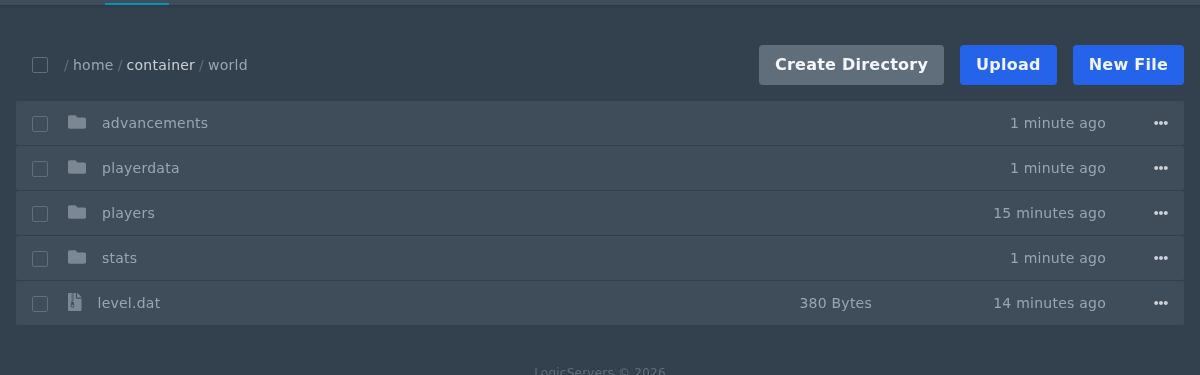
- Find the
.datfile that matches the player's UUID.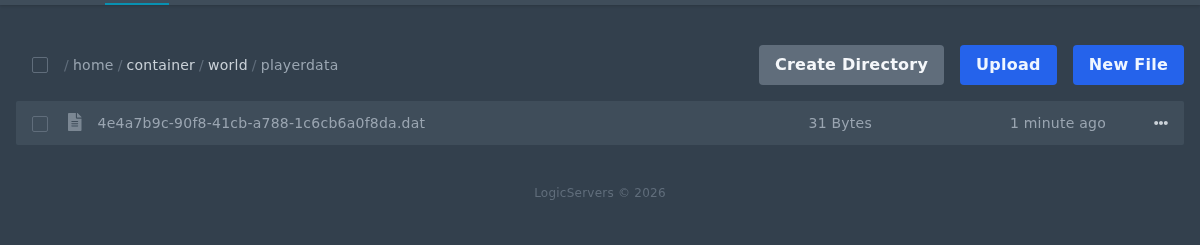
- Open the file menu and click Delete. Only delete the file for the player you want to reset.
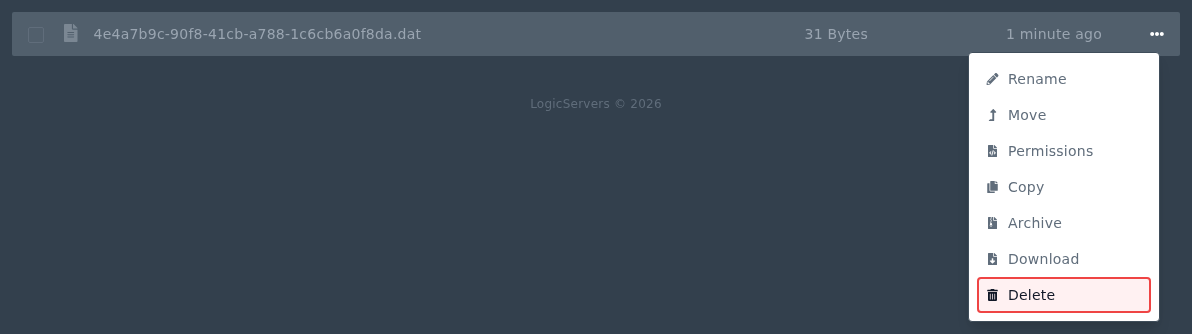
- If you also want to reset that player's advancements or stats, delete the matching UUID
.jsonfile from theadvancementsorstatsfolder. - Start the server again. The player will get fresh data the next time they join.
If your server runs in offline mode, uses a proxy, or uses plugins that change UUID handling, the UUID may not match the normal Mojang online-mode UUID. Check your logs or plugin documentation before deleting files.


