Upload an Enshrouded save when you want to move a local world onto the server, continue a single-player world with friends, or replace the current hosted world with another save. Enshrouded saves are usually stored in your Steam userdata folder, then uploaded into the server savegame folder.
Work from a copy of your local save files where possible. This avoids damaging your local world while you rename or upload files for the server.
- On your PC, open your Steam userdata folder. The usual path is:
C:\Program Files (x86)\Steam\userdata\YOURSTEAMID\1203620\remote
- Find the save files for the world you want to upload. Enshrouded save files commonly appear as paired files such as
3bd85c7dand3bd85c7d_info. The matching_infofile should be uploaded with the main save file. - Take a server backup first: How to Backup Your Enshrouded Server.
- Stop the server. If the server is running, it can overwrite files while you are uploading.
- Open File Manager.
- Open the
savegamefolder.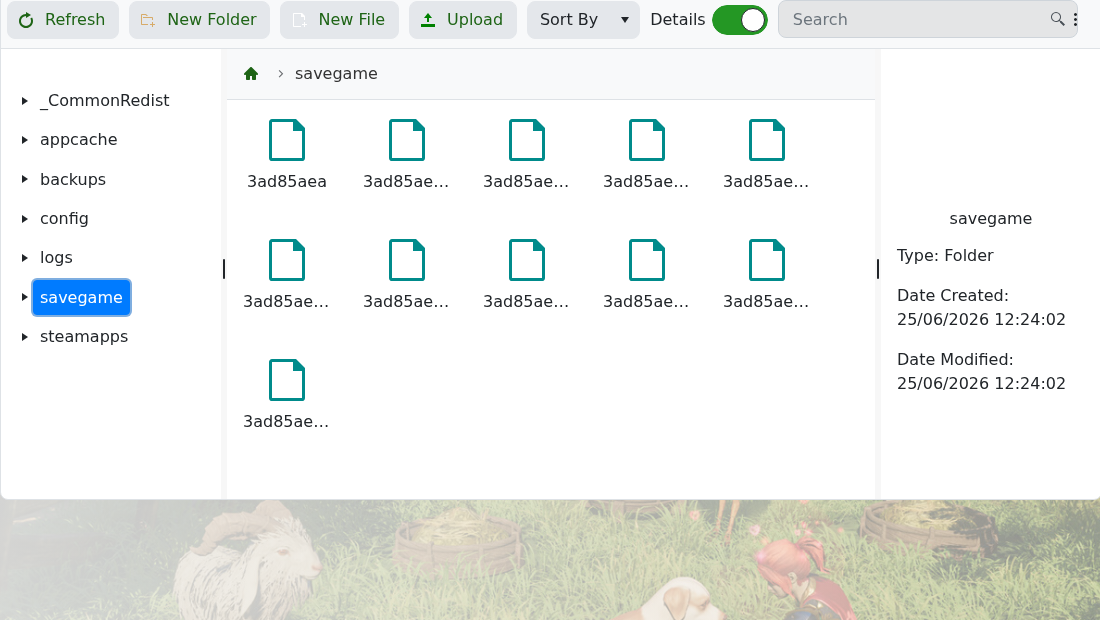
- Upload the save files into
savegame. - If you are replacing the active server world, rename the uploaded save files to match the active server save naming, such as
3ad85aeaand3ad85aea_info. Keep a backup before replacing existing files. - Start the server and join to test the uploaded world.
If you are not sure which local save belongs to the world you want, copy the folder first and work from the copy. If the server loads a new world instead of the uploaded one, stop the server, confirm the save names match the active save naming, and upload both the main save and matching info file again.