The Durins Folk DLC is out and this guide has been written to show you how to enable it on your server so the quests and content from the DLC are available to play.
Switching on the Durin's Folk DLC on your Server:
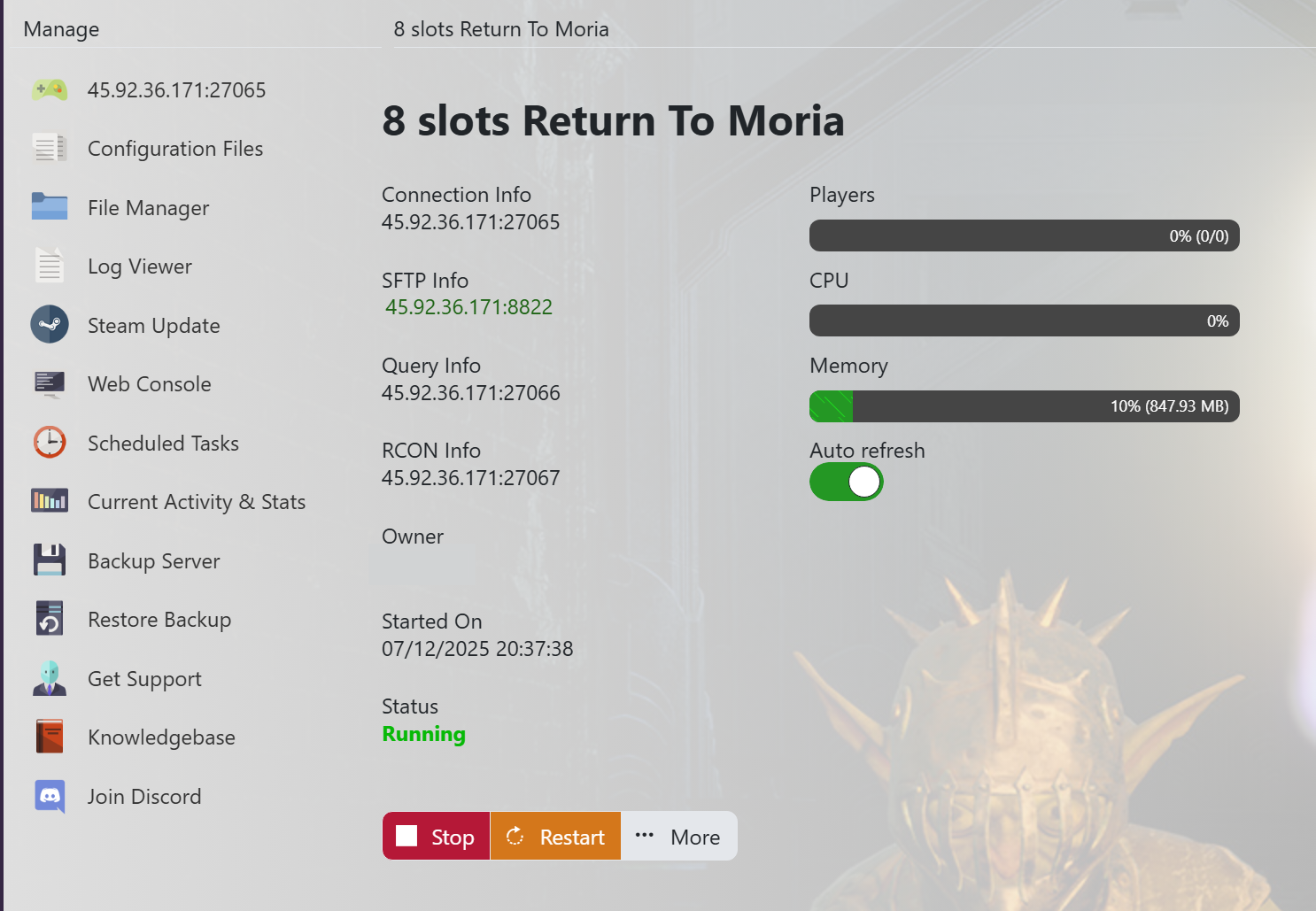
- Login to your TCAdmin control panel:

- When you purchased your Return to Moria server with us you will have been sent your login details via email. Use those details to login to your TCAdmin control panel. When you are logged into your panel you will see various options available to you. From here you can control your server.
- If you do not have a server with us you can get one here - https://logicservers.com/game-servers/tlotr-return-to-moria
- Stop your server:

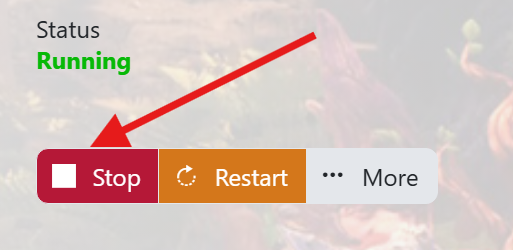
- You will need to stop your server before you make any changes. Press the STOP button on your panel and wait until the server closes down.
- Manually backup your server:

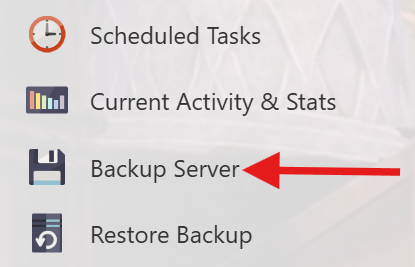
- It's always a good idea to backup your server before you make any changes. Simply press the backup server button located on the left hand menu as shown in the image. This will backup your server’s save files and config.
Our system will pack up all your server’s save files and keep them safe on our remote backup service, just to be extra safe.
- Open up your servers Configuration Files menu:

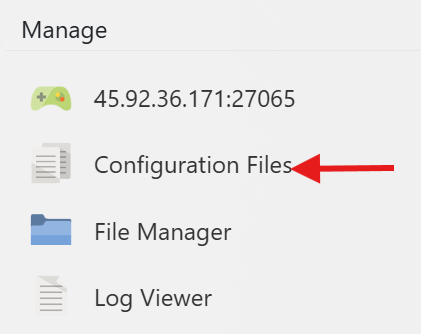
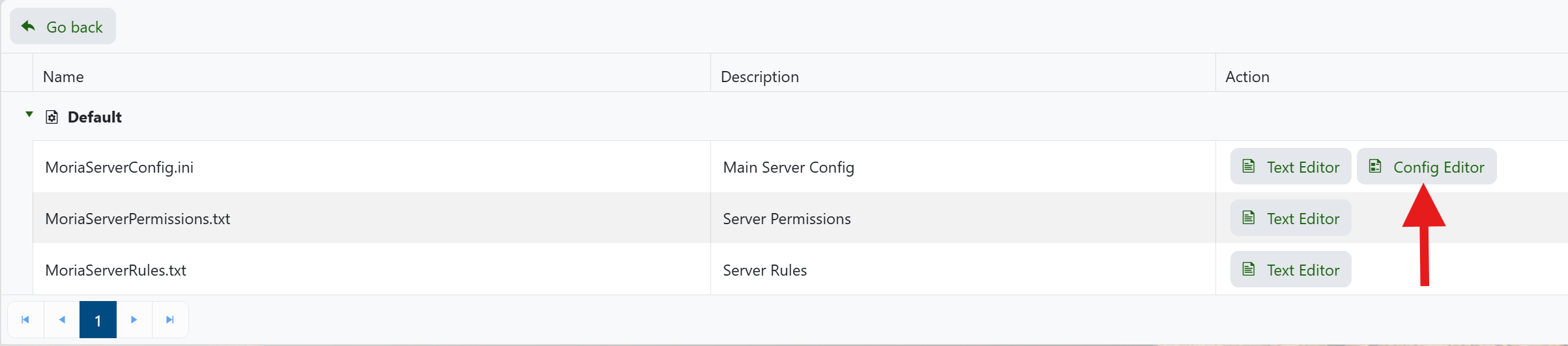
- Click on the ‘Configuration Files’ button on the left hand menu on your server panel.
- Open up the Config Editor:

- Click on the ‘Config Editor’ button next to the ‘MoriaServerConfig.ini’.
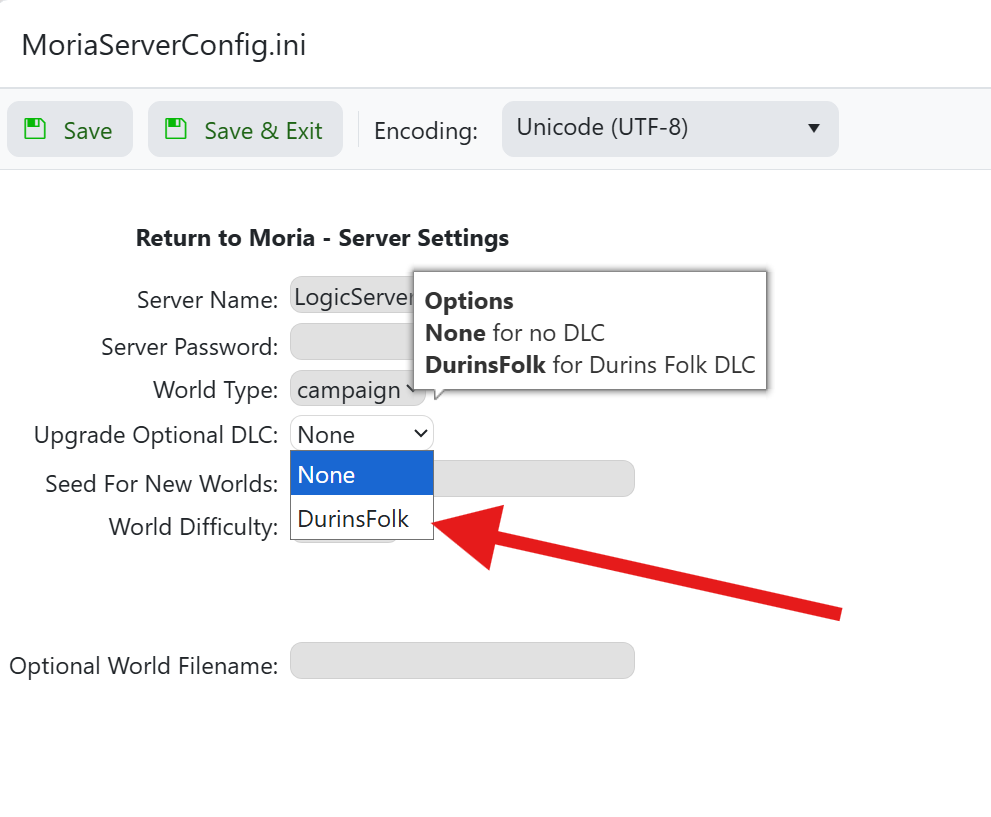
- Enabling Durins Folk DLC:

- Click on the ‘Upgrade Optional DLC’ dropdown box.
- Change the dropdown from ‘None’ to ‘DurinsFolk’.

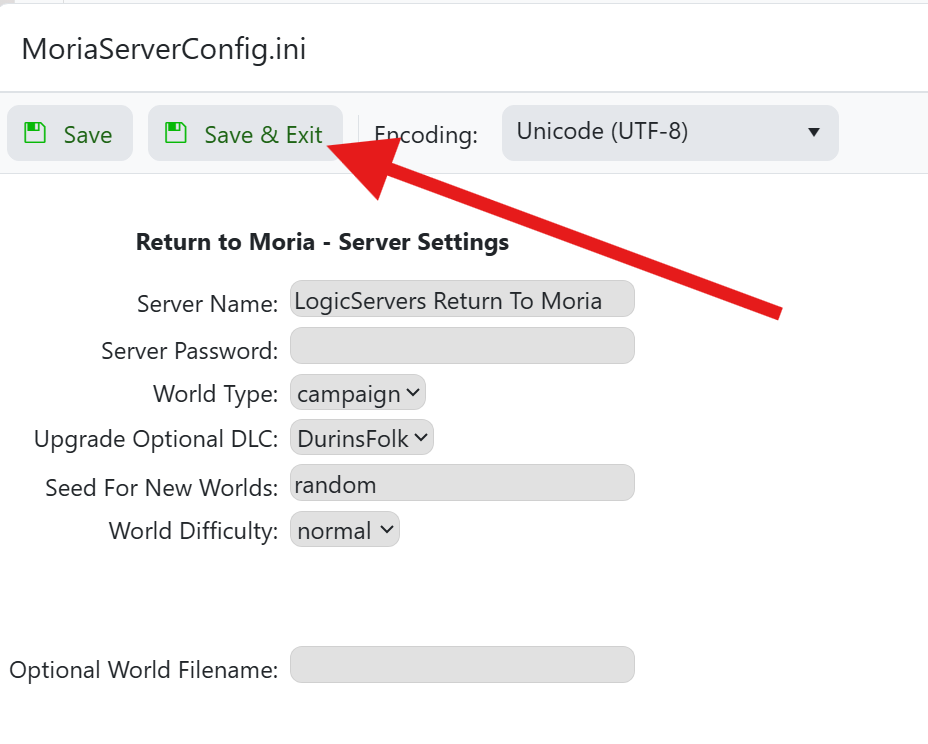
- When you're done click on the ‘Save and Exit’ button above.
Your server will now have the Durin’s Folk DLC enabled and you should be able to see the quests in game and enjoy everything the DLC has to offer.
If you need any extra help with your Return to Moria server then please log into your client area on our website and open a ticket with our support team here - OPEN A TICKET
We will be happy to get that resolved for you.