Loading a different save on your Hytale server is done by switching the active world folder. Hytale stores each world as its own folder under universe/worlds/, and the server chooses which one to load using the Defaults.World setting in the main config.json. This is useful if you want to swap between multiple worlds, upload a world from your PC, or keep an old save while testing a new one.
Before you start: take a backup so you can roll back if you pick the wrong world. Use our guide here: How to backup your Hytale Server.
- Stop your server.
Do not change worlds while it is running, or it can save into the wrong world folder.
- If you want to use an existing world or upload one instead of the Hytale server generating a new one, you'll want to Files, then open
universe/worlds/. Make sure the world folder you want is already here. If it is not, upload it from your PC, the best way is upload it as a zip then unzip it on the file manager. In this guide, we're going to just make a new world but here's the folder you would upload to and see what saves you have on the server: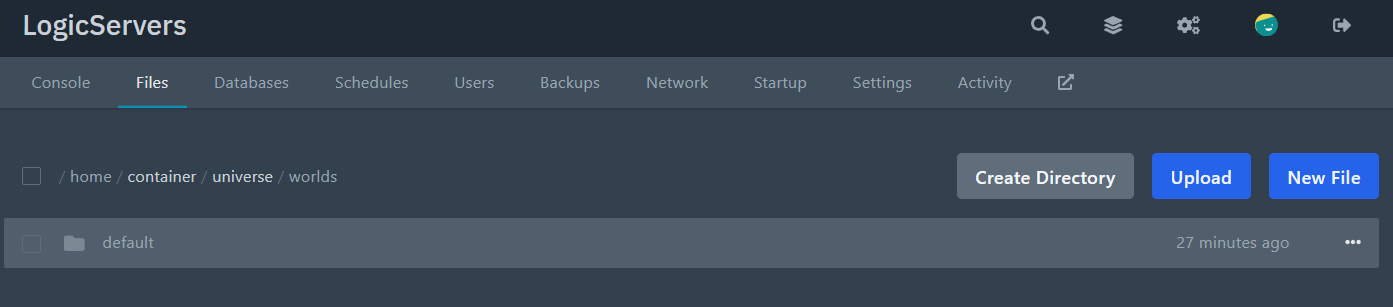
- Go back to the server root (top level), then open the main
config.json.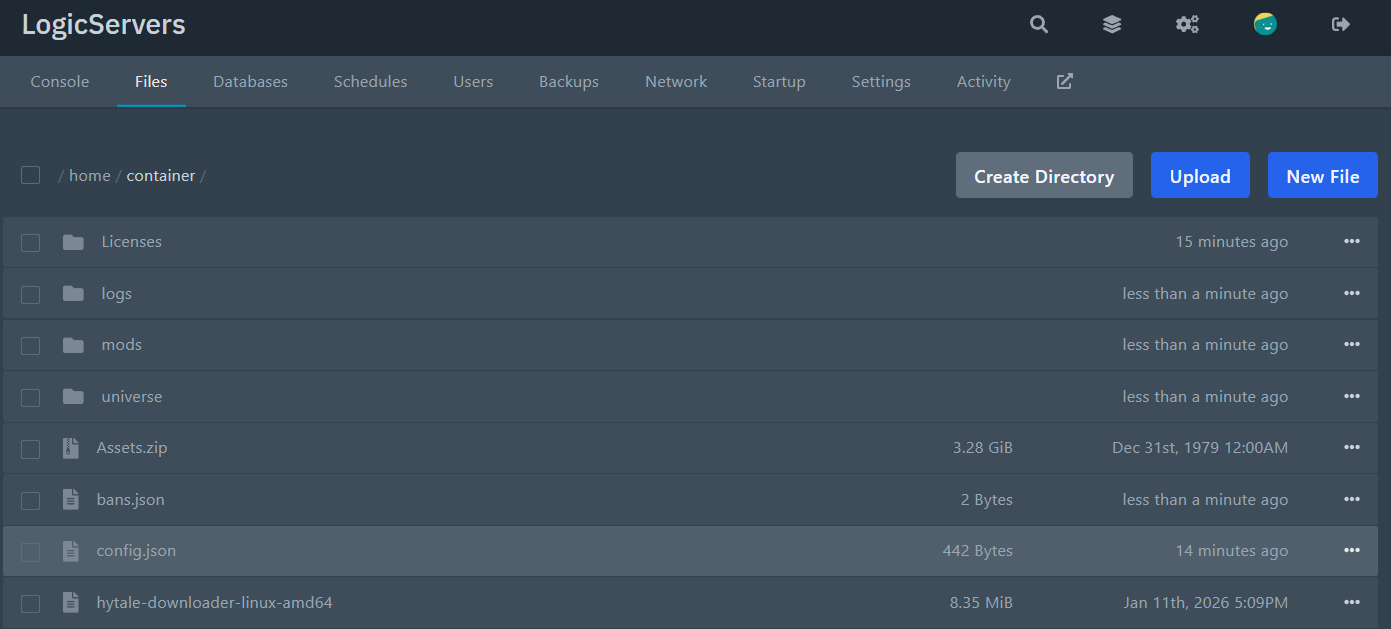
- Find the
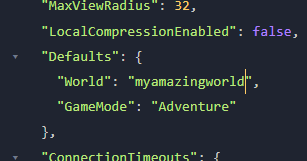
Defaultssection and change the world name to match the folder you want to load.Example (this loads the
defaultworld folder):"Defaults": { "World": "default", "GameMode": "Adventure" }Example (this loads a world folder called
survival):"Defaults": { "World": "survival", "GameMode": "Adventure" }IMPORTANT: The value must match the folder name exactly, including capital letters.
- Save the file, then start the server again.
The server will now load the world you selected.
If the server generates a brand new world: the world folder you set probably does not exist, or the name does not match. Double check the folder name under universe/worlds/ and try again.
If the server will not start: you likely broke JSON formatting in config.json (usually a missing comma). Undo your last change and save again.
