
Restore a Minecraft backup when a world change, plugin update, modpack update, or file edit has gone wrong. Stop the server before restoring so Minecraft is not writing files while the restore is running.

Restore the backup

  1. Open your Minecraft server in the control panel, then open Backups.
  2. Find the backup you want to restore. Check the backup name and date before continuing.
  3. Click the three-dot menu on the right of the backup, then click Restore.

    Restore option in the Minecraft backup menu on Ptero

  4. Read the restore prompt. Only tick Delete all files before restoring backup if you want the current Minecraft files removed before the backup is restored.
  5. Click Restore when you are sure you selected the correct backup.
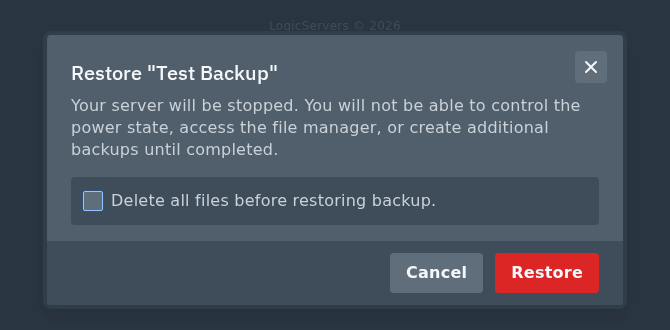
    Restore backup confirmation window on Ptero

When the restore has finished, start the server from Console and check the world, plugins, player data, and modpack files before letting players back on.


  • 0 Пользователи нашли это полезным
Помог ли вам данный ответ?

Связанные статьи

Colour Codes for Minecraft Multiplayer and Vanilla

This article lists all of the codes you can use with many plugins in Minecraft using Spigot or...

What is the difference between Fabric, Quilt and Forge in Minecraft Modding

Exploring the Distinctions Between Fabric and Forge When diving into the exciting world of...

What is a Grindstone and how is it used?

In this guide, we will teach you what the Grindstone in Minecraft does, and how to use it...

How to Convert Java and Bedrock Edition Worlds

In this guide, we’ll be teaching you how to convert your world from a Java Edition world to a...

Minecraft's New Version Numbers

Minecraft has changed how its version numbers work from 2026 onwards. Instead of carrying on with...
