
Most Minecraft modpacks can be installed from the Modpacks page in the control panel. Use that first if the pack is listed. If the pack is not listed, or you need to use a specific server pack from a launcher website, you can upload the server files manually.
Common modpack sources include CurseForge, Modrinth, Feed The Beast, ATLauncher, Technic, and VoidsWrath. The manual upload steps below use CurseForge and All the Mods 10 as the example, but the same idea applies to any modpack that provides server files.
Use the Modpacks installer
- Stop your server and take a backup. Open your Minecraft server in the control panel, then click Modpacks. Choose a provider, or leave it set to All, then search for the modpack you want to install.
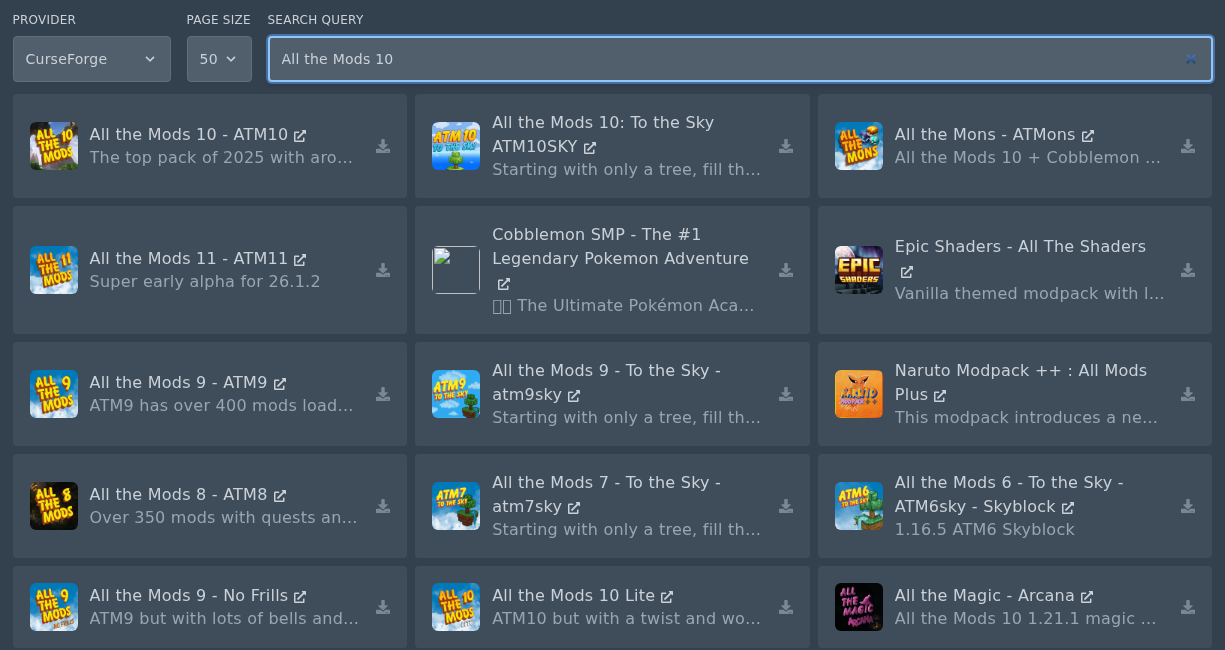
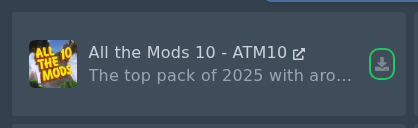
- Find the modpack in the results, then click the small install icon on the right of the modpack card.
- Select the modpack version you want to install.
Do not check Delete files unless you want to wipe your server.
Click Install modpack when you are ready.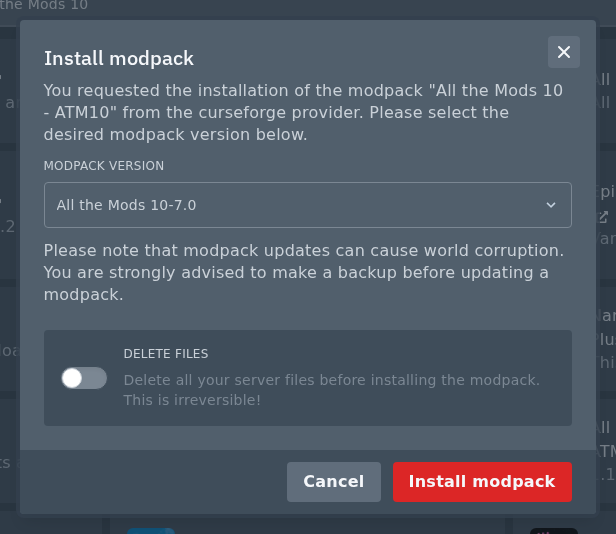
When the installer finishes, start the server from Console and watch the first startup. Large modpacks can take a while to generate files and load all mods on the first run.
Upload a CurseForge server pack manually
- Open the modpack Files page and check the Minecraft version. All the Mods 10 uses Minecraft 1.21.1.
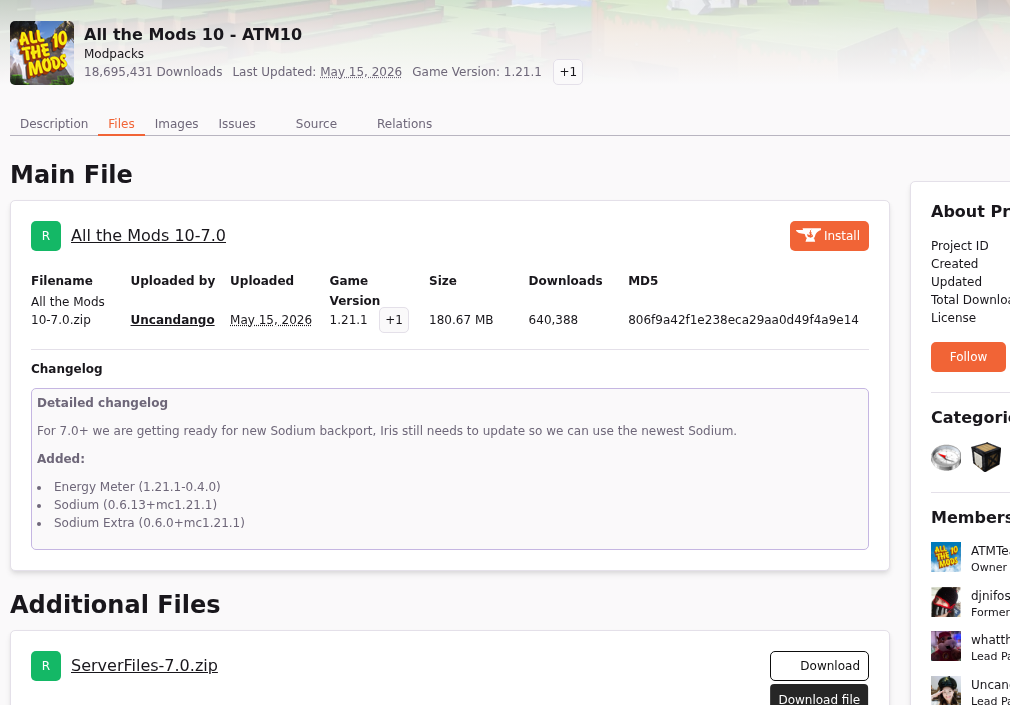
- Check the pack notes for the mod loader version. In this example, All the Mods 10 lists NeoForge 21.1.228.
- Open the Files page and download the server pack. On All the Mods 10, the server pack is shown under Additional Files as ServerFiles-7.0.zip.
Do not upload the client modpack zip unless the modpack author says it is also the server pack.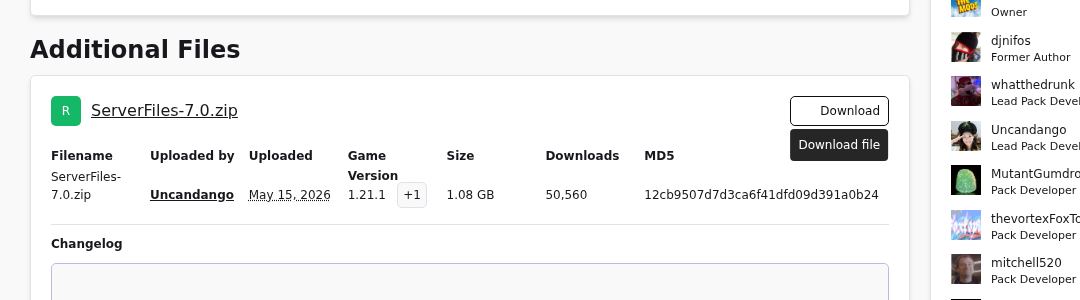
- Install the matching server software before uploading the pack files. For All the Mods 10, install the matching NeoForge build shown by the pack notes. Our Forge and NeoForge guide is here: How to install Forge or NeoForge on your Minecraft server. If your pack uses Fabric or Quilt, use this guide instead: How to install Fabric or Quilt on your Minecraft server.
- Stop the server again, then open Files. Upload the server pack zip into the main server directory. If the file is too large for the browser uploader, use FileZilla instead: How to connect to SFTP using FileZilla.

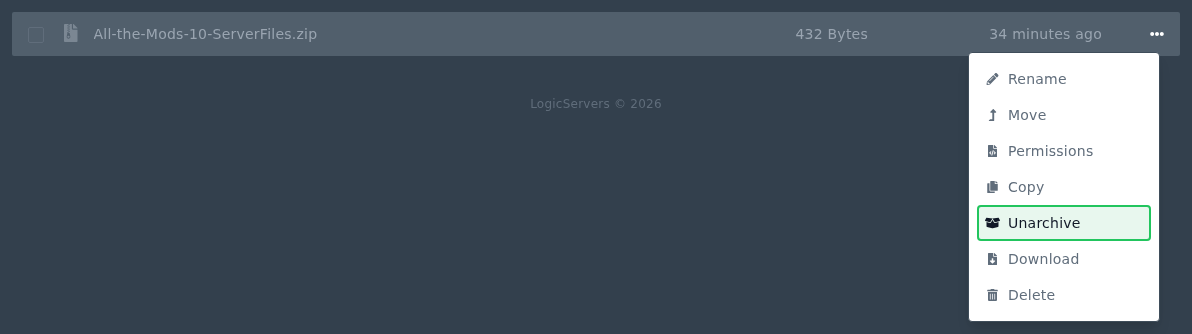
- Open the file menu for the zip, then click Unarchive. This extracts the server pack files into the current directory.
- Check the extracted files before starting the server. A server pack usually adds folders such as mods, config, defaultconfigs, or kubejs. If the pack includes its own README or start script, follow the pack author's notes.
Start the server from Console once the files are in place. If the server stops during startup, check the console for the first error. The most common causes are the wrong mod loader version, missing server files, or uploading a client-only modpack zip instead of the server pack.


