
Updating a modpack is not the same as updating a normal Vanilla server. Stop first, take a backup, then update the pack without leaving old duplicate mods behind.

Update with the modpack installer

  1. Stop the server and take a backup before changing any modpack files.
  2. Open Modpacks and search for the modpack.
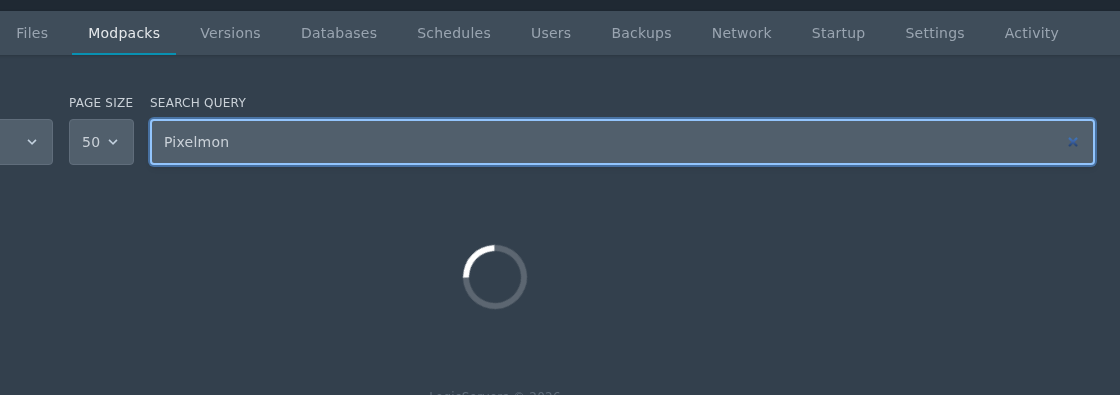
    Minecraft modpack installer search page on Ptero

  3. Click the install icon, choose the version you want to update to, then run the installer.
  4. Do not check the Delete files box unless you want to wipe your server.

Update manually

  1. Download the server pack for the new modpack version.
  2. In File Manager, move the old matching folders such as mods, config, defaultconfigs, or kubejs into a temporary backup folder.
  3. Upload the new server pack files.
  4. Start the server and check Console for errors.

Always use the server pack where one is provided. Client downloads often contain files that are not meant to be uploaded directly to a dedicated server.


  • 0 Korisnici koji smatraju članak korisnim
Je li Vam ovaj odgovor pomogao?

Vezani članci

Colour Codes for Minecraft Multiplayer and Vanilla

This article lists all of the codes you can use with many plugins in Minecraft using Spigot or...

What is the difference between Fabric, Quilt and Forge in Minecraft Modding

Exploring the Distinctions Between Fabric and Forge When diving into the exciting world of...

What is a Grindstone and how is it used?

In this guide, we will teach you what the Grindstone in Minecraft does, and how to use it...

How to Convert Java and Bedrock Edition Worlds

In this guide, we’ll be teaching you how to convert your world from a Java Edition world to a...

Minecraft's New Version Numbers

Minecraft has changed how its version numbers work from 2026 onwards. Instead of carrying on with...
