
Windrose server settings are edited from ServerDescription.json. Take a backup before changing settings so you can roll back if needed: How to backup your Windrose server.
Edit Windrose Settings
- Open your Windrose server in the control panel, then click Configuration Files.
- Find ServerDescription.json. Click Config Editor for the simple editor, or Text Editor if you need to edit the JSON directly.
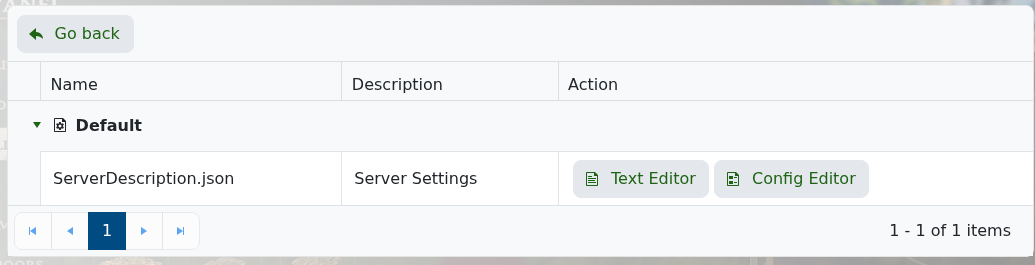
- Change the settings you need. The Config Editor includes server name, server password, invite code, direct connection, and world island id.
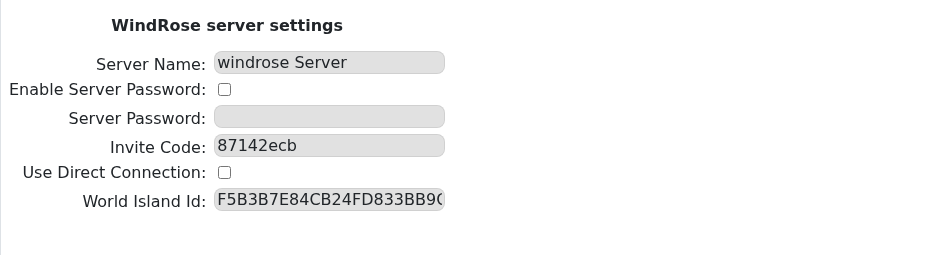
- Click Save & Exit, then restart the server.
Windrose Config Editor Options
| Setting | What It Does |
|---|---|
| Server Name | The name shown for your Windrose server. Use this to make the server easier to recognise. |
| Enable Server Password | Turns password protection on or off. Tick this if you want players to enter a password before joining. |
| Server Password | The password players need when password protection is enabled. Leave it blank if you do not want a password. |
| Invite Code | The code players can use to find and join your server in-game. It is case sensitive. |
| Use Direct Connection | Enables direct IP connection mode. Most customers should leave this as it is unless support asks you to change it. |
| World Island Id | Controls which world the server loads. This must match the world id from the world save you want to use. |
For common single-setting guides, see How to change the name on your Windrose server and How to change the password on your Windrose server.


