
Windrose dedicated server saves are stored in R5/Saved/SaveProfiles/Default/. Local Windrose saves are stored under %LocalAppData%\R5\Saved\SaveProfiles\, inside the folder for your user id.
Take a backup before uploading saves: How to backup your Windrose server.
Upload The Save
- Stop the server.
- Open File Manager. The main Windrose server files include folders such as
Engine,R5, andsteamapps.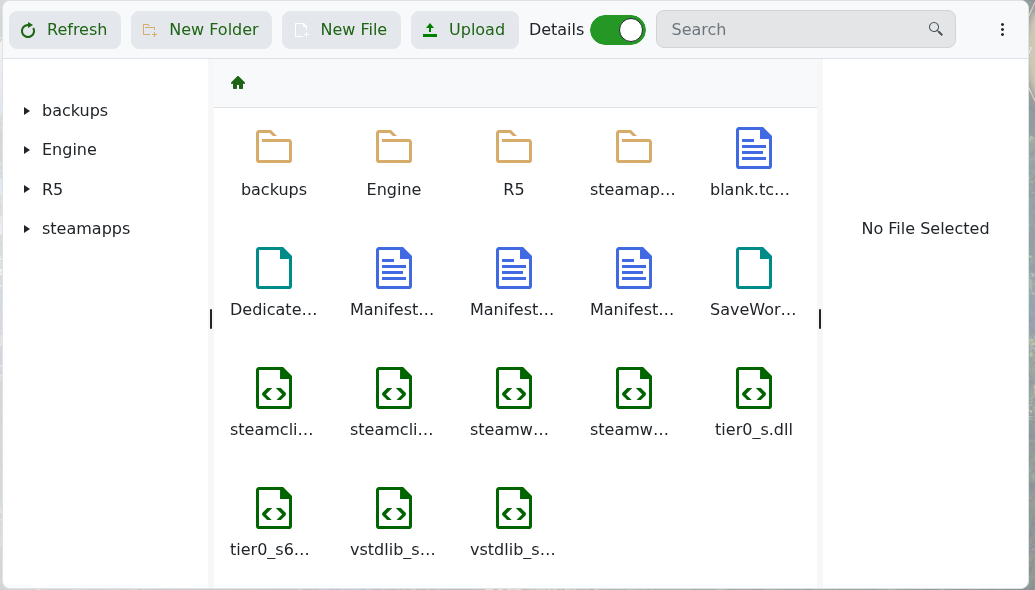
- Open
R5. After the server has started successfully, the save path isR5/Saved/SaveProfiles/Default/.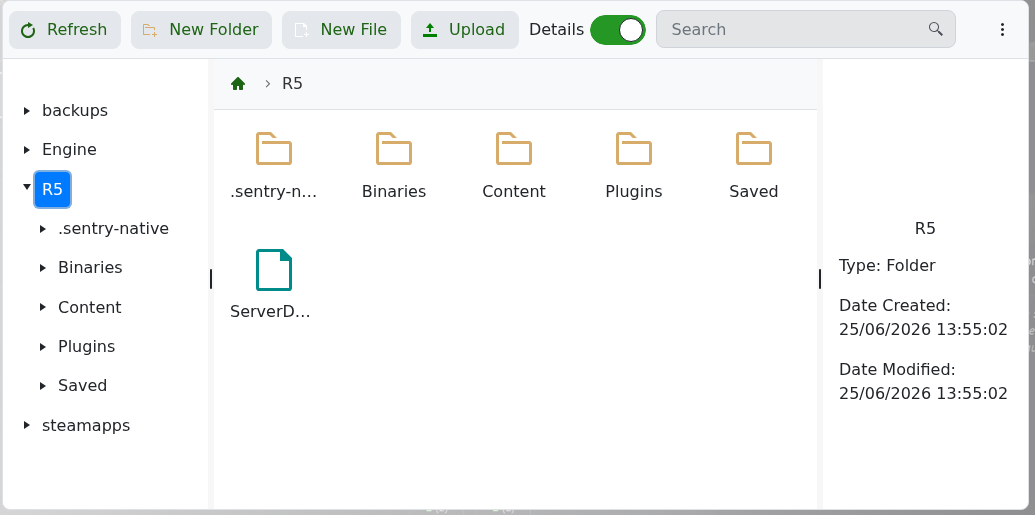
- Upload your save data into
R5/Saved/SaveProfiles/Default/. A full save normally includes the RocksDB folders used by Windrose, such asRocksDB_v2andRocksDB_v2_Backups.
Set The Save To Load
- Find the world you want the server to load. Windrose world data is stored under a path like
R5/Saved/SaveProfiles/Default/RocksDB_v2/<game version>/Worlds/<world id>/WorldDescription.json. - Open that world's
WorldDescription.jsonand copy theIslandIdvalue. It will look similar to this:{ "WorldDescription": { "IslandId": "E24A22C9C8D3448951AFD002162576D5", "WorldName": "The Archipelago" } } - Open Configuration Files, then open ServerDescription.json with Config Editor.
- Paste the copied
IslandIdinto World Island Id, then click Save & Exit.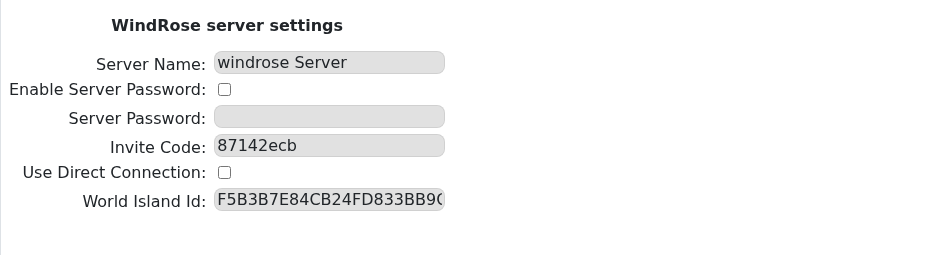
- Start the server and test the save in-game.
If the Saved folder does not exist yet, start and stop the server once so Windrose can create its default save structure. If your save is too large for the browser uploader, submit a support ticket and we can help move it.


