
Web Console is the quickest way to check whether your Rust server is starting correctly and to run server commands without opening the game. Use it for status checks, admin commands, plugin reloads, and basic troubleshooting.
- Open your Rust server in the control panel.
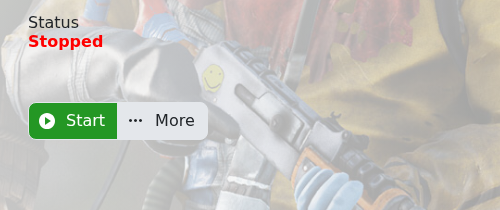
- Start the server if it is not running.
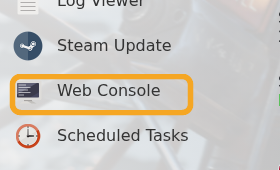
- Click Web Console on the left side menu.
- Wait for the console output to load. If the server has only just started, give it a few minutes and refresh the page.
- Run a test command such as:
status
- Use
say "message"for announcements,server.saveto force a save, orserver.writecfgafter changing bans/admins.
More commands are listed in Commands for Rust. If you want a remote console outside the control panel, use How to use RCON with your Rust server. If the console shows repeated errors after a config or plugin change, copy the latest lines and include them when you submit a support ticket.


