
Rust RCON lets external tools connect to your server console for remote administration. Use it when you want to run commands from Facepunch WebRCon, RCON:IO, or another Rust RCON client instead of the panel Web Console.
- Open your Rust server in the control panel.
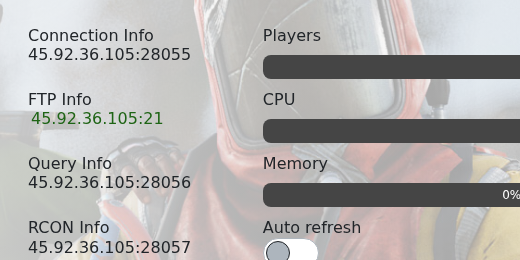
- Copy the RCON Info address and port.
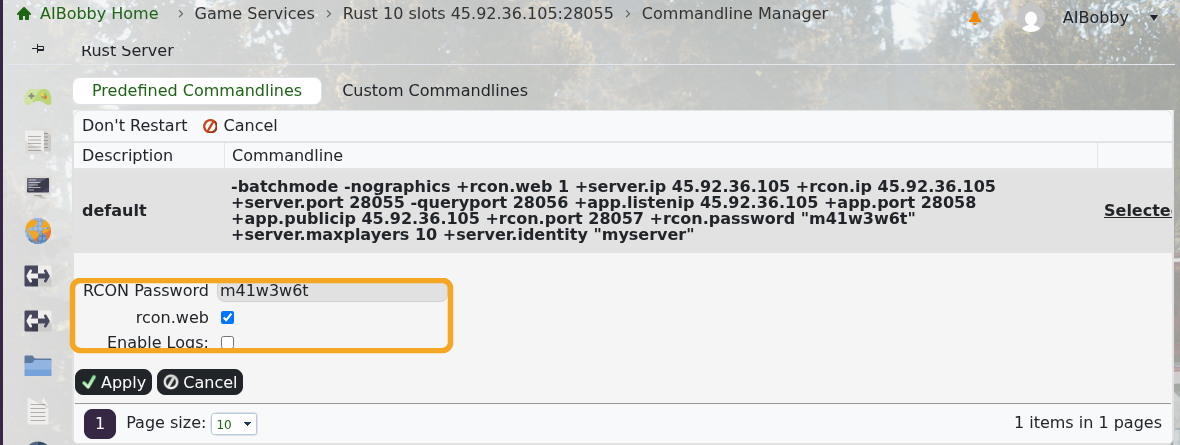
- Make sure you know the RCON password. If you need to set it, use How to set or change your Rust RCON password.
- Confirm rcon.web is enabled in Commandline Manager if you are using Facepunch WebRCon or another browser-based WebRCon client.
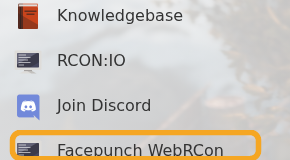
- Click Facepunch WebRCon on the left side menu, or open your preferred Rust RCON client.
- Enter the server IP, RCON port, and RCON password. Use the RCON port from RCON Info, not the normal game port.
- Click connect, then test with:
status
- Run commands the same way you would in Web Console, for example
say "Restarting in 5 minutes"orserver.save.
Keep your RCON password private. Anyone with the RCON address and password can run server commands.


