
Your Empyrion server name, join password, player limit, public listing, and several other server-level settings are stored in server.yaml. Edit this file from Configuration Files, then restart the server so Empyrion loads the new values.
Edit server.yaml
- Open your Empyrion server in the control panel.
- Click Configuration Files.
- Open
server.yamlwith Text Editor.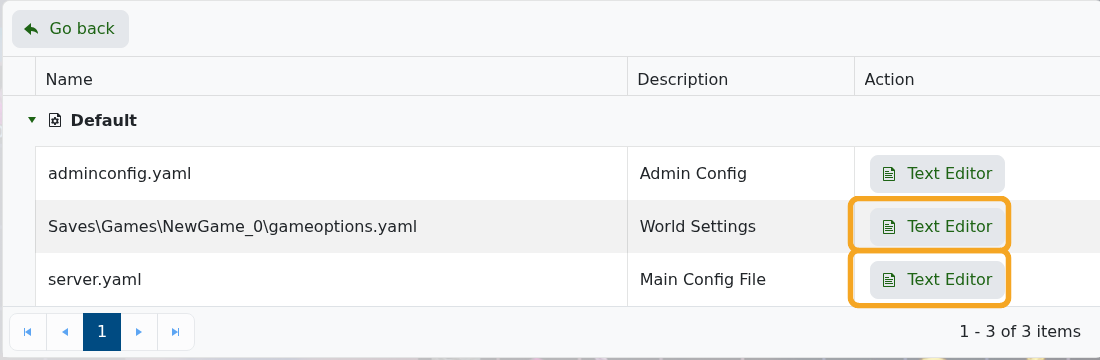
- Change
Srv_Nameto the server name you want players to see. - Change
Srv_Passwordto the join password you want. Leave the value blank only if you want the server to be public without a password. - Change
Srv_Publictotrueif you want the server listed publicly, orfalseif you only want direct-IP joins. - Click Save & Exit, then restart the server.
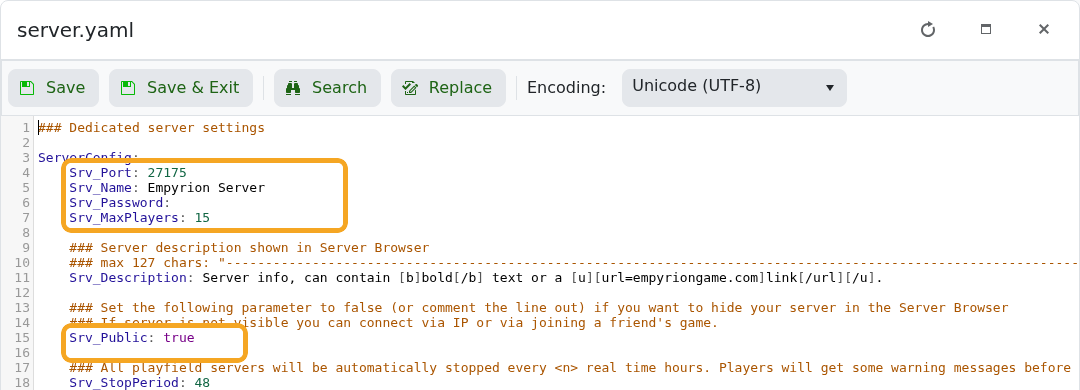
ServerConfig:
  Srv_Name: My Empyrion Server
  Srv_Password: MyPassword
  Srv_Public: true
Steam and Empyrion server listings can take a few minutes to refresh after a restart. If the old name still appears immediately after restarting, wait briefly and refresh the browser list.


