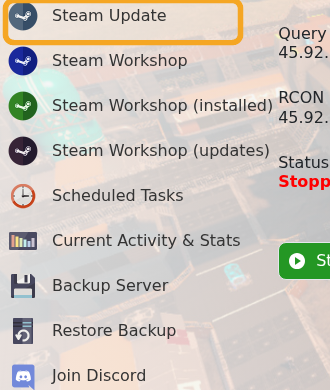
Use Steam Update when Empyrion releases a server update or when the server files need to be repaired. Take a backup first if you have active saves, custom scenarios, Workshop content, or manual file changes.

Run Steam Update

  1. Open your Empyrion server in the control panel.
  2. Take a backup first if you need a rollback point: How to backup your Empyrion server save.
  3. Click Steam Update.

    Empyrion control panel showing Steam Update

  4. Wait for the Steam task to finish. Do not start the server while the update is still running.
  5. Start the server.
  6. Open Log Viewer and check DedicatedServer.txt if the server does not start after updating.
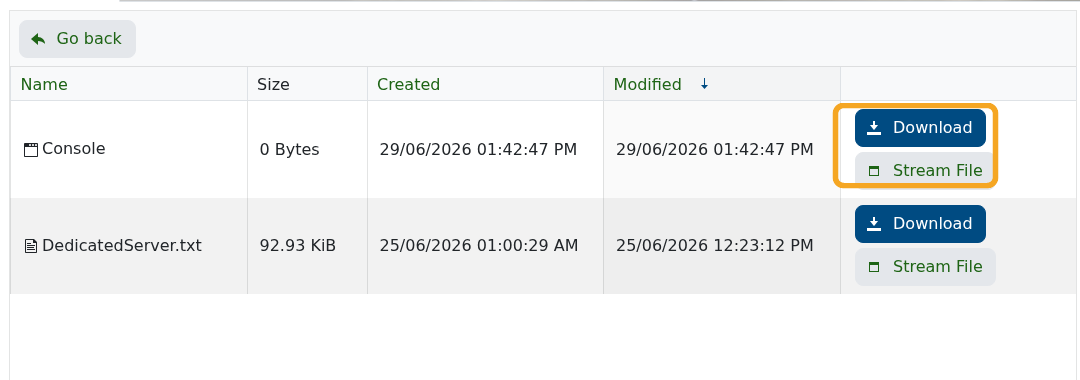
    Empyrion Log Viewer showing server logs

If you use Workshop scenarios such as Reforged Eden, check the scenario page after major updates. Scenario authors may require a matching scenario update, a new save, or a config change after an Empyrion update.


  • 0 utilizatori au considerat informația utilă
Răspunsul a fost util?

Articole similare

Using your own game save in Empyrion

You can upload an existing Empyrion save by placing the save folder inside Saves/Games and then...

How to delete a players data in Empyrion

Delete Empyrion player data when you need to reset one player without wiping the whole world....

How to restore a backup for your Empyrion server

Restore an Empyrion backup when you need to roll the server back after a bad update, unwanted...

How to backup your Empyrion server save

Create an Empyrion backup before updating, restoring files, changing scenarios, uploading saves,...

How to create a custom admin file for your Empyrion server

Empyrion admin permissions are controlled in adminconfig.yaml. Add a player SteamID64 under...