
Empyrion world settings for an existing save are stored in that save's gameoptions.yaml. Use this file to adjust options such as decay time, wipe time, structure limits, anti-grief distances, trading, blueprint factory options, and scenario-specific rules.
Edit gameoptions.yaml
- Take a backup first: How to backup your Empyrion server save.
- Open your Empyrion server in the control panel.
- Click Configuration Files.
- Open
Saves\Games\NewGame_0\gameoptions.yamlwith Text Editor. If your active save uses a different name, edit that save'sgameoptions.yamlfrom File Manager instead.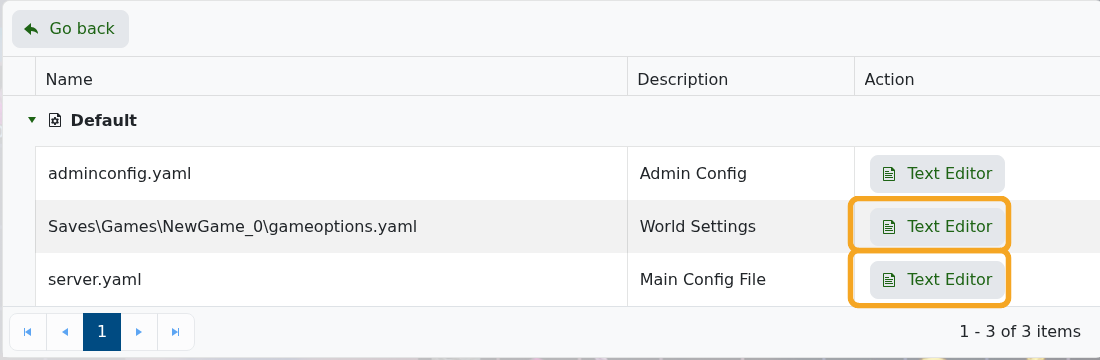
- Change the settings you need. Keep the YAML spacing and use the values expected by the game or scenario.
- Click Save & Exit, then restart the server.
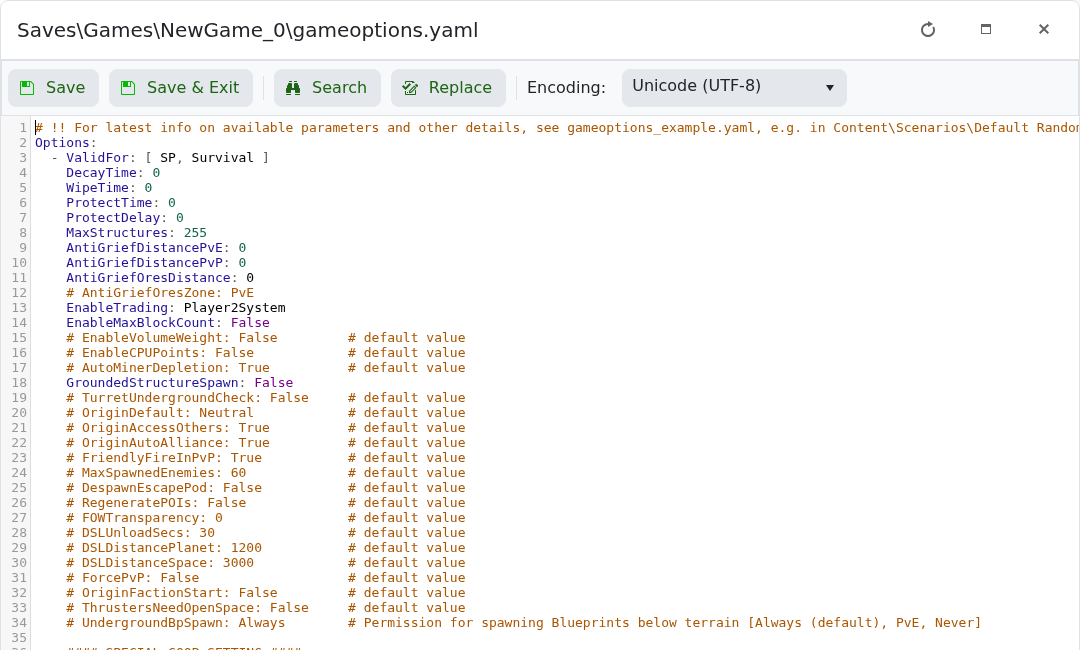
Some scenarios, including Reforged Eden variants, expect specific world options. If you are running a Workshop scenario, check the scenario author's notes before changing CPU, mass/volume, block limits, or blueprint settings.


