
Scheduled restarts can help keep an Empyrion server stable during long-running saves, busy sessions, or regular maintenance windows. Use the control panel's Scheduled Tasks area to create a recurring restart at a quiet time for your players.
Create An Automatic Restart Task
- Open your Empyrion server in the control panel.
- Click Scheduled Tasks from the left side menu.
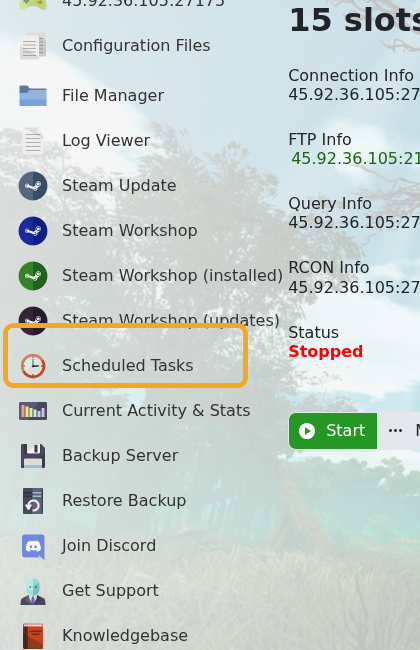
- The Scheduled Tasks page shows existing tasks, their last run time, their next run time, and whether they are enabled.

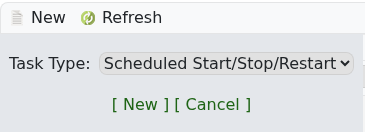
- Click New, set Task Type to Scheduled Start/Stop/Restart, then click [ New ].
- On the Restart Schedule tab, enter a clear task name, such as
Daily restart, and leave Enabled ticked.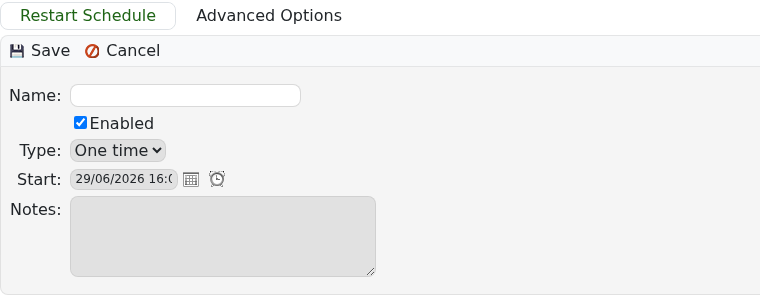
- Choose the first run date and time. Pick a quiet time, such as early morning for your main player region.
- Choose the schedule type. For a daily restart, set Type to Daily and set Recur Every to
1day. For a weekly maintenance restart, use a weekly schedule and choose the day you want it to run.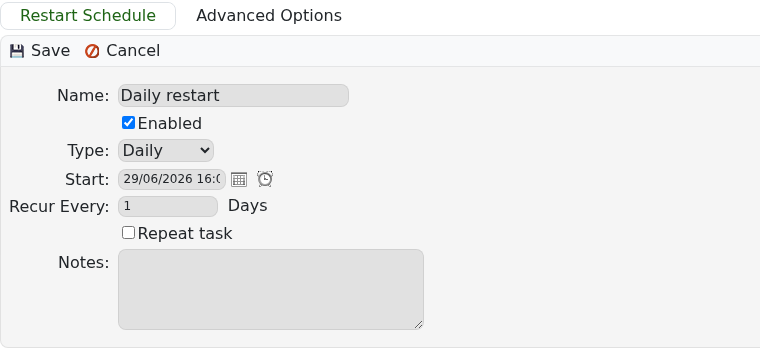
- Click Save.
- Return to Scheduled Tasks and check the Next Run Time so you know when the restart will happen.
Tell players about planned restarts if the server has regular activity. If the Scheduled Tasks page does not show a restart task type on your service, submit a support ticket and ask us to check whether scheduled restarts are enabled for that game template.


