
If you do not already have a server to add, you can browse our game server hosting here: game server hosting.
Steam favourites let you save a dedicated game server by IP address and port. This is useful when a game browser is slow to update, when you want to check whether Steam can see the server, or when you want a quick way to reconnect later.
Before you start
- Copy the server connection address in
IP:PORTformat. - Make sure you use the game/query port shown by your server host or control panel.
- Start the server before adding it, otherwise Steam may show it as not responding.
Open Steam Game Servers
- Open Steam on your computer.
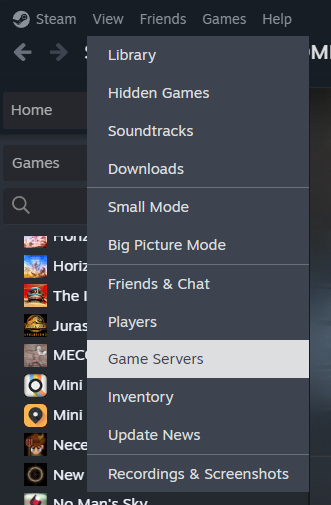
- Click View in the top menu.
- Click Game Servers.
Add the server by IP
- Open the Favorites tab.
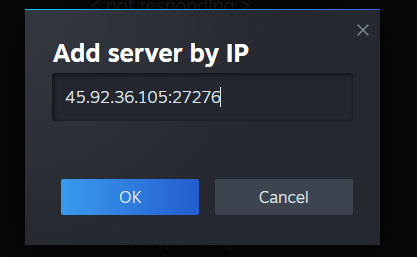
- Click the + button to add a server.
- Paste the server address in
IP:PORTformat. - Click OK.
Check the favourite
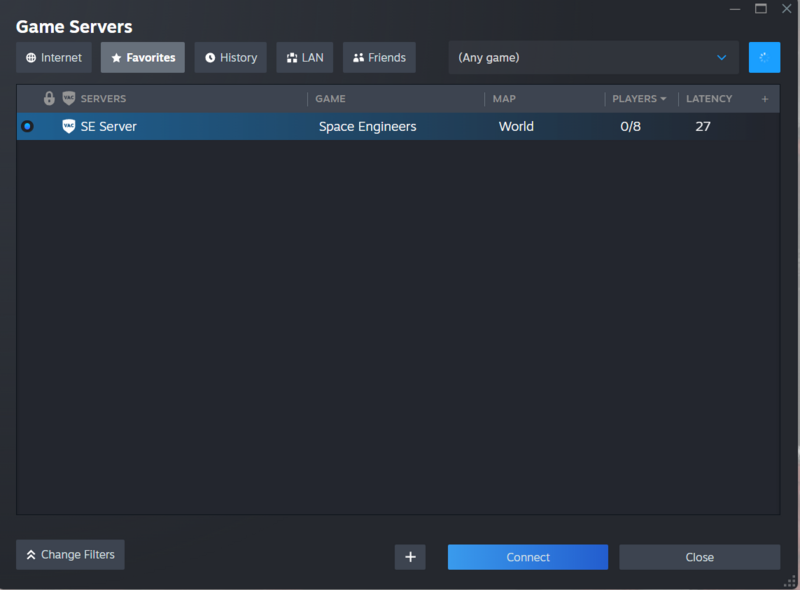
After Steam contacts the server, it should appear in the favourites list with the game name, server name, map or world name, player count, and latency.
If the server does not respond
- Check the server is started.
- Confirm the address and port are correct.
- Refresh the Steam favourites list after a minute.
- Some games use separate game and query ports, so check the game-specific joining guide if Steam does not find it.
If this is one of your services with us and Steam still cannot see it, submit a support ticket with the server address you tried to add.


