
Restoring a backup lets you roll the server files back to an earlier backup created from the Ptero panel. Stop the server before restoring so files are not being changed during the restore.
Restore the backup
- Open your server in the Ptero control panel, then open Backups.
- Find the backup you want to restore.
- Click the three-dot menu on the right of the backup, then click Restore.

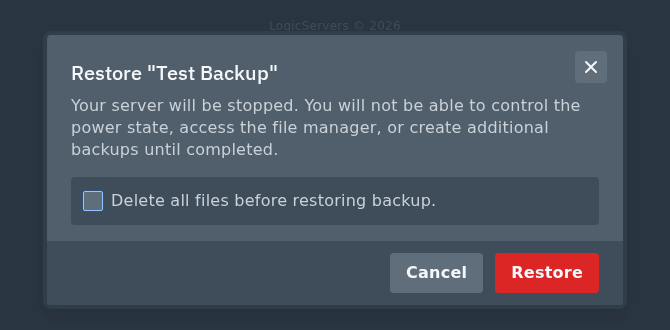
- Read the restore prompt carefully. The server will be stopped and you will not be able to use the file manager or create more backups while the restore is running.
- Only tick Delete all files before restoring backup if you want the current server files removed before the backup is restored.
- Click Restore when you are sure you selected the correct backup.
When the restore has finished, start the server again from Console and check that it comes online normally. If you are not sure which backup to restore, create a new backup first so you have a copy of the current files before rolling back.


