
Use File Manager for normal Minecraft uploads such as config files, small plugin jars, datapacks, and server icons. For larger uploads, SFTP with FileZilla is usually more reliable.

Upload using File Manager

  1. Open your Minecraft server in the control panel.
  2. Stop the server if you are replacing files the server is actively using.
  3. Open Files and go to the folder where the files need to be uploaded.
  4. Drag and drop the files into the File Manager upload area.
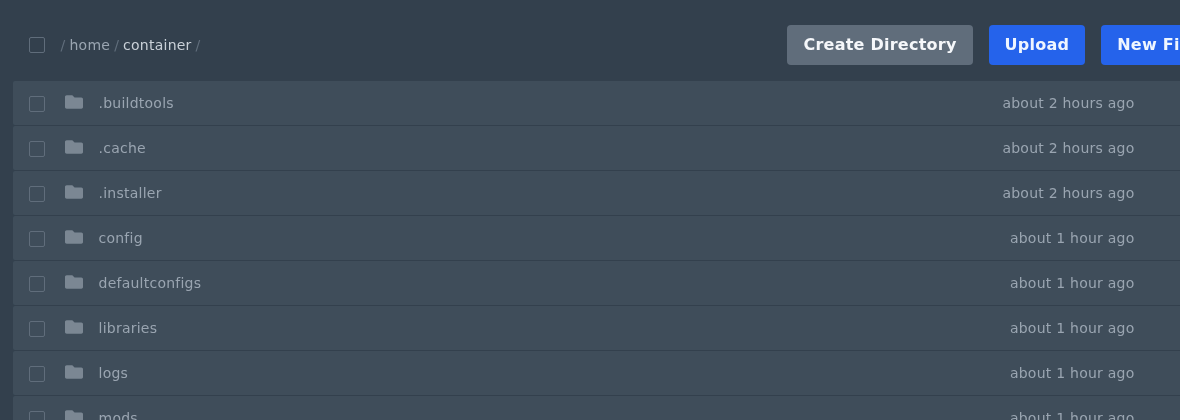
    Uploading Minecraft files using the Ptero file manager

  5. Start or restart the server after the upload if the files need to be loaded by Minecraft.

If the upload is large or your browser upload fails, use FileZilla instead. See our guide here: How to connect to SFTP using FileZilla.


  • 0 Utilizadores acharam útil
Esta resposta foi útil?

Artigos Relacionados

Colour Codes for Minecraft Multiplayer and Vanilla

This article lists all of the codes you can use with many plugins in Minecraft using Spigot or...

What is the difference between Fabric, Quilt and Forge in Minecraft Modding

Exploring the Distinctions Between Fabric and Forge When diving into the exciting world of...

What is a Grindstone and how is it used?

In this guide, we will teach you what the Grindstone in Minecraft does, and how to use it...

How to Convert Java and Bedrock Edition Worlds

In this guide, we’ll be teaching you how to convert your world from a Java Edition world to a...

Minecraft's New Version Numbers

Minecraft has changed how its version numbers work from 2026 onwards. Instead of carrying on with...
