
This guide shows you how to install PocketMine on a Minecraft Bedrock server.

If you only want the normal Bedrock server software, use this guide instead: How to install or update Bedrock on your Minecraft server.

Install PocketMine

  1. Open your server in the control panel, then open Versions.
  2. The Bedrock installer page will show Bedrock server software options.
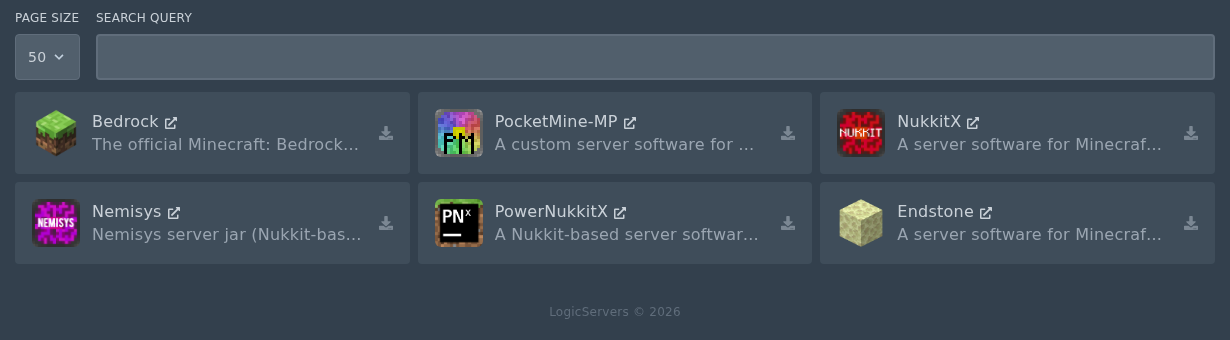
    Minecraft Bedrock installer page showing PocketMine

  3. Find PocketMine, then click the small install icon on the right of the card.
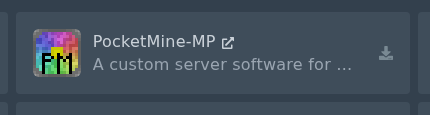
    PocketMine installer card with the install icon

  4. Select the Release version you want to install, then click Install software.
    Do not check Delete files unless you want to wipe your server.
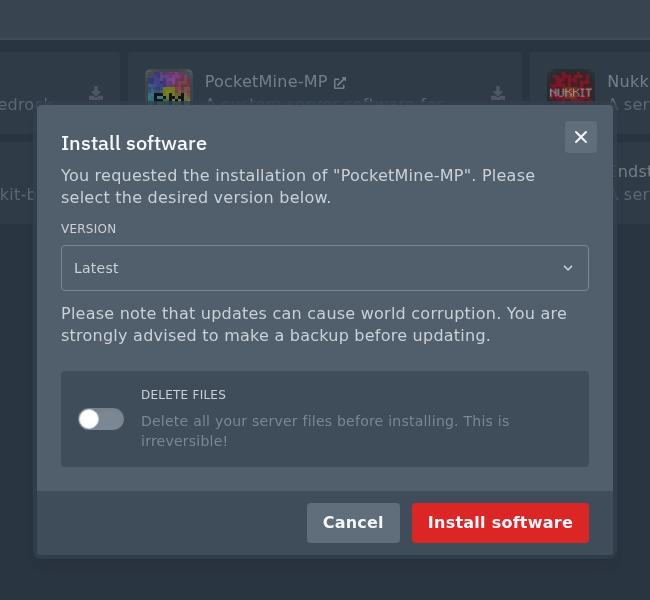
    PocketMine install modal with release version and delete files option

  5. Wait for the install to finish, then start the server from Console.

Check server files and install plugins

After PocketMine has started once, open Files. A working PocketMine install should have files and folders such as PocketMine.phar, pocketmine.yml, plugins, plugin_data, worlds, and server.properties.

You can install PocketMine plugins after the server is running: How to install PocketMine plugins.
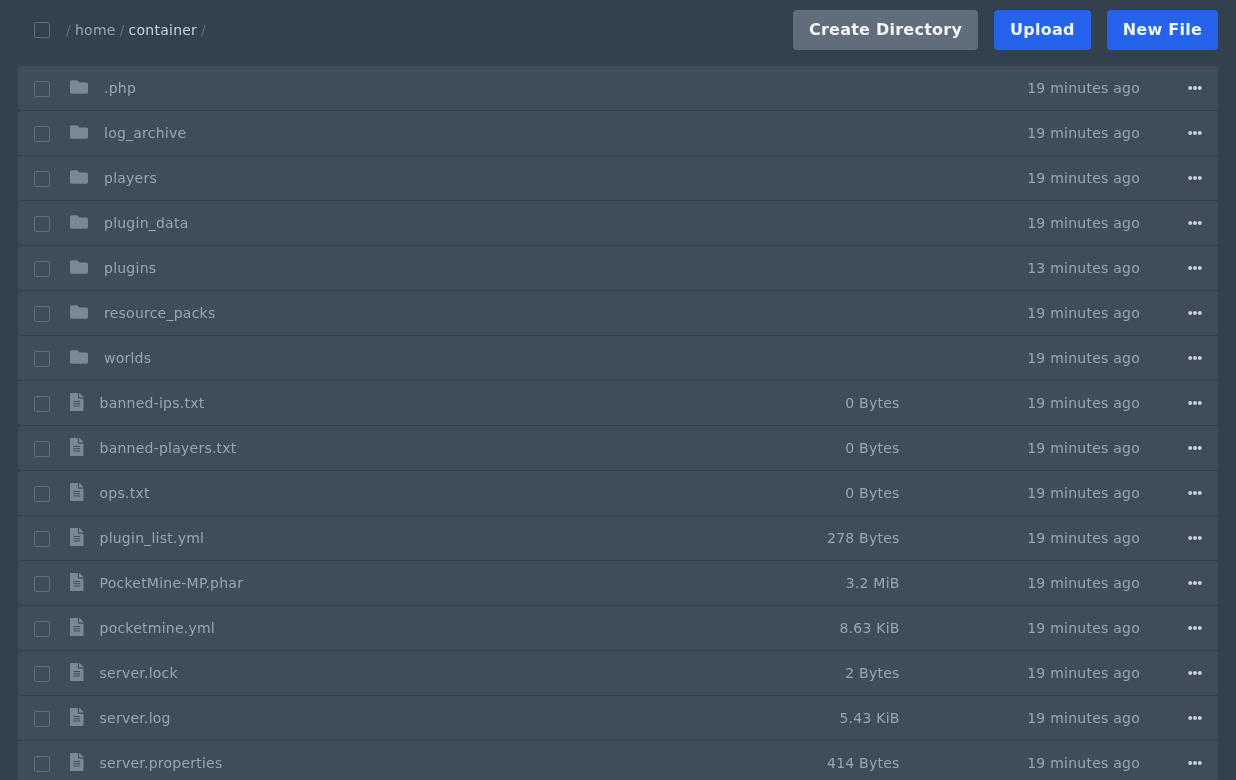

PocketMine files created after first server start

  • 0 A felhasználók hasznosnak találták ezt
Hasznosnak találta ezt a választ?

Kapcsolódó cikkek

Colour Codes for Minecraft Multiplayer and Vanilla

This article lists all of the codes you can use with many plugins in Minecraft using Spigot or...

What is the difference between Fabric, Quilt and Forge in Minecraft Modding

Exploring the Distinctions Between Fabric and Forge When diving into the exciting world of...

What is a Grindstone and how is it used?

In this guide, we will teach you what the Grindstone in Minecraft does, and how to use it...

How to Convert Java and Bedrock Edition Worlds

In this guide, we’ll be teaching you how to convert your world from a Java Edition world to a...

Minecraft's New Version Numbers

Minecraft has changed how its version numbers work from 2026 onwards. Instead of carrying on with...

