
V Rising save folders are stored in save-data/Saves/v4. Upload the world folder there, then set Save Name in ServerHostSettings.json to the same folder name.
- Open your V Rising server in the control panel and stop the server.
- Take a backup first: How to Backup your V Rising Server.
- On your PC, zip the V Rising save folder if you are uploading it through the browser File Manager. Keep the save folder name clear, for example
world1orClanWorld. - Click File Manager, then open
save-data/Saves/v4. This folder contains the save folders your server can load.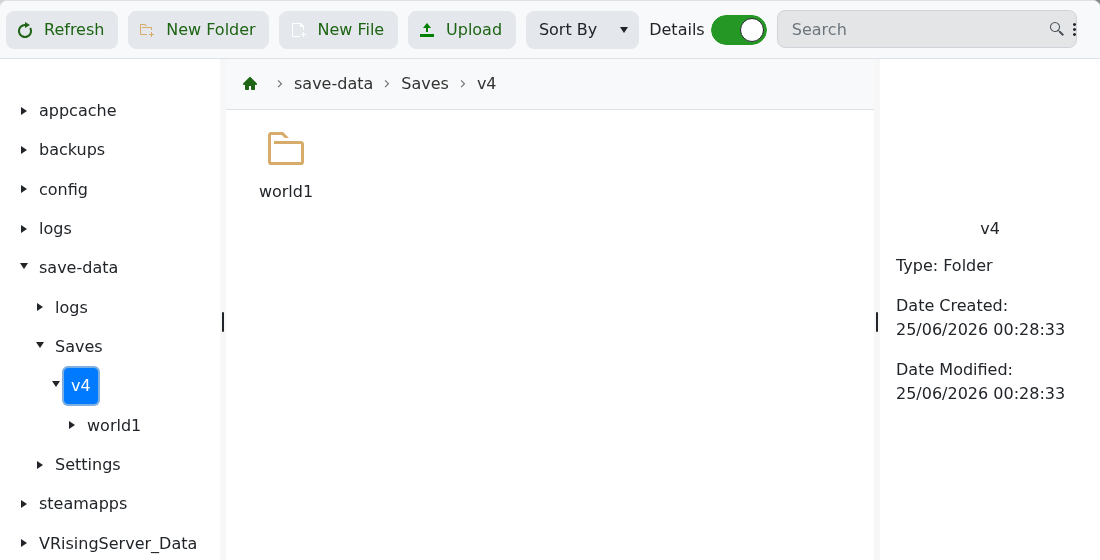
- Upload the save folder or ZIP file. If you uploaded a ZIP file, select it in File Manager and extract it so the save appears as a folder inside
v4.For larger uploads, use SFTP instead of the browser File Manager: How to connect to SFTP using FileZilla.
- Go to Configuration Files, then open
ServerHostSettings.jsonwith Config Editor. - Set Save Name to the uploaded folder name.
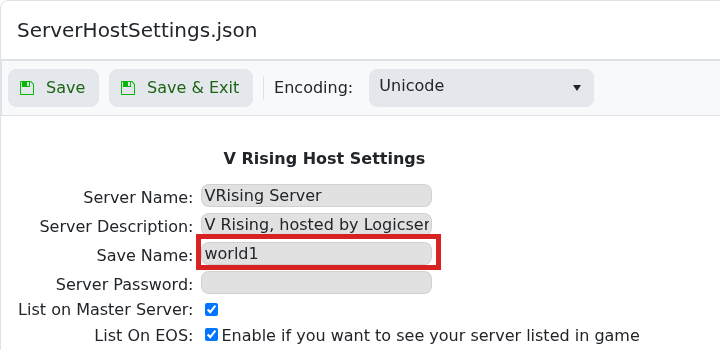
- Click Save & Exit, then start the server.
If the server starts a new world instead, stop it and check that Save Name exactly matches the folder name inside save-data/Saves/v4.


