
Your Rust server description, website, tags, and banner help players recognise the server in the browser. These values are exposed in the server.cfg Config Editor.

  1. Open your Rust server in the control panel.
  2. Click Configuration Files.
  3. Find server.cfg, then click Config Editor.
  4. Edit Server Header Image, Server Description, Server Tags, Website URL, or Website as needed.
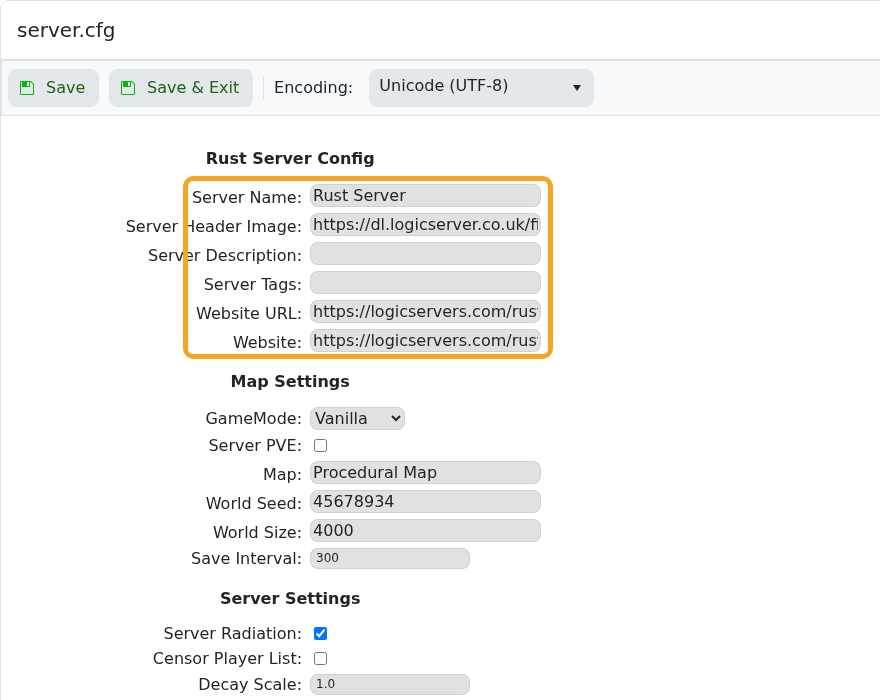
    Rust server.cfg Config Editor showing server browser fields highlighted

  5. Use a direct image URL for Server Header Image.
  6. Click Save & Exit.
  7. Restart the server so the updated browser details are applied.

The Rust browser may cache old server details briefly. Restart the server, then allow a few minutes for the listing to refresh.


  • 0 istifadəçi bunu faydalı hesab edir
Bu cavab sizə kömək etdi?

Uyğun məqalələr

Making yourself admin on a Rust Server

Rust admin access lets a trusted player run server commands, moderate players, save/write config...

How to join a Rust Server

Use the server address from your control panel to join your Rust server. This guide uses...

Installing Rust: IO on your Rust Server

Rust:IO is an older mapping/plugin ecosystem for Rust servers. On our Rust panel, Rust:IO is...

Wiping the world of your Rust server

Wiping and resetting a Rust server are the same basic workflow: remove the current saved data so...

Creating a custom command line for your Rust server

Rust command lines control startup-only options such as RCON, WebRCon, logs, map size, save...
