
RCON gives remote tools access to your Rust server console, so the password must be kept private. On Rust services, the RCON password and WebRCon switch are handled from Commandline Manager.

  1. Open your Rust server in the control panel.
  2. Click Commandline Manager on the left side menu.
  3. On Predefined Commandlines, click Selected beside the active command line.
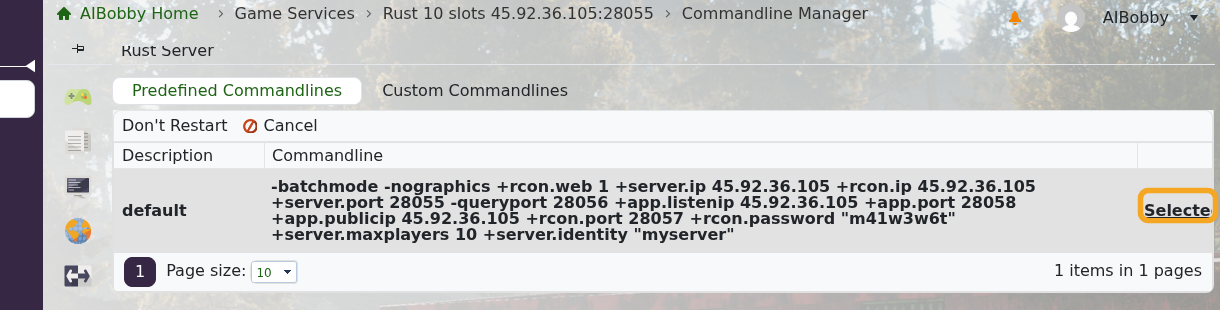
    Rust Commandline Manager showing the Selected commandline option

  4. Enter the new password in RCON Password.
  5. Keep rcon.web enabled if you want to use Facepunch WebRCon or browser-based RCON tools.
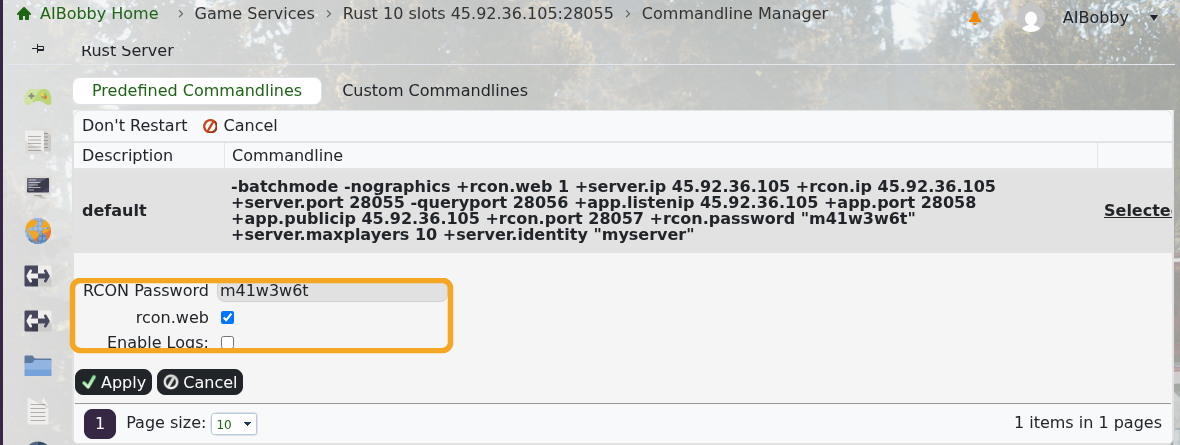
    Rust Commandline Manager showing RCON Password and rcon.web settings

  6. Click Apply.
  7. Restart the server so the RCON password change is applied.
  8. Test the new password with How to use RCON with your Rust server.

If you want to create a separate startup profile instead of editing the predefined command line, use Creating a custom command line for your Rust server. Anyone with the RCON address and password can run server commands, so only share it with trusted admins.


  • 0 A felhasználók hasznosnak találták ezt
Hasznosnak találta ezt a választ?

Kapcsolódó cikkek

Making yourself admin on a Rust Server

Rust admin access lets a trusted player run server commands, moderate players, save/write config...

How to join a Rust Server

Use the server address from your control panel to join your Rust server. This guide uses...

Installing Rust: IO on your Rust Server

Rust:IO is an older mapping/plugin ecosystem for Rust servers. On our Rust panel, Rust:IO is...

Wiping the world of your Rust server

Wiping and resetting a Rust server are the same basic workflow: remove the current saved data so...

Creating a custom command line for your Rust server

Rust command lines control startup-only options such as RCON, WebRCon, logs, map size, save...
