
Upload a Satisfactory save when you want the dedicated server to run a world from your own PC or another host. Take a backup first, stop the server, then upload the save file into the server save folder.
- On your PC, open File Explorer and go to
%LocalAppData%\FactoryGame\Saved\SaveGames. - Find the save file you want to upload. Satisfactory save files normally use the
.savextension. - Open your Satisfactory server in the control panel.
- Click Backup Server.
- Stop the server.
- Click File Manager.
- Open
FactoryGame/Saved/SaveGames, then open theserverfolder.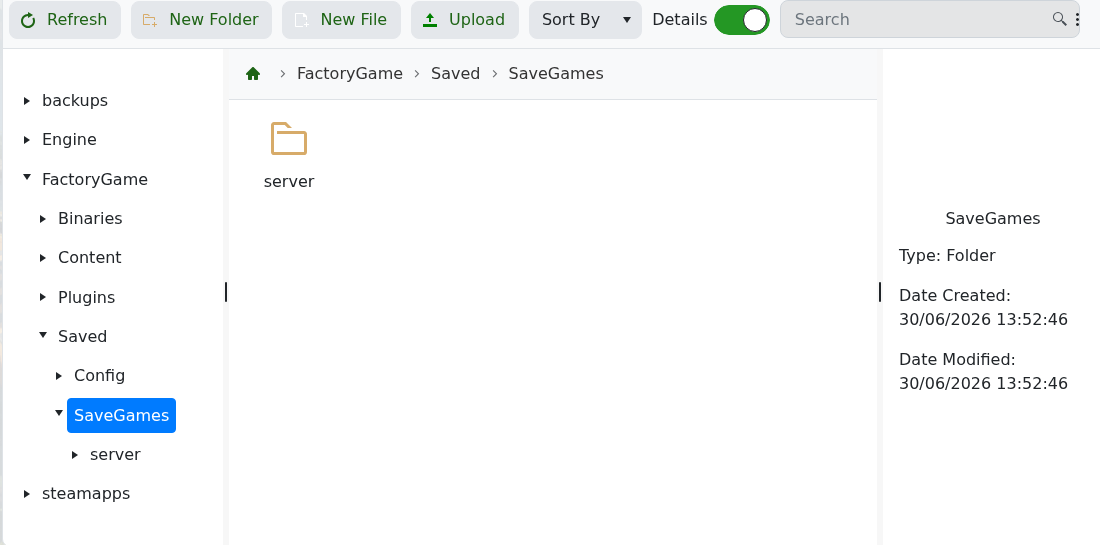
- Upload the
.savfile intoFactoryGame/Saved/SaveGames/server.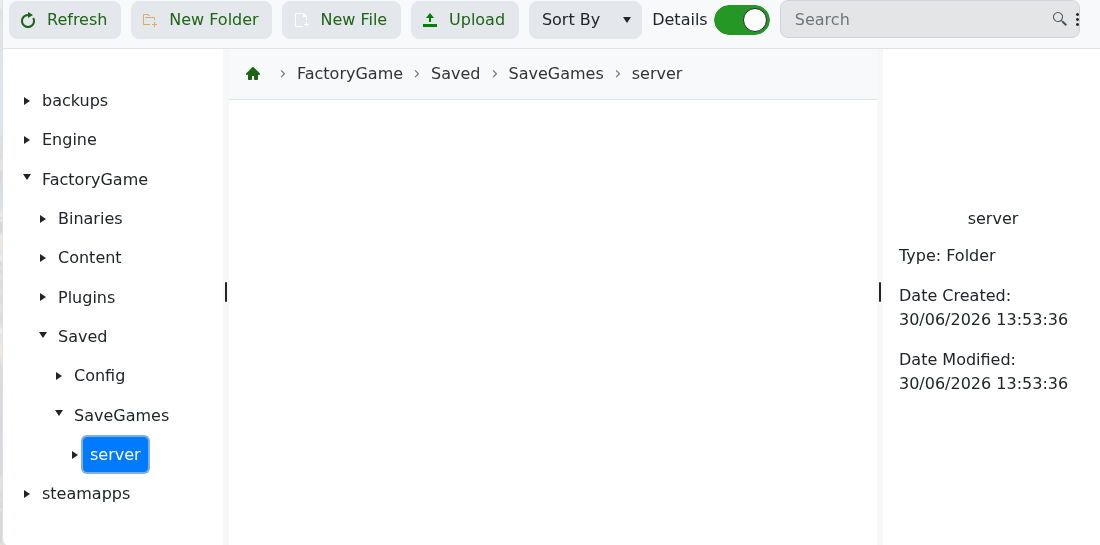
- Start the server, open Server Manager, then check Manage Saves for the uploaded save.
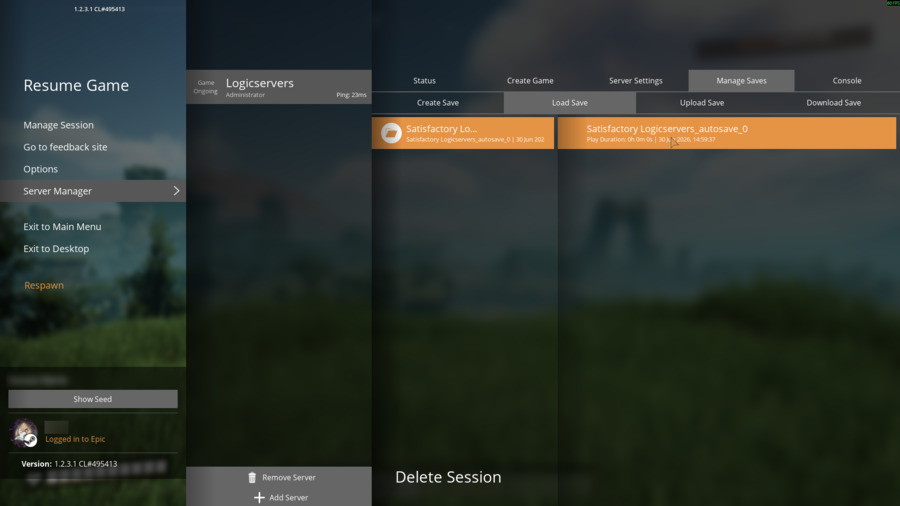
- Load the uploaded save from Server Manager if it is not already active.
If SaveGames/server does not exist yet, start and claim the server once so Satisfactory can generate the save structure. If the server starts a new game instead, recheck the upload path and confirm the save is selected in Satisfactory Server Manager.


