
Satisfactory Server Manager includes a Manage Saves tab for creating, loading, uploading, and downloading server saves. Use this tab after the server has been claimed and started, especially when you are moving a world between your PC and the dedicated server.
- Open Satisfactory and go to Server Manager.
- Select your server from the list.
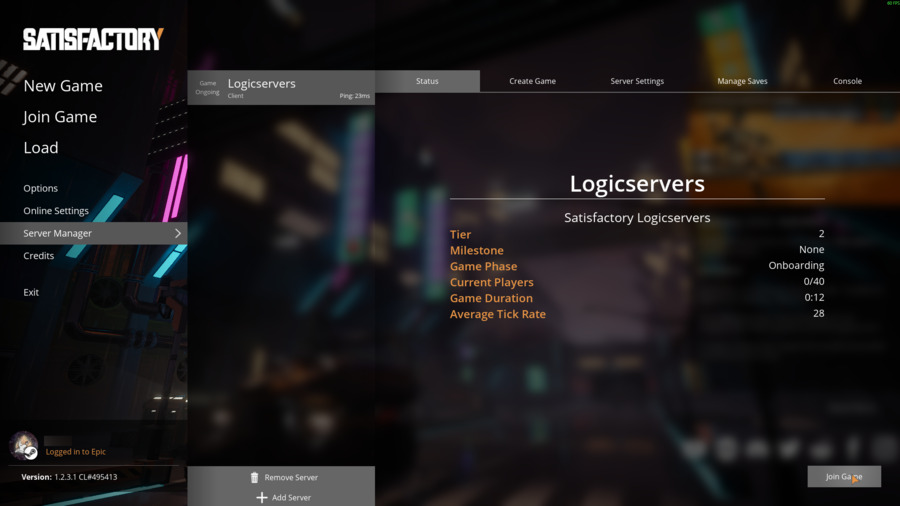
- If Server Manager asks for authentication, enter the admin password.
- Open Manage Saves.
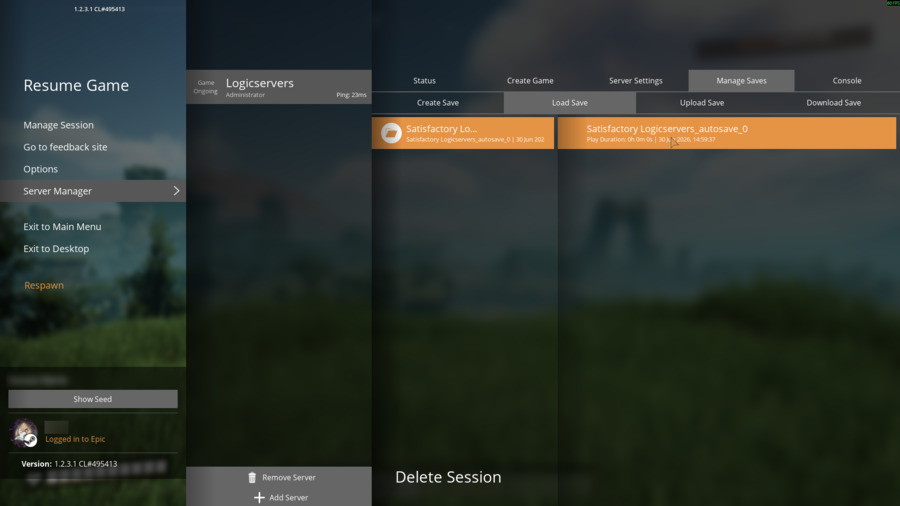
- Use Create Save to create a fresh save from the currently running session.
- Use Load Save to load a selected save on the server.
- Use Upload Save to upload a local
.savfile from your PC through Server Manager. - Use Download Save to download the selected server save to your PC.
| Action | Use it for |
|---|---|
| Create Save | Create a new save from the current server session before making major changes. |
| Load Save | Switch the server to an existing save/session already visible in Manage Saves. |
| Upload Save | Import a local Satisfactory save from your PC into Server Manager. |
| Download Save | Export the selected server save so you can store it locally or move it elsewhere. |
| Delete Session | Remove a selected save/session from the server list. Take a backup first if you may need it again. |
You can also upload saves through the control panel File Manager at FactoryGame/Saved/SaveGames/server. If a save uploaded through File Manager does not appear in Server Manager, restart the server and recheck the path.


