
Windows updates keep the VPS secure, but they can also require a restart. For game servers, plan update restarts during quiet periods so players are not disconnected unexpectedly.
Take a VPS backup before large update batches on important servers: How to back up and restore your VPS.
Check for updates
- Connect to the VPS with Remote Desktop.
- Open Settings.
- Go to Windows Update.
- Click Check for updates.
- Install available updates.
Check update history with PowerShell
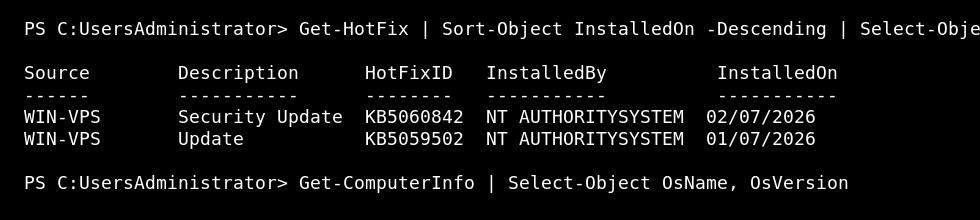
Open PowerShell as Administrator and run:
Get-HotFix | Sort-Object InstalledOn -Descending | Select-Object -First 10
Before restarting a game VPS
If the VPS runs a game server, save or stop the game cleanly before rebooting. For scheduled communities, announce the maintenance window first so players are not disconnected without warning.
If Windows Update is stuck for a long time, check Task Manager and the Windows Update screen before forcing a reboot.
Restart after updates
- Stop game servers or important applications cleanly.
- Restart the VPS if Windows says a restart is required.
- Log back in after the reboot.
- Start the services again and check they work.
Check last boot time
Get-CimInstance Win32_OperatingSystem | Select-Object LastBootUpTime
Avoid starting large game updates and Windows updates at the same time unless you have already taken a backup.


