
Windows Task Scheduler lets you run a script, program, backup job, cleanup command, or restart helper at a set time. It is useful on a Windows VPS when you want a repeatable task to run without leaving a Remote Desktop session open.
For game servers, be careful with scheduled restarts or update scripts. Warn players first, avoid busy times, and test the task manually before relying on it.
Before creating the task, make sure the script, batch file, or command works when you run it manually. Put it in a clear path such as C:\Scripts\daily-task.ps1 so it is easy to find later.
- Connect to the VPS with Remote Desktop. Open the Start menu, search for Task Scheduler, then open it. In the Actions panel, click Create Basic Task.
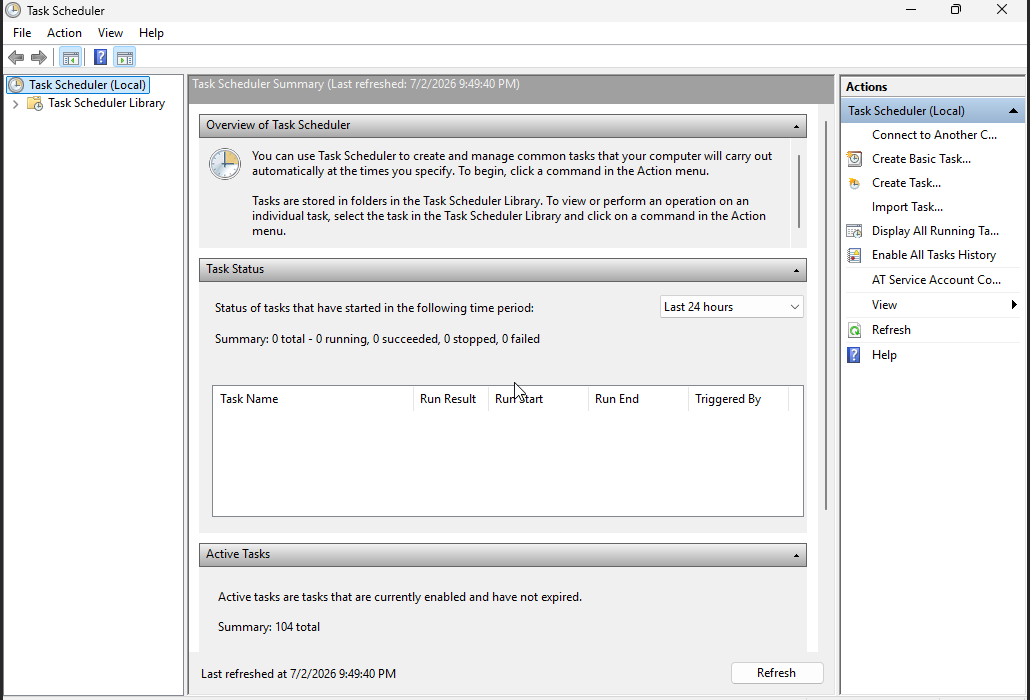
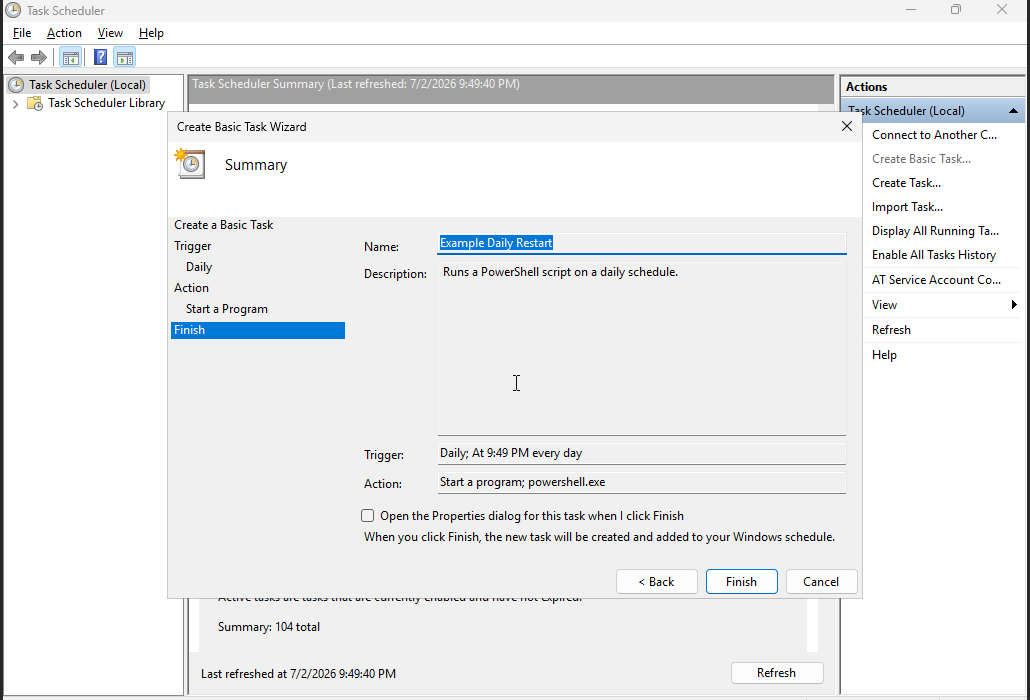
- Enter a clear task name and description. Use a name that explains what the task does, such as Example Daily Restart, then click Next.
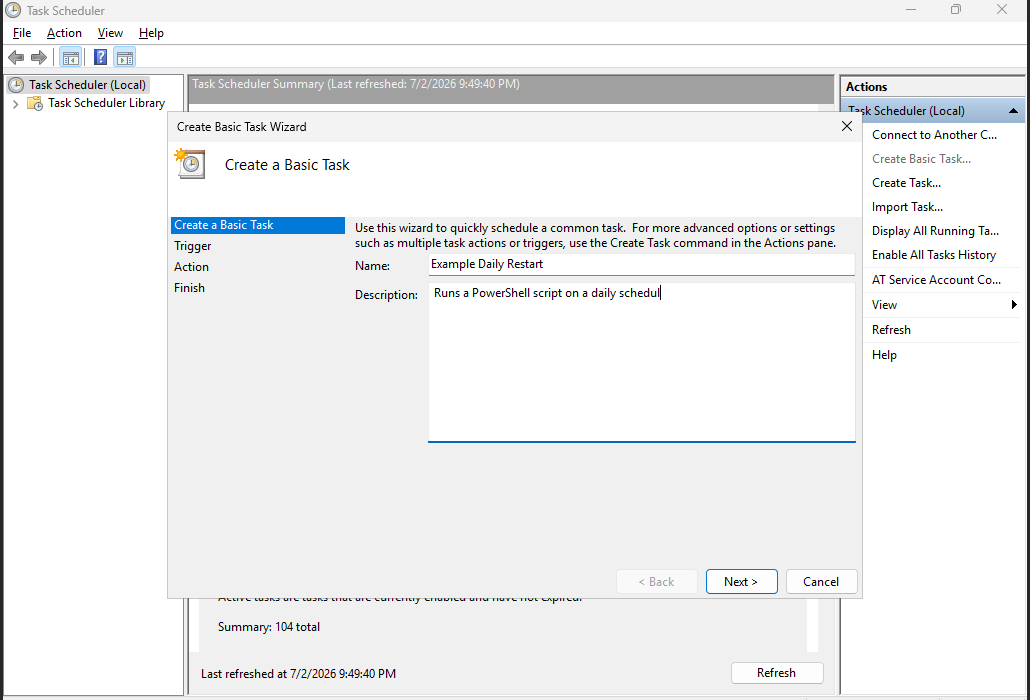
- Choose when the task should run. For example, select Daily if it should run once per day, then click Next.
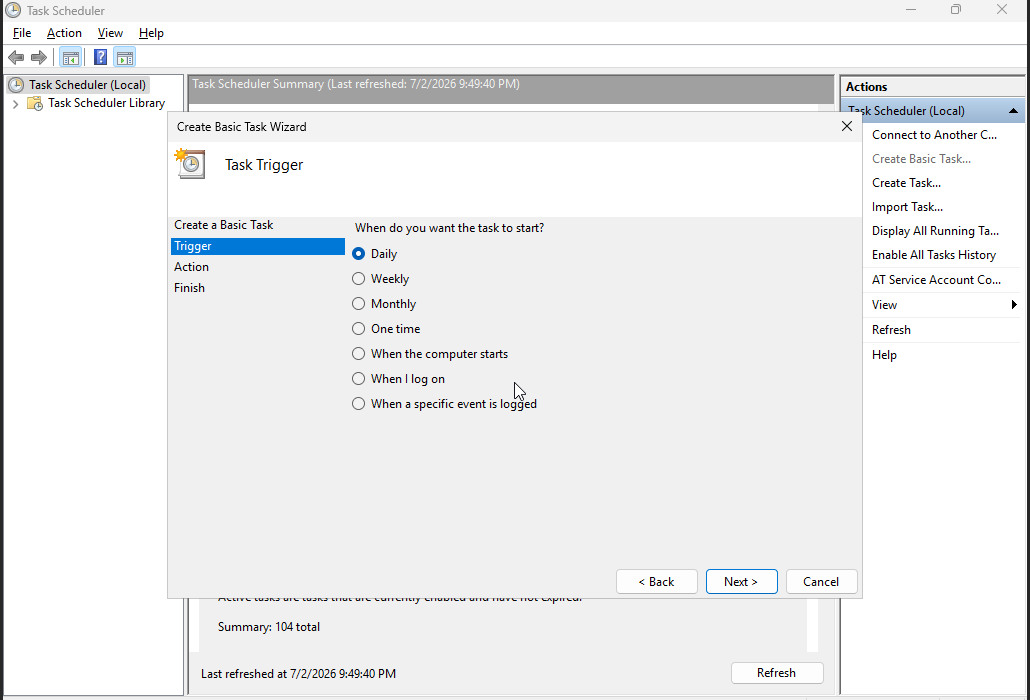
- Set the schedule time and repeat interval. Use the VPS time zone shown inside Windows if it is different from your local time, then click Next.
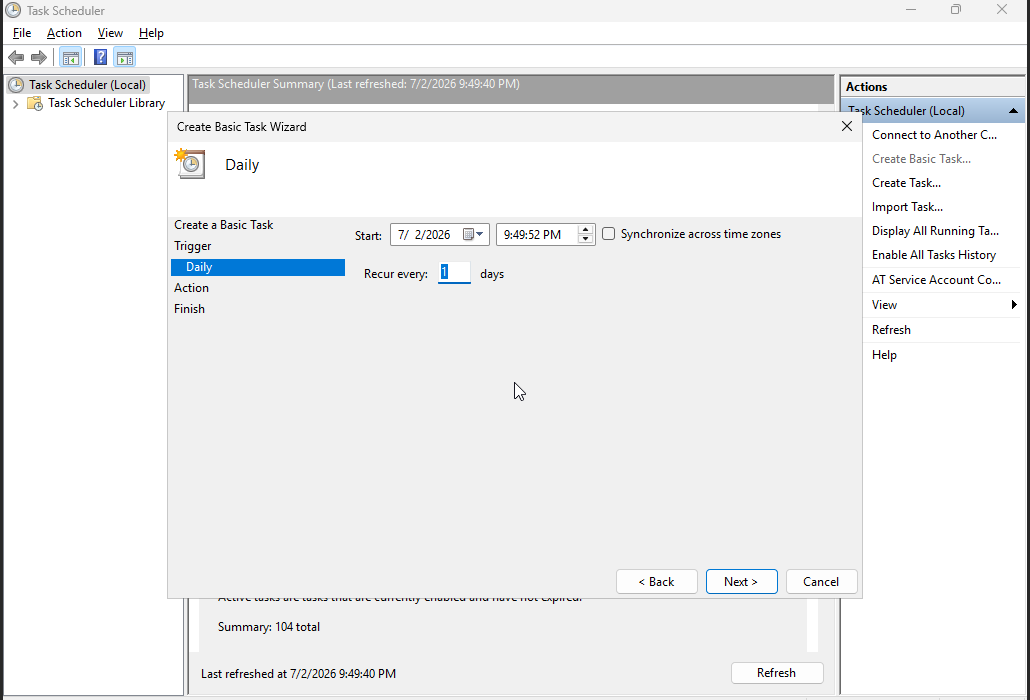
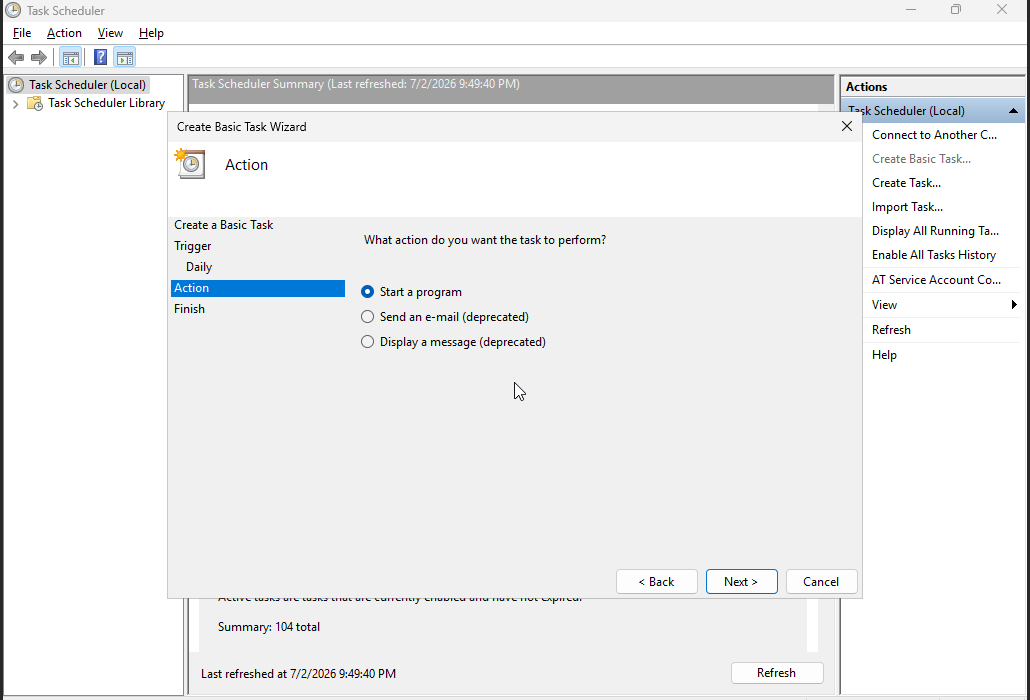
- Select Start a program, then click Next. This option can run a batch file, PowerShell script, executable, or command-line tool.
- Enter the program and arguments. For a PowerShell script, use
powershell.exeas the program and put the script path in the arguments box:Program/script: powershell.exe Add arguments: -ExecutionPolicy Bypass -File C:\Scripts\daily-task.ps1
If you are running a batch file directly, use the path to the
.batfile as the program instead.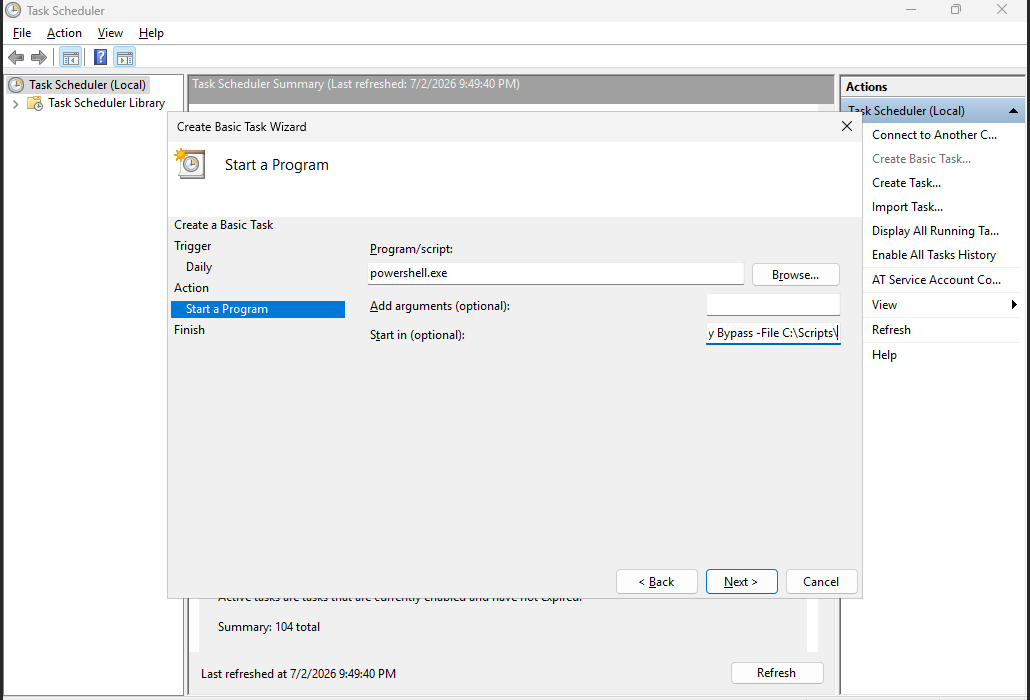
- Review the summary. If the task name, trigger, or action is wrong, click Back and fix it. If it is correct, click Finish.
- Test the task after creating it. Right-click the task in Task Scheduler, click Run, then check the script output, logs, or application behaviour before relying on the schedule.
If the task needs administrator rights, use Create Task instead of Create Basic Task, then tick Run with highest privileges.
For tasks that should run when nobody is logged in, use Create Task and configure the security options carefully. You may need to save Windows credentials for that task.
If the task fails, check the script path, working directory, permissions, and whether the task needs to run as Administrator.


