
If a game server says a port is already in use, another process is already listening on that port. Find the process before changing ports or closing random applications.
Check whether the port is TCP or UDP first. Many game servers use UDP for player traffic and TCP for admin tools or web interfaces.
Find the process using a TCP port
Open PowerShell as Administrator and run:
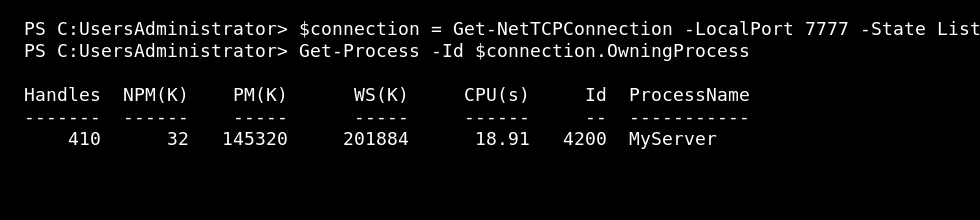
$connection = Get-NetTCPConnection -LocalPort 7777 -State Listen
Get-Process -Id $connection.OwningProcess
Find the process using a UDP port
$endpoint = Get-NetUDPEndpoint -LocalPort 7777
Get-Process -Id $endpoint.OwningProcess
Replace 7777 with the port you are checking.
Stop the process only if safe
Stop-Process -Id PROCESS_ID
Do not stop processes you do not recognise. If the process belongs to another game server, database, Windows service, or remote access tool, stopping it can break that service.
Common reasons ports conflict
- A second copy of the same game server is still running.
- A previous server did not close cleanly.
- Two servers were configured with the same port.
- A helper, web server, or RCON tool is already using the port.
After freeing the port
- Start the game server or application again.
- Check the port is listening.
- Check Windows Firewall allows the port.
- Test from the game client or external tool.


