
Ban disruptive players by using the in-game admin command or by adding their SteamID to the server ban list. To unban someone, remove their SteamID from banlist.txt, save the file, then restart the server.
Ban A Player In-Game
- Make yourself admin first: What are the admin commands for a Palworld server.
- Run
/ShowPlayersto list online players and copy the correct SteamID. - Ban the player with:
/BanPlayer SteamID
Ban Or Unban From banlist.txt
- Open your Palworld server in the control panel.
- Click File Manager.
- Go to
Pal/Saved/SaveGames.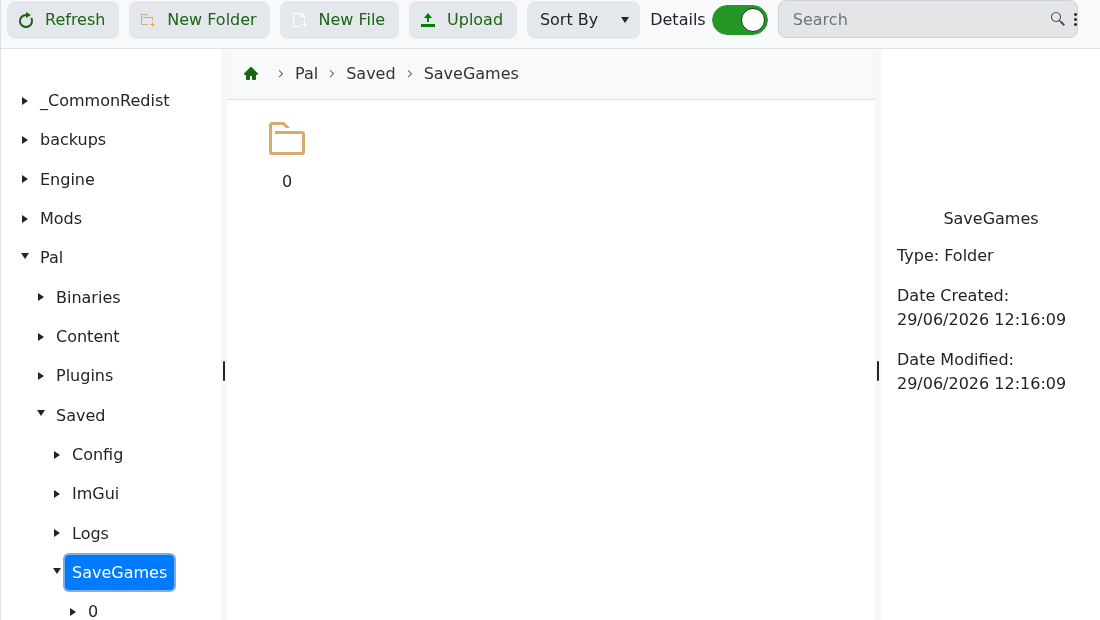
- Open or create
banlist.txt. - To ban a player manually, add one SteamID per line.
- To unban a player, remove their SteamID from the file. Leave any other SteamIDs that should remain banned.
- Click Save & Exit.
- Restart the server and ask the player to try joining again.
If you only know the player's Steam profile, use How to find your personal Steam ID number to convert it to a SteamID64 before editing the ban list. Check the ID carefully before banning or unbanning, especially on servers with players using similar names.


