
Use Steam Update when Aloft has released a new server update on Steam. Take a backup before running it so you have a restore point if the update causes problems.

  1. Open your Aloft server in the control panel.
  2. Click Backup Server and wait for the backup to finish.
  3. Click Steam Update on the left side menu.
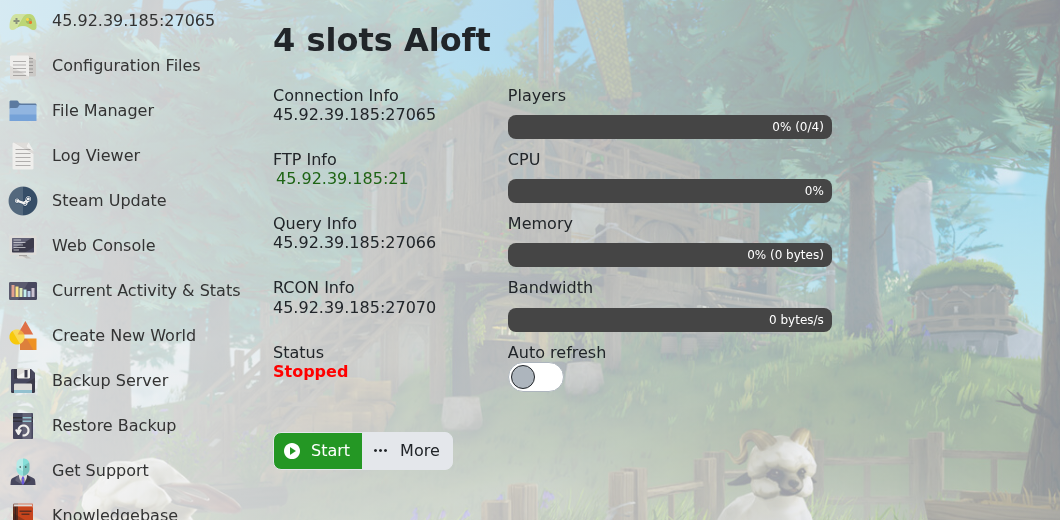
    Aloft control panel Steam Update button

  4. The panel opens a console-style Steam update window. Leave it open until the update process finishes. Steam Update handles the server stop/start process itself.

If the update fails or the server will not start after updating, submit a support ticket and include the last lines from the Web Console.


  • 0 Utenti hanno trovato utile questa risposta
Hai trovato utile questa risposta?

Articoli Correlati

Changing the name of your Aloft Server

The server name is controlled from AloftServer.ps1 in the Config Editor. Open your Aloft server...

Hiding your Aloft server from the server list

Use Is Visible to control whether your Aloft server appears publicly in the server list. Open...

How to upload a world to your Aloft Server

Aloft world saves are stored in the server file manager under AppData/Data06/Saves. Upload the...

How to join an Aloft Server

You need the server address from the control panel before joining your Aloft server. Open your...

How to create a new world on your Aloft Server

Use Create New World when you want the server to generate a fresh Aloft world instead of loading...
