
Palworld mods can be installed from Mod Manager when the required framework is listed there. Some mods also need manual files uploaded with File Manager or SFTP. Always read the mod author's install notes because Palworld mods can use different folders depending on whether they are pak-based, UE4SS-based, or client-only.
Before You Install A Mod
Take a backup first: How to Backup your Palworld Server. If the mod also needs to be installed on your own PC, make sure every player uses the same client-side mod version before joining.
Upload Pak Mods
- Open File Manager.
- Go to
Pal/Content/Paks. - Upload the mod files or ZIP file requested by the mod author. Do not delete
Pal-WindowsServer.pak.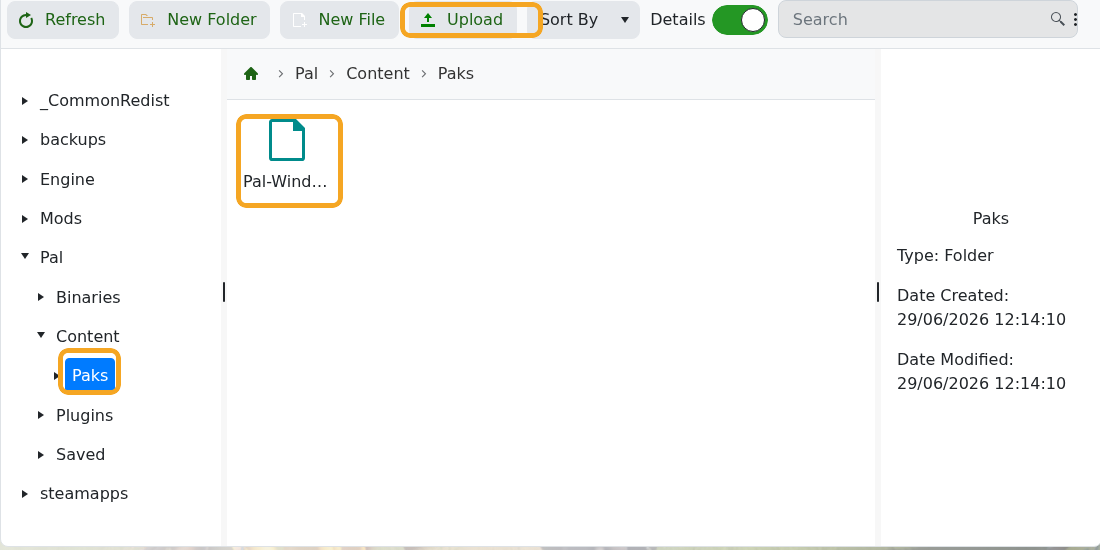
- If you uploaded a ZIP file, extract it in File Manager so the mod files are in the correct folder.
Install RE-UE4SS From Mod Manager
- Open your Palworld server in the control panel.
- Stop the server before changing mod files.
- Click Mod Manager.
- Install RE-UE4SS if the mod requires UE4SS. Use RE-UE4SS EXP only if the mod author specifically asks for the experimental build.
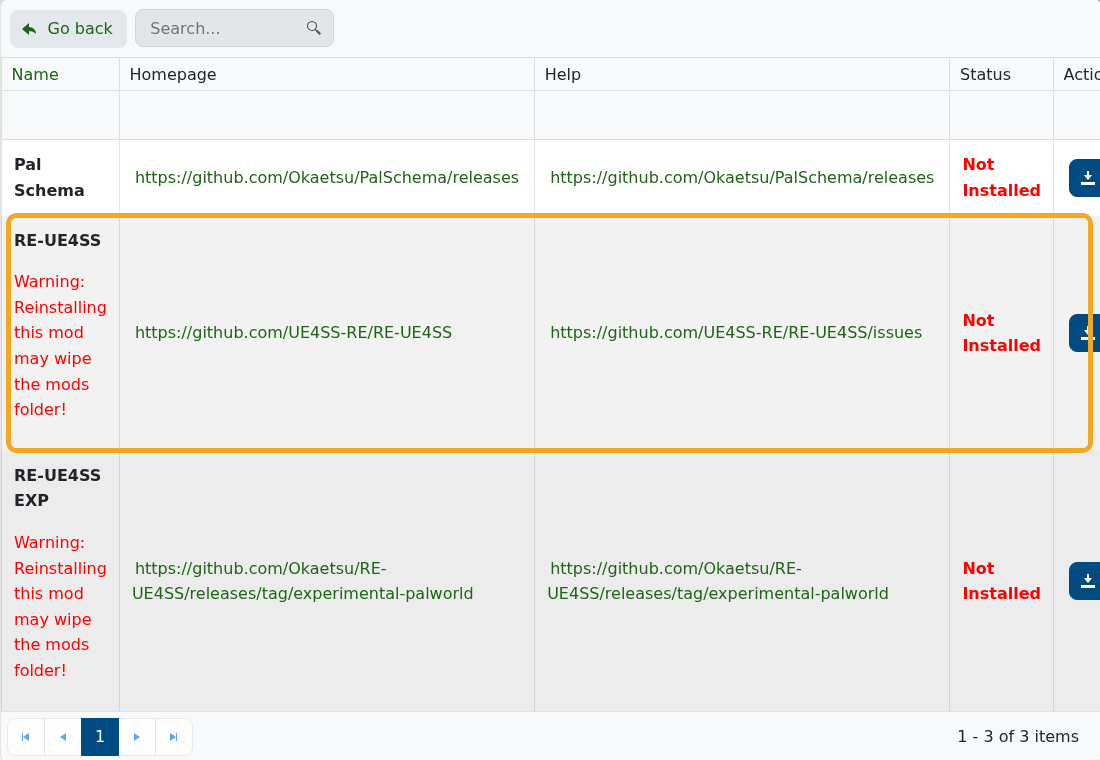
- Wait for the install task to finish. The status should change to Installed.
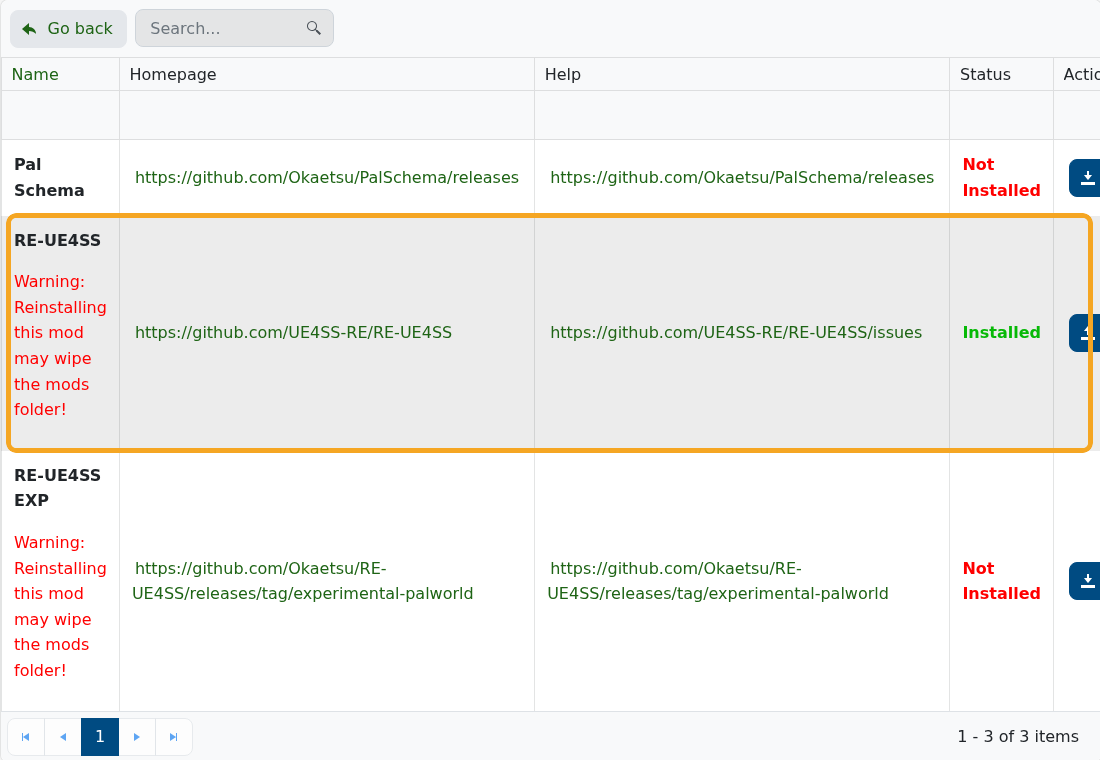
Mod Manager warns that reinstalling RE-UE4SS may wipe the Mods folder. Back up manual mods before reinstalling or switching UE4SS builds.
Upload UE4SS Mods
- Install RE-UE4SS from Mod Manager first.
- Open File Manager, then go to
Mods. - Upload the UE4SS mod folder or files exactly as the mod author provides them. Keep each mod's folder structure intact.
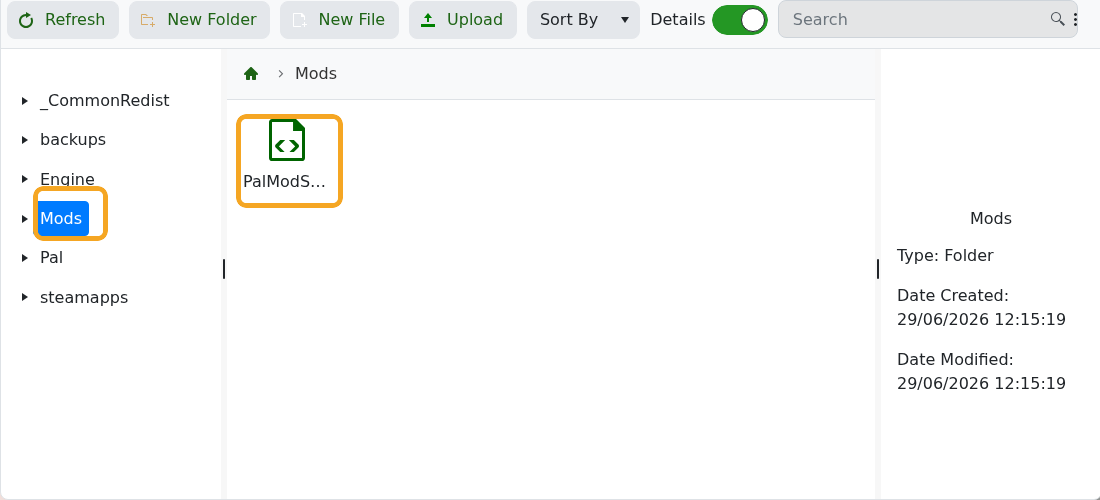
- For larger uploads, use SFTP instead of the browser upload: How to connect to SFTP using FileZilla.
Finish And Test
- Start the server again.
- Open Web Console or Log Viewer and check for mod load errors.
- Join the server with the matching client-side mods if the mod requires them.
If the server will not start after installing a mod, remove the most recent mod files or restore the backup you created before installing it. If you are unsure which file caused the issue, submit a support ticket with the mod name and the latest Web Console or Log Viewer output.


