
Most Arma 3 server behaviour is controlled by server.cfg. Basic values such as name and password can be edited with Config Editor, while advanced options such as admin password, player limits, voting, and mod visibility are edited with Text Editor.
- Open your Arma 3 server in the control panel.
- Click Configuration Files.
- Find
server.cfg. - Use Config Editor for simple name/password changes, or Text Editor for advanced settings.
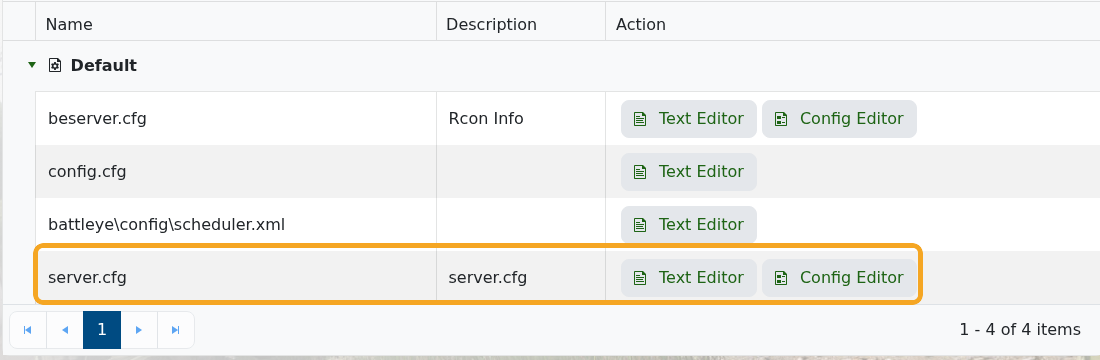
- Edit the required settings.
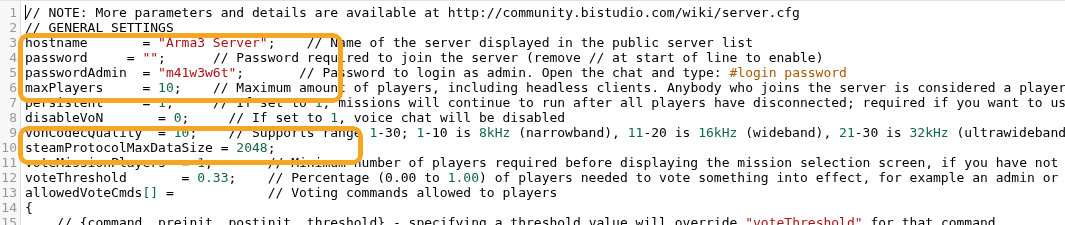
- Click Save & Exit, then restart the server.
| Setting | What it controls |
|---|---|
hostname | The server name shown in the Arma 3 browser. |
password | The join password for normal players. Leave blank for no password. |
passwordAdmin | The password used for in-game admin login with #login. |
maxPlayers | The maximum number of player slots. |
persistent | Keeps the mission running when players disconnect. |
disableVoN | Turns built-in voice chat on or off. |
vonCodecQuality | Controls built-in voice quality. |
steamProtocolMaxDataSize | Controls how much mod metadata the server sends to the launcher. |
class Missions | Defines the mission rotation the server loads. |


