
The VPS console gives you direct screen access to the virtual server. It is useful when normal SSH or Remote Desktop access is blocked, broken, or not ready yet.
Use the console for recovery work, first boot checks, firewall mistakes, password troubleshooting, and operating system startup errors.
Open the console
- Open your VPS service from the client area.
- Open the VPS control panel.
- Open the VPS you want to manage.
- Click the console icon in the top-right action row.

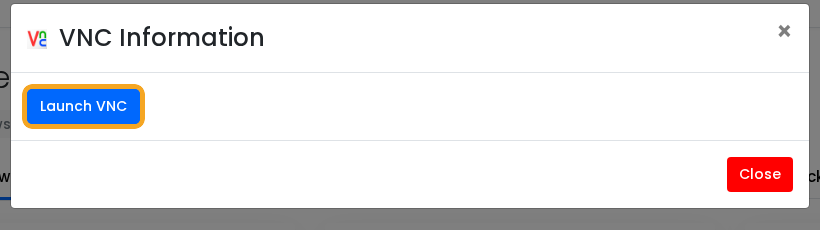
- Click Launch VNC.
When to use console access
- SSH is not accepting your Linux login.
- Remote Desktop is not accepting your Windows login.
- You changed firewall rules and locked yourself out.
- The VPS is still booting or installing updates.
- You need to see an on-screen boot or recovery message.
The console is not as smooth as SSH or Remote Desktop. Once the VPS is working normally, use SSH for Linux or Remote Desktop for Windows.


