
Reinstalling a VPS replaces the current operating system with a fresh install. This is useful when you want to start again, switch operating system, or remove a broken setup.
Warning: reinstalling wipes the VPS disk. Back up anything important before continuing.
The operating system list can vary depending on the VPS plan, location, and templates currently available on the VPS node. On the reinstall screen you may see template families such as Debian, AlmaLinux, Windows, Rocky Linux, Oracle Linux, and Ubuntu.
Before reinstalling
- Download or copy any files you need to keep.
- Export databases, game saves, config files, keys, and certificates.
- Make a note of installed services, ports, and passwords.
- Confirm you are reinstalling the correct VPS.
Choosing an operating system
Pick the template family that matches what you want to run on the VPS, then click Select Version under that operating system to choose the specific version available on the node.
| Template type | Use it for |
|---|---|
| Windows | Windows-only game servers, Remote Desktop workflows, SteamCMD setups that are easier to manage through a desktop, and software that does not support Linux well. |
| Ubuntu | General Linux hosting, Docker, web services, bots, and game servers with good Ubuntu support. |
| Debian | Lightweight Linux hosting, stable server setups, and users who prefer a minimal base system. |
| AlmaLinux | RHEL-style hosting, control panels, enterprise-style Linux tools, and users moving from CentOS-based setups. |
| Rocky Linux | RHEL-compatible Linux hosting where you want a CentOS-style server base with long-term stability. |
| Oracle Linux | RHEL-compatible Linux hosting for users who specifically prefer Oracle's distribution or need compatibility with Oracle Linux tooling. |
If the reinstall page does not show the operating system you need, submit a support ticket before reinstalling. We can check whether that template is available for your VPS location or advise which option is closest.
Start the reinstall
- Open your VPS service from the client area.
- Open the VPS control panel.
- Open the VPS you want to rebuild.
- Click the Install tab.

- Open Reinstall OS, then choose the operating system or template you want to install.
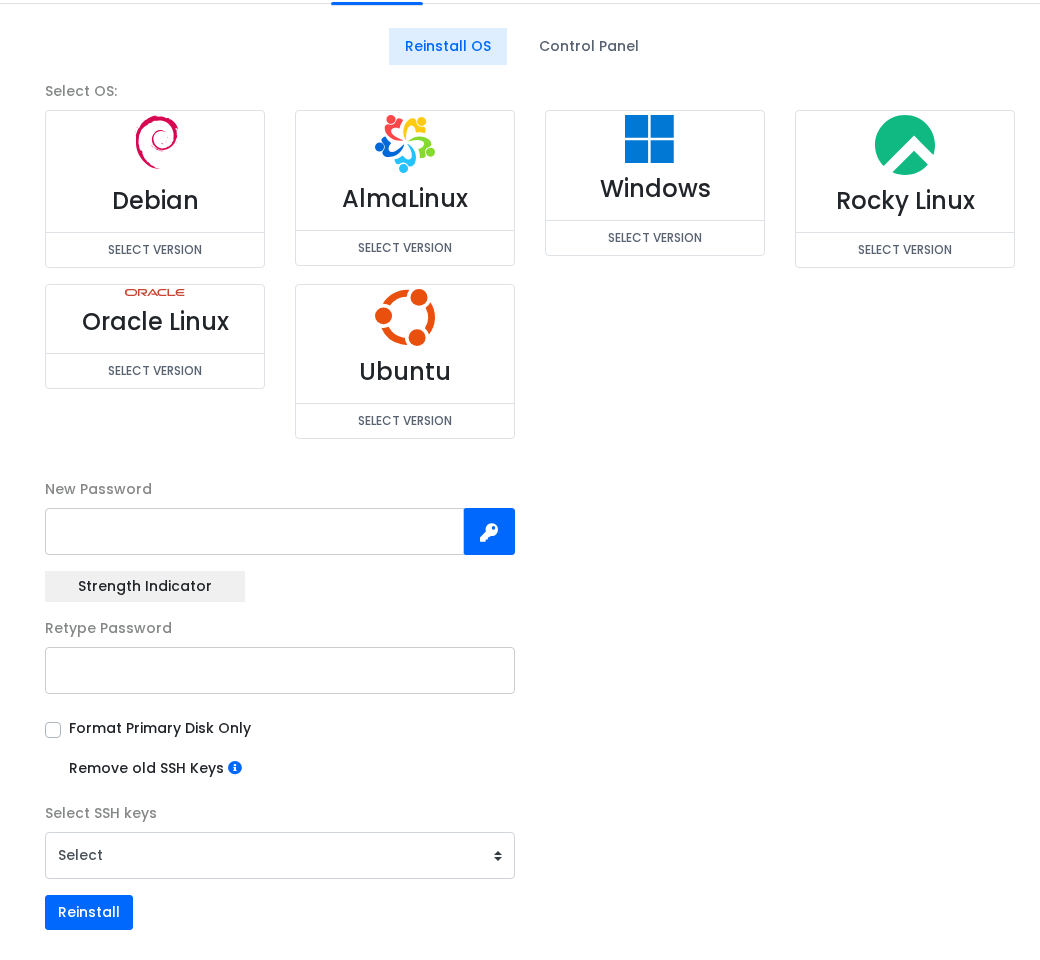
- Enter the new root or administrator password for the rebuilt VPS.
- Choose whether to remove old SSH keys. Use this if you want the rebuild to start with fresh access credentials.
- Select an SSH key if you want one added during the reinstall.
- Click Reinstall only when you are sure the disk can be wiped.
- Wait for the reinstall task to finish, then use the VPS console if you need to watch the first boot.
After the rebuild finishes, connect using the new operating system details. Old passwords, files, firewall rules, and installed applications may no longer exist after reinstalling.


