
journalctl reads logs from systemd. Use it when a service fails, a game server will not start, SSH is behaving oddly, or you need to see recent system errors.
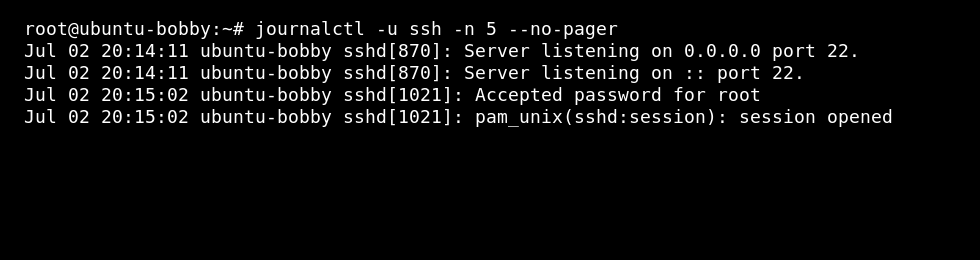
The most useful form is usually journalctl -u service-name, because it filters the log to one service instead of showing the whole VPS.
- Connect to the VPS with SSH.
- View recent system logs:
sudo journalctl -n 100
- Follow live logs:
sudo journalctl -f
- View logs for one service, replacing
nginxwith your service name:sudo journalctl -u nginx
- Limit logs by time:
sudo journalctl --since "1 hour ago"
sudo journalctl -u myserver --since "today"
- Print output directly instead of opening the pager:
sudo journalctl -u myserver --no-pager -n 100
Common options
| Option | Use |
|---|---|
-u service | Show logs for one service. |
-f | Follow new log lines live. |
-n 100 | Show the last 100 lines. |
--since | Limit logs to a time range. |
--no-pager | Print output directly instead of opening the pager view. |
When troubleshooting a failed service, start with the newest lines first. The useful error is usually near the bottom of the output, directly after the latest start attempt.


