
scp and rsync copy files over SSH. Use them for configs, scripts, backups, worlds, and server folders when SFTP is not convenient.
scp is best for quick one-off copies. rsync is better for repeated syncs because it can copy only changed files, preserve permissions, exclude folders, preview changes, and mirror deletions when you ask it to.
Copy one file with scp
scp ./server.cfg username@VPS_IP_ADDRESS:/home/username/server.cfg
Copy a folder with scp
scp -r ./world username@VPS_IP_ADDRESS:/home/username/world
Use a custom SSH port with scp
scp uses an uppercase -P for the SSH port:
scp -P 2222 ./server.cfg username@VPS_IP_ADDRESS:/home/username/server.cfg
Use an SSH key with scp
scp -i ~/.ssh/mykey ./server.cfg username@VPS_IP_ADDRESS:/home/username/server.cfg
Sync a folder with rsync
rsync -avz ./world/ username@VPS_IP_ADDRESS:/home/username/world/
The trailing slash matters. ./world/ copies the contents of the folder into the destination folder. Without the trailing slash, rsync copies the folder itself into the destination.
Preview an rsync before copying
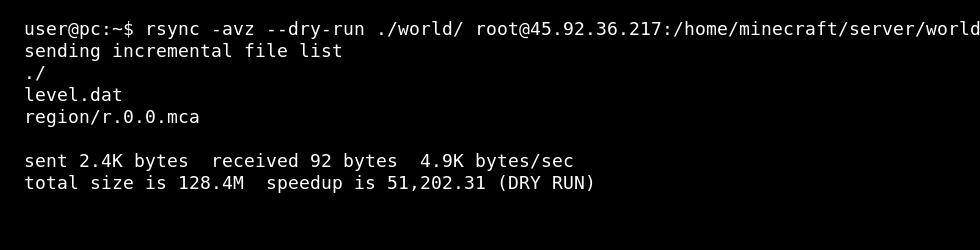
Use --dry-run when you want to check what would change before touching the remote files:
rsync -avz --dry-run ./world/ username@VPS_IP_ADDRESS:/home/username/world/
Mirror a folder exactly
--delete removes remote files that no longer exist locally. This is useful for exact mirrors, but dangerous if you point it at the wrong folder.
rsync -avz --delete ./world/ username@VPS_IP_ADDRESS:/home/username/world/
Run the same command with --dry-run first if you are using --delete.
Exclude files or folders
Exclude logs, cache folders, temporary files, or generated files you do not want to copy:
rsync -avz --exclude "logs/" --exclude "*.tmp" ./server/ username@VPS_IP_ADDRESS:/home/username/server/
Use a custom SSH port with rsync
rsync passes SSH options through -e:
rsync -avz -e "ssh -p 2222" ./server/ username@VPS_IP_ADDRESS:/home/username/server/
Use an SSH key with rsync
rsync -avz -e "ssh -i ~/.ssh/mykey" ./server/ username@VPS_IP_ADDRESS:/home/username/server/
Copy from the VPS back to your PC
Reverse the source and destination when downloading a folder from the VPS:
rsync -avz username@VPS_IP_ADDRESS:/home/username/world/ ./world-backup/
Useful rsync options
| Option | What it does |
|---|---|
-a | Archive mode. Preserves folders, permissions, timestamps, and symlinks. |
-v | Verbose output, so you can see what is being copied. |
-z | Compress data during transfer. Useful on slower connections. |
--progress | Shows copy progress for large files. |
--dry-run | Shows what would happen without changing files. |
--delete | Deletes remote files that are not present in the source. |
--exclude | Skips matching files or folders. |
When to use each
| Tool | Best for |
|---|---|
scp | Simple one-off file or folder copies. |
rsync | Repeated syncs, larger folders, backups, excludes, dry-runs, and copying only changed files. |
Stop the game server before replacing live world files, database files, or saves. Take a backup first if you are using --delete or copying over an existing world.


