
A systemd service runs your Minecraft server in the background as a managed Linux service. This means you can start, stop, restart, check logs, and enable it on boot with systemctl instead of leaving the server running in an SSH window.
This guide is for a Linux VPS where you already have SSH access and a Minecraft server jar. If you have not installed Java or downloaded a Minecraft server jar yet, do that first, then come back to this guide.
In the examples below, the Minecraft server folder is /home/minecraft/server and the jar file is named server.jar. Change those paths if your server uses a different folder or jar name.
- Create a dedicated Linux user for the Minecraft server. Running the server as its own user is safer than running it as
root.sudo useradd -m -r -s /bin/bash minecraft sudo mkdir -p /home/minecraft/server sudo chown -R minecraft:minecraft /home/minecraft/server
- Upload or download your Minecraft server jar into
/home/minecraft/server. The folder should contain the jar and, after the first manual run, files such aseula.txt,server.properties,logs, and the world folder.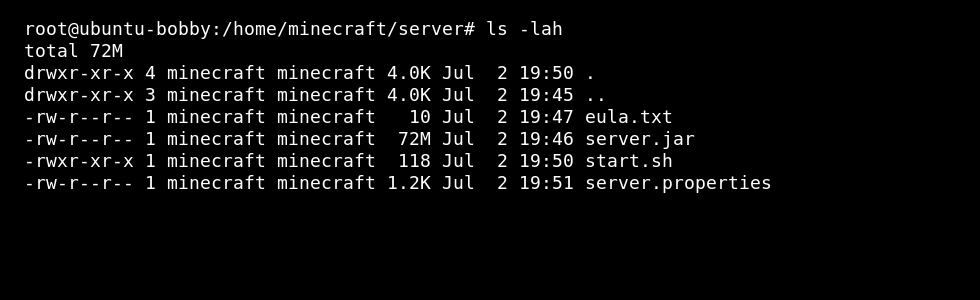
- Accept the Minecraft EULA after you have read it. Minecraft will not start properly until
eula.txtcontainseula=true.sudo -u minecraft nano /home/minecraft/server/eula.txt
- Create a start script. This keeps the Java command in one place, so the systemd service can run the same command every time.
sudo nano /home/minecraft/server/start.sh
Use a command like this, adjusting the RAM and jar name for your server:
#!/bin/bash
cd /home/minecraft/server
exec java -Xms2G -Xmx4G -jar server.jar nogui
-Xmsis the starting RAM allocation.-Xmxis the maximum RAM allocation. Do not set-Xmxto all VPS memory; leave RAM for Linux, Java overhead, SSH, backups, and other services.
- Make the start script executable and owned by the Minecraft user.
sudo chmod +x /home/minecraft/server/start.sh
sudo chown minecraft:minecraft /home/minecraft/server/start.sh
- Test the start script manually before creating the service. Stop it with
stopfrom the Minecraft console or pressCtrl+Cafter confirming it starts.sudo -u minecraft /home/minecraft/server/start.sh
If this manual test fails, fix the error before continuing. A systemd service will not fix a broken Java command, missing jar, wrong path, or unaccepted EULA.
- Create the systemd service file.
sudo nano /etc/systemd/system/minecraft.service
[Unit]
Description=Minecraft Server
After=network.target

[Service]
User=minecraft
WorkingDirectory=/home/minecraft/server
ExecStart=/home/minecraft/server/start.sh
Restart=on-failure
RestartSec=10

[Install]
WantedBy=multi-user.target
Usertells Linux which account runs the server.WorkingDirectoryis the Minecraft folder.ExecStartis the script systemd runs.Restart=on-failurerestarts the service if it crashes.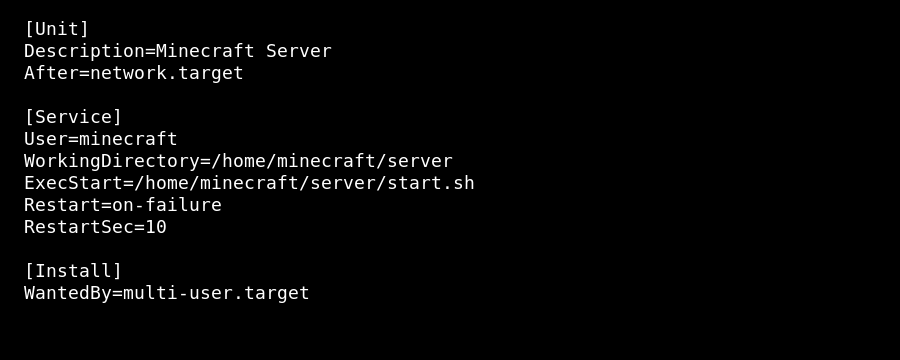
- Reload systemd so it sees the new service file.
sudo systemctl daemon-reload
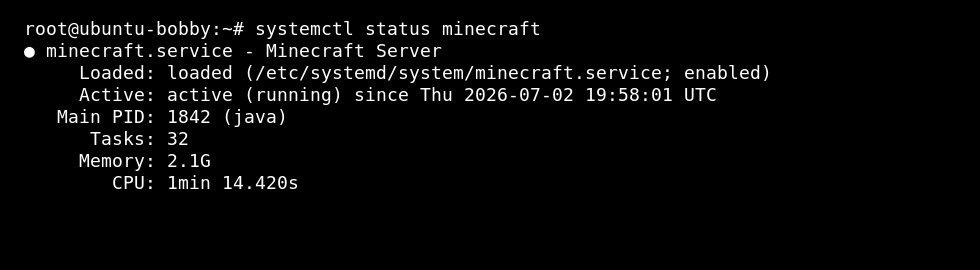
- Start the Minecraft service and check its status.
sudo systemctl start minecraft
sudo systemctl status minecraft --no-pager
- Enable the service on boot once you are happy it starts correctly.
sudo systemctl enable minecraft
- Open the Minecraft port in your firewall if you use one. The default Java Edition port is
25565TCP.sudo ufw allow 25565/tcp
On AlmaLinux, Rocky Linux, Oracle Linux, or CentOS with firewalld, use:
sudo firewall-cmd --permanent --add-port=25565/tcp
sudo firewall-cmd --reload
Useful service commands
| Command | What it does |
|---|---|
sudo systemctl start minecraft | Starts the Minecraft service. |
sudo systemctl stop minecraft | Stops the Minecraft service. |
sudo systemctl restart minecraft | Restarts the Minecraft service. |
sudo systemctl status minecraft --no-pager | Shows whether the service is running or failed. |
sudo journalctl -u minecraft -f | Follows the live service log. |
sudo systemctl disable minecraft | Stops the service starting automatically on boot. |
Troubleshooting
| Problem | What to check |
|---|---|
| Service fails immediately | Check the jar file name, ExecStart path, Java install, and eula.txt. |
| Players cannot connect | Check the server is running, port 25565 is open, and server.properties has the right port. |
| Server runs out of memory | Lower -Xmx, reduce view distance, remove heavy mods, or upgrade RAM. |
| Changes are not applying | Restart the service after editing server.properties or replacing the jar. |
Take a backup before replacing the jar, changing worlds, editing important config files, or updating a modded server.


