
The VPS panel can create full-server backups and restore them later. Use this before major updates, risky configuration changes, software installs, game-server migrations, panel installs, or file changes that could leave the VPS broken.
A VPS backup is a recovery point for the whole virtual server. It is not the same as copying one save file, one config folder, or one database dump. For important game worlds and databases, keep a file-level backup as well as a VPS backup.
- Log in to the client area.
- Open your VPS service.
- Open the VPS control panel.
- Use the top VPS panel tabs to find the server management tools.

- Click the Backups tab.

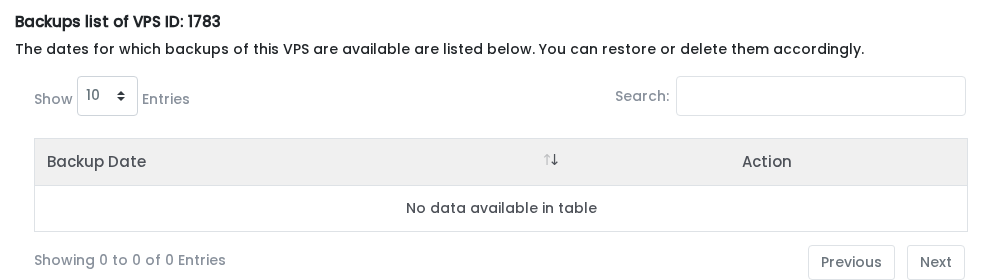
- Check the backups list. Existing backups appear here with restore and delete actions. If the table says no data is available, there is currently no backup to restore.
Create a backup
- Open the Backups tab.
- Check your monthly backup usage and available backup slots.
- Stop important applications first if you want the cleanest backup state. This is recommended for databases, game servers, and anything actively writing files.
- Click Backup Now.
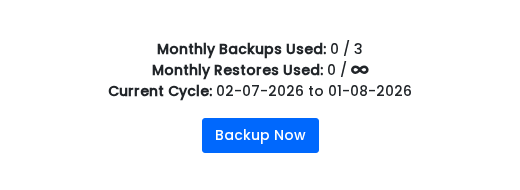
- Wait for the backup task to finish before updating software, editing important files, or changing the server.
You do not have to stop the entire VPS for every backup. The reason we recommend stopping busy services first is to reduce the chance of backing up files while they are halfway through being written.
If the backup list is empty, there are no backups available to restore yet. Create a backup before updating software, changing game files, installing services, or rebuilding applications.
Restore a backup
- Open the Backups tab.
- Find the backup date you want to restore. If the list is empty, you do not currently have a panel backup available for this VPS.

- Use the restore action shown next to that backup.
- Confirm the restore and wait for it to complete.
- Check the VPS after the restore finishes. Start your services again and confirm the files or application state are correct.
Restoring a VPS backup rolls the VPS back to the selected backup state. Files changed after that backup was created may be lost, so copy anything newer that you still need before restoring.
If the backup list has no rows, there is no backup available to restore from the panel.
Delete old backups
If the backup list contains backups you no longer need, use the delete action next to the backup. Only delete a backup when you are sure you will not need that restore point.
Panel backup or file backup?
Use a VPS panel backup when you need a full restore point before a large change.
Use a file-level backup when you only need to protect one folder, world, config file, or database. On Linux, that might be a tar archive or database dump. On Windows, it might be a zip copy of the folder you are about to edit.
For large changes, use both: take a VPS backup first, then keep a separate copy of the specific files you care about most.


