
If your Palworld server does not appear in the in-game server browser, check the basics first: the server must be running, the name must match what players are searching for, the allowed platforms must be correct, and the server/client versions must match.
- Open your Palworld server in the control panel and confirm it is running.
- Open Configuration Files, then open
PalWorldSettings.iniwith Config Editor. - Check Server Name, Region, and Crossplay Platforms.
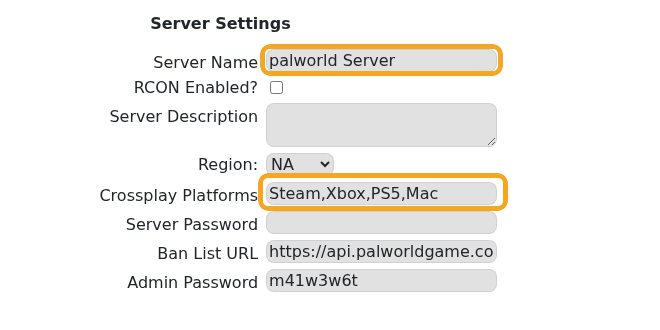
- Save and restart if you change any of those values.
- Run Steam Update if your game client has updated but the server has not: How to update your Palworld server.
- In Palworld, open the community server list and search for the exact server name.
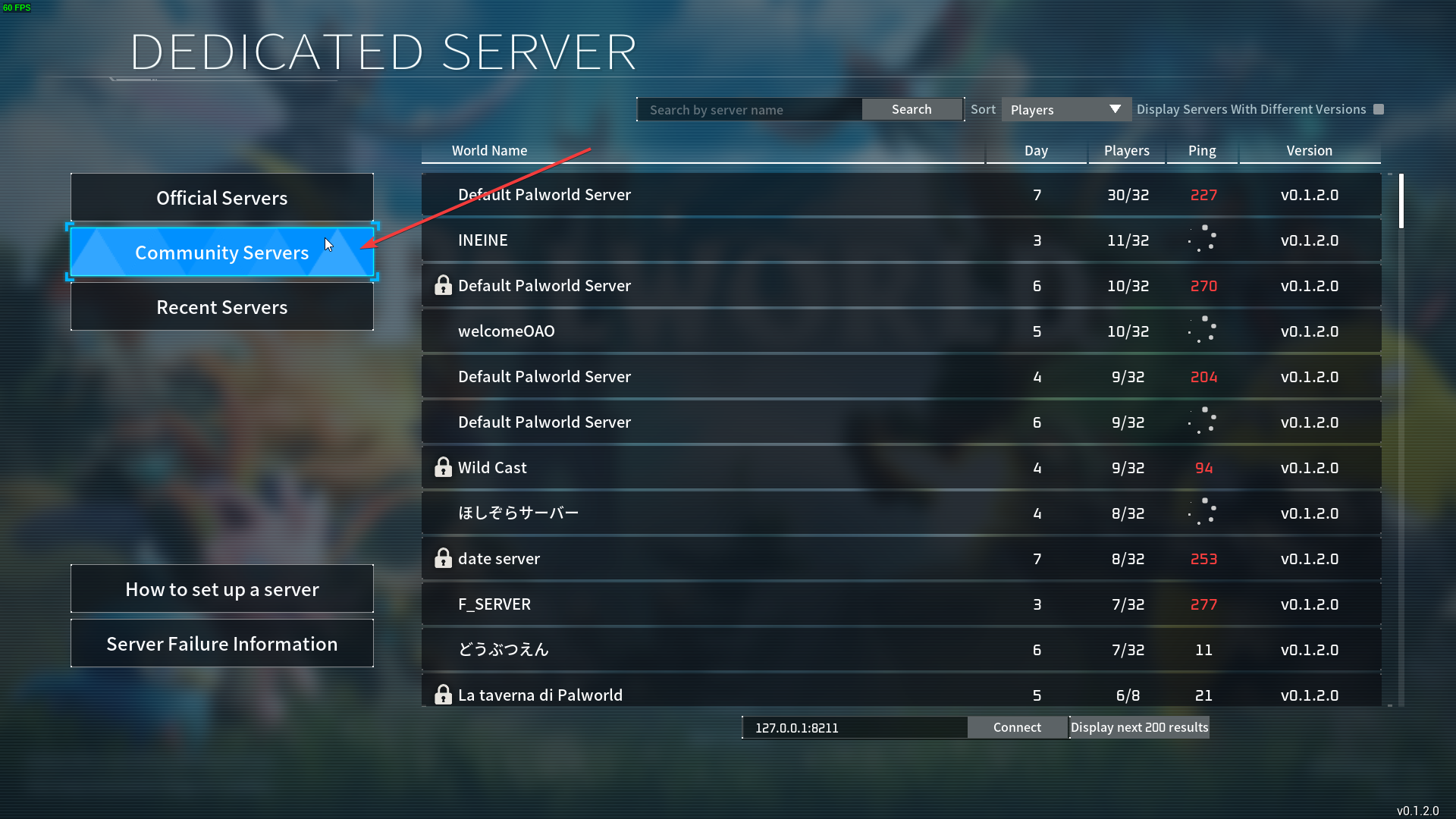
- Select the server if it appears, or try direct connect with the IP and port from the panel if search still does not find it.
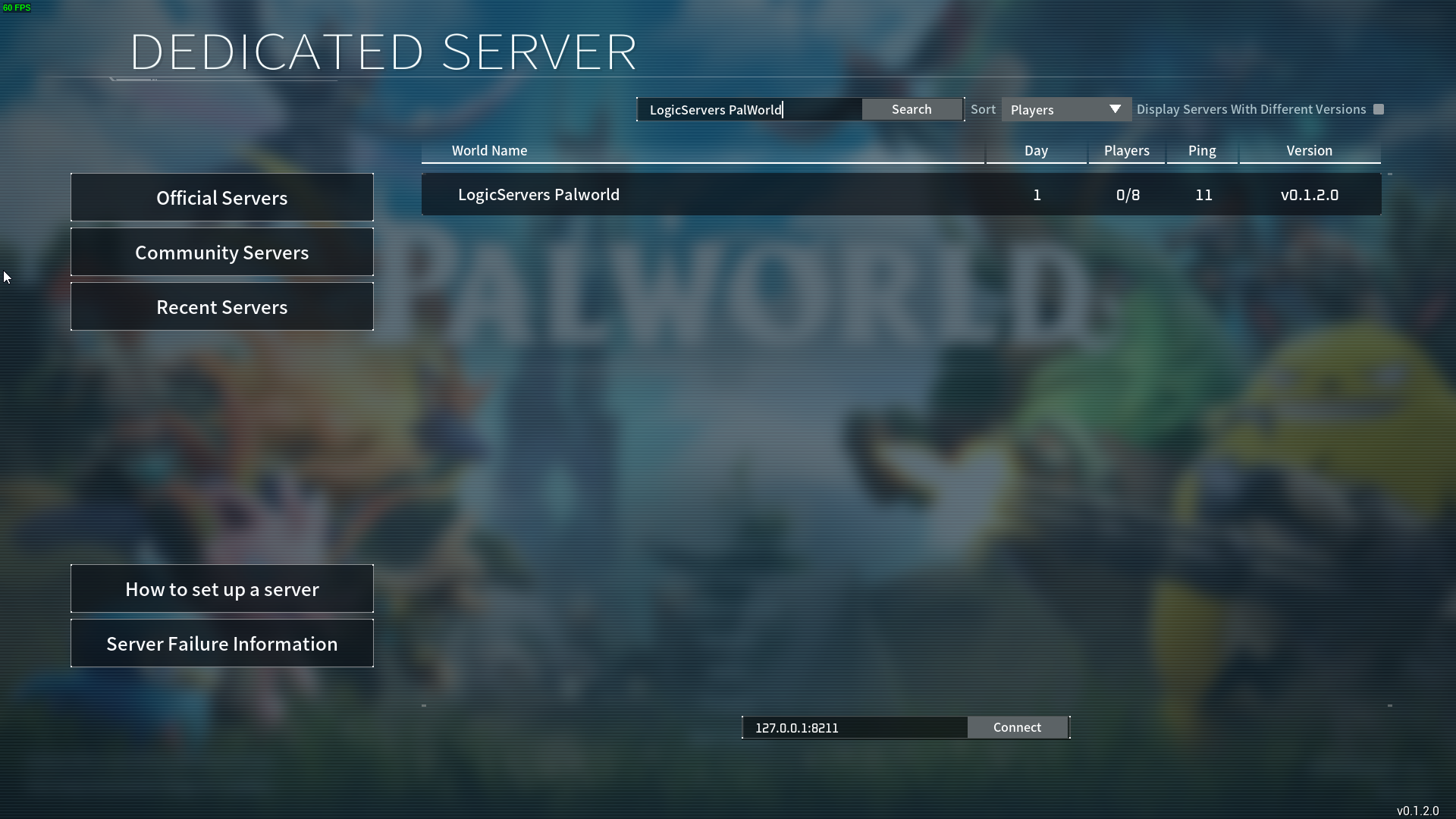
Server browser listings can lag after a restart or update. If direct connect works but the server list does not, wait a few minutes and search again. If neither direct connect nor the browser works, submit a support ticket with the server name, IP/port, and any Web Console output.


