Empyrion admin permissions are controlled in adminconfig.yaml. Add a player SteamID64 under Elevated, choose the permission level, then restart the server so the game loads the updated admin file.

Add An Admin

  1. Find the player SteamID64: How to find your personal Steam ID64 number.
  2. Open your Empyrion server in the control panel.
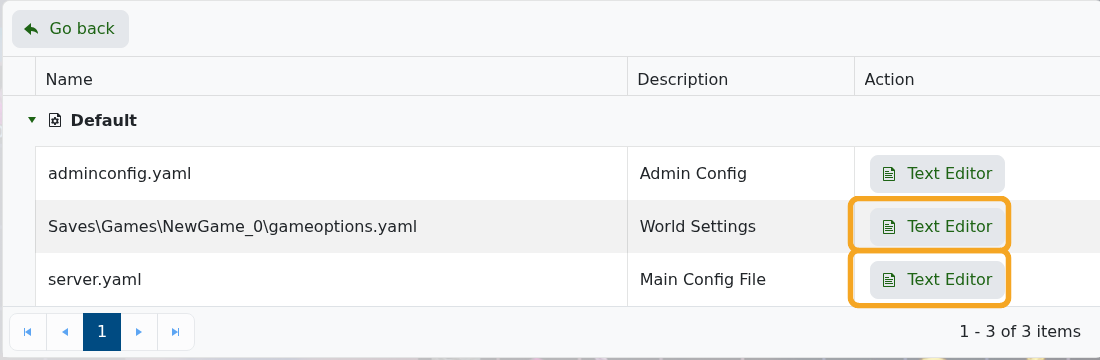
  3. Click Configuration Files.
  4. Open adminconfig.yaml with Text Editor.

    Empyrion Configuration Files showing adminconfig.yaml

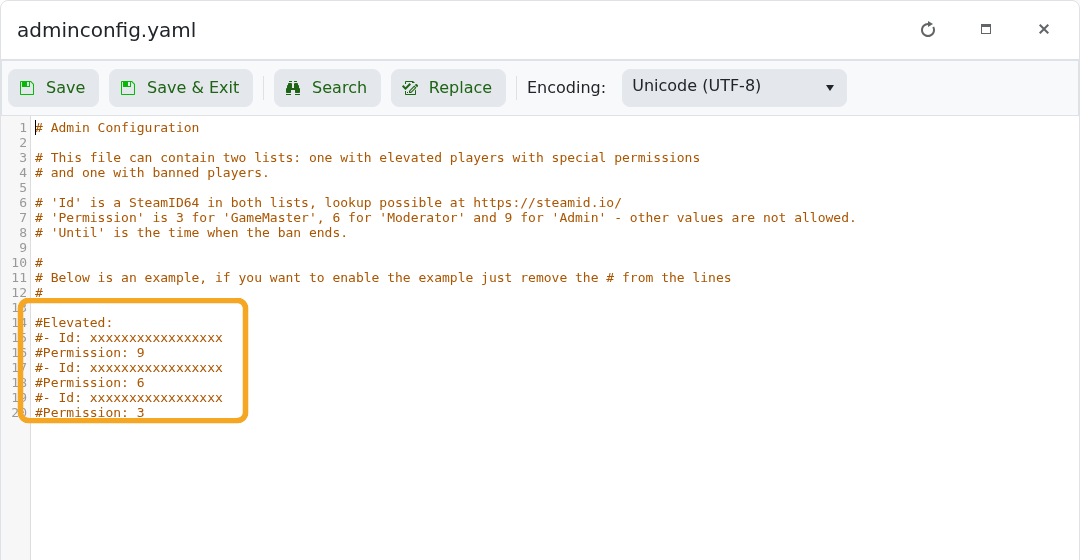
  5. Add the player under Elevated. Keep the YAML spacing exactly as shown.
  6. Set Permission to 9 for Admin, 6 for Moderator, or 3 for GameMaster.

    Empyrion adminconfig.yaml editor showing permission examples

  7. Click Save & Exit, then restart the server.
Elevated:
- Id: 76561198000000000
  Permission: 9

YAML is spacing-sensitive. If admin access does not apply after restart, check that Permission is indented under the same player entry and that the SteamID64 is correct.


  • 24 brukere syntes dette svaret var til hjelp
Var dette svaret til hjelp?

Relaterte artikler

Using your own game save in Empyrion

You can upload an existing Empyrion save by placing the save folder inside Saves/Games and then...

How to delete a players data in Empyrion

Delete Empyrion player data when you need to reset one player without wiping the whole world....

How to restore a backup for your Empyrion server

Restore an Empyrion backup when you need to roll the server back after a bad update, unwanted...

How to backup your Empyrion server save

Create an Empyrion backup before updating, restoring files, changing scenarios, uploading saves,...

How to add Reforged Eden II to Empyrion server

Reforged Eden II is the current Reforged Eden scenario path for Empyrion servers. It is...