
You need the server address from the control panel before joining your Aloft server.

  1. Open your Aloft server in the control panel.
  2. Copy the address shown under Connection Info. It includes the IP and port, for example 45.92.39.185:27065.
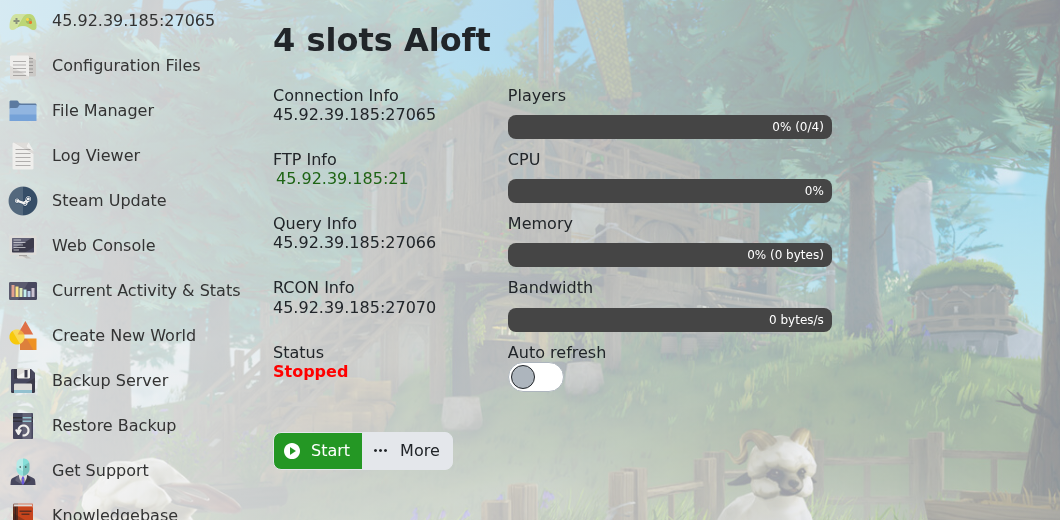
    Aloft control panel Connection Info

  3. Open Aloft on your PC.
  4. Open the multiplayer/server browser screen.
  5. If your server is visible, search for the server name and join it from the list.
  6. If you are joining directly, use the IP and port from Connection Info.

If the server does not appear in the public list, check that Is Visible is enabled in the Config Editor. If you still cannot connect, submit a support ticket and include the address you are trying to join.


  • 0 Користувачі, які знайшли це корисним
Ця відповідь Вам допомогла?

Схожі статті

How to update your Aloft Server

Use Steam Update when Aloft has released a new server update on Steam. Take a backup before...

Changing the name of your Aloft Server

The server name is controlled from AloftServer.ps1 in the Config Editor. Open your Aloft server...

Hiding your Aloft server from the server list

Use Is Visible to control whether your Aloft server appears publicly in the server list. Open...

How to upload a world to your Aloft Server

Aloft world saves are stored in the server file manager under AppData/Data06/Saves. Upload the...

How to create a new world on your Aloft Server

Use Create New World when you want the server to generate a fresh Aloft world instead of loading...
