
Aloft server settings are edited from AloftServer.ps1 in the Config Editor.

  1. Open your Aloft server in the control panel, then click Configuration Files.
  2. Click Config Editor next to AloftServer.ps1.
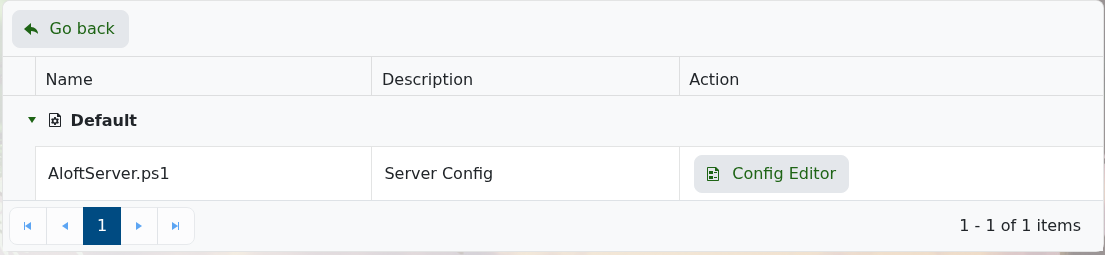
    Aloft Configuration Files page

  3. Change the settings you need, then click Save & Exit.
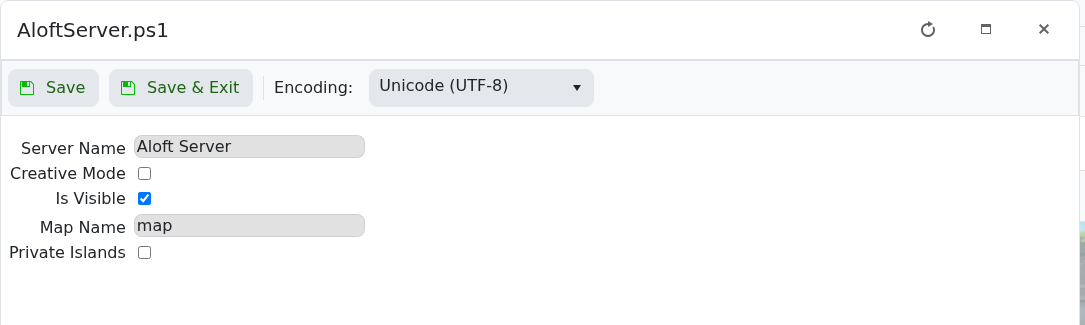
    Aloft Config Editor settings

  4. Restart the server.
SettingWhat it does
Server NameThe name players see for your server.
Creative ModeEnables creative mode for the server.
Is VisibleControls whether the server is shown publicly in the server list.
Map NameThe map/save name the server loads.
Private IslandsEnables private-island behaviour for the server.

If you are changing the world the server loads, see How to upload a world to your Aloft Server.

  • 0 Users Found This Useful
Was this answer helpful?

Related Articles

How to update your Aloft Server

Use Steam Update when Aloft has released a new server update on Steam. Take a backup before...

Changing the name of your Aloft Server

The server name is controlled from AloftServer.ps1 in the Config Editor. Open your Aloft server...

Hiding your Aloft server from the server list

Use Is Visible to control whether your Aloft server appears publicly in the server list. Open...

How to upload a world to your Aloft Server

Aloft world saves are stored in the server file manager under AppData/Data06/Saves. Upload the...

How to join an Aloft Server

You need the server address from the control panel before joining your Aloft server. Open your...

