
Aloft players join using a World Code and World Region. On a dedicated server, the World Code is printed in Web Console after the server has started and the world has loaded.
- Open your Aloft server in the control panel.
- Check that the server status is Running. If it is stopped, click Start and wait for the world to finish loading.
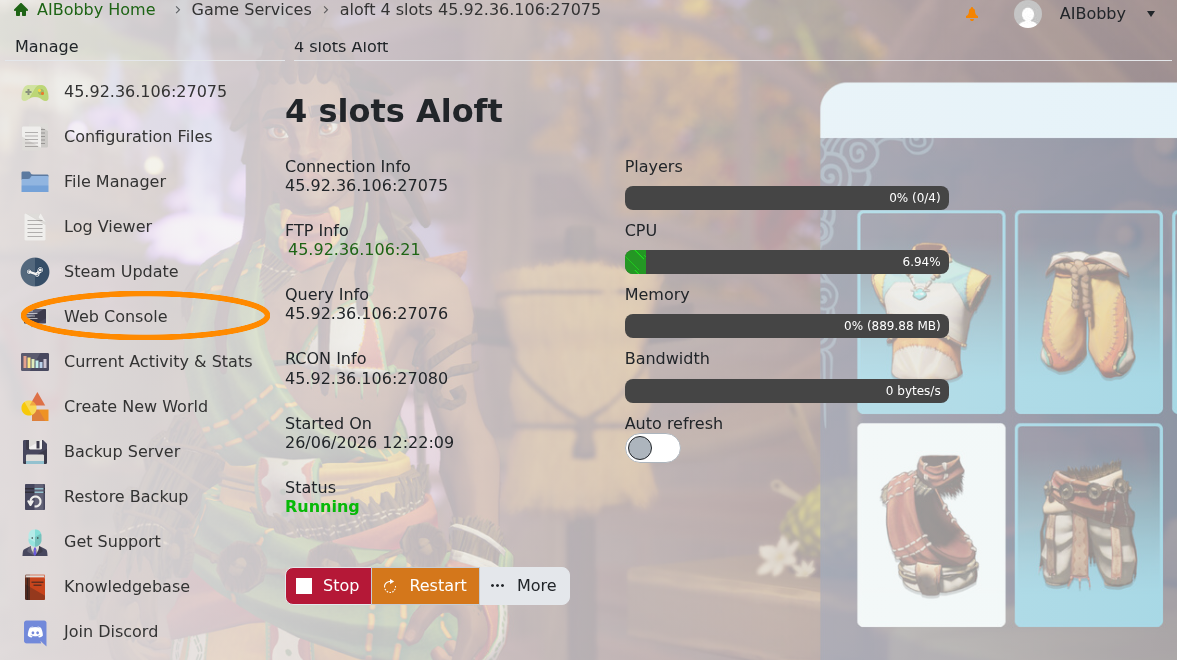
- Click Web Console on the left side menu.
- Wait for the startup messages to finish.
- Find the startup line with the join code. In the screenshot below, the code is the number after Server Ready. Copy the code exactly as shown.
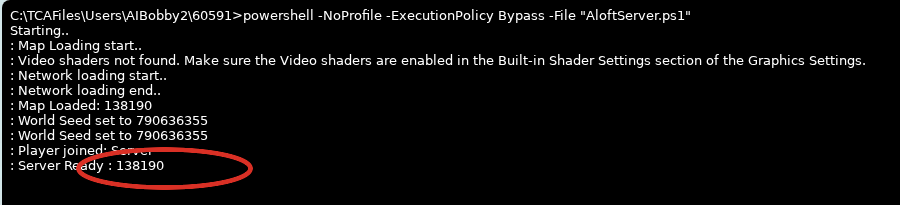
If Web Console does not show a line like this, the server may not have a generated world yet. Create one first with How to create a new world on your Aloft Server, then restart the server and check Web Console again.
- Send players the World Code, the matching World Region, and the server password if your server has one set.
Players can then use the code with How to join an Aloft Server.
If you still cannot find the World Code, submit a support ticket and include your server name.


