
Scheduled restarts help keep long-running Space Engineers worlds stable and give players a predictable maintenance window. Use the control panel's Scheduled Tasks area to create a restart task at a quiet time.

Create A Restart Schedule

  1. Open your Space Engineers server in the control panel.
  2. Click Scheduled Tasks from the left side menu.
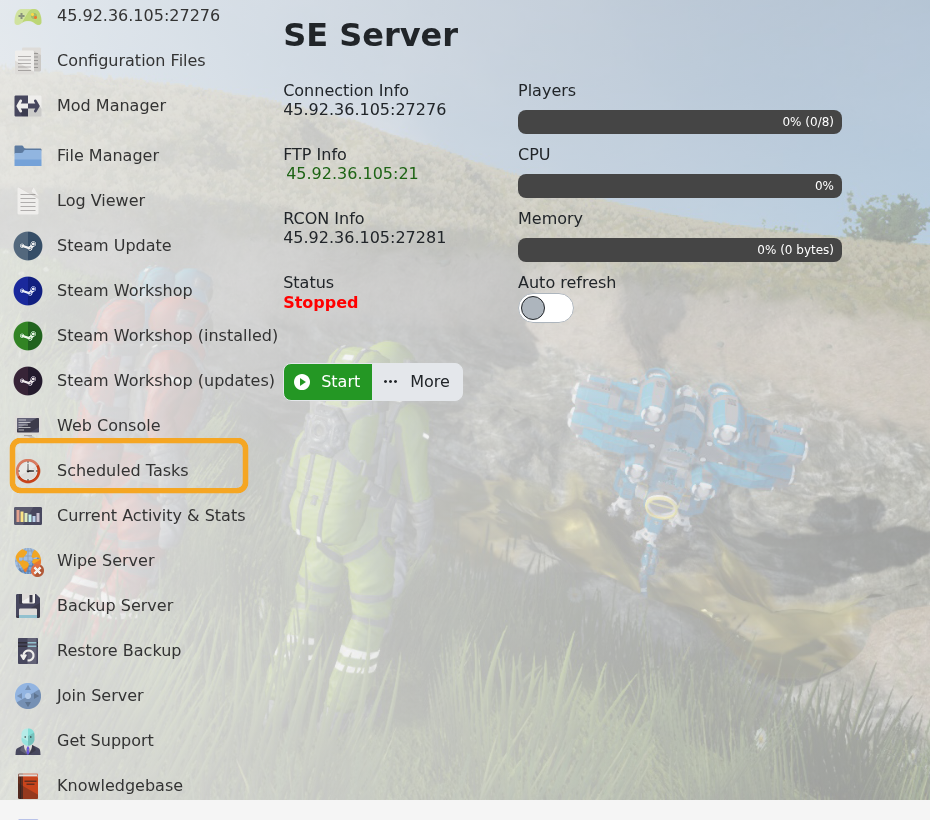
    Space Engineers control panel showing Scheduled Tasks

  3. The task list shows existing scheduled tasks, their last run time, next run time, and enabled status.

    Space Engineers Scheduled Tasks list

  4. Click New, set Task Type to Scheduled Start/Stop/Restart, then click [ New ].
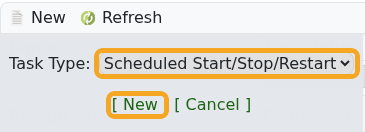
    Space Engineers Scheduled Tasks task type selector

  5. Enter a clear task name, such as Daily restart, and leave Enabled ticked.
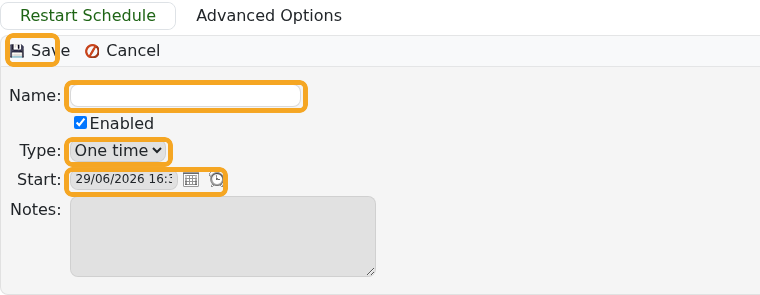
    Space Engineers Scheduled Tasks restart form

  6. Choose the first run date and time.
  7. Set the recurrence. Use Daily for every day, or Weekly for a weekly maintenance restart.
  8. Click Save, then confirm the next run time in the task list.

Warn players before scheduled restarts if your server is active. Avoid setting restarts during your busiest play time.


  • 0 Kunder som kunne bruge dette svar
Hjalp dette svar dig?

Relaterede artikler

Uploading a Space Engineers world to your server

Upload a Space Engineers world when you want to move a single-player or locally hosted save onto...

Wiping the world of your Space Engineers server

Wiping a Space Engineers server removes selected server data so the server can start fresh....

How to join a Space Engineers server

You can join a Space Engineers server by using the connection address from your control panel....

Adding Group Whitelist in Space Engineers

Space Engineers whitelisting is handled with a Steam group. When a Steam Group ID is set, only...

Adding Yourself as an Admin in Space Engineers

Space Engineers admins can use the in-game admin tools to manage players, entities, trash...
