Create a backup before updating, installing Workshop mods, changing command lines, uploading missions, or editing server.cfg. A backup gives you a restore point if the server fails to start or a mission/mod change causes problems.

  1. Open your Arma 3 server in the control panel.
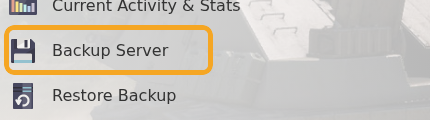
  2. Click Backup Server.

    Arma 3 Backup Server button

  3. Wait for the backup task to finish before making further changes.

For the cleanest backup before large mod or mission changes, stop the server first so files are not being written while the backup runs. This is especially useful before changing server.cfg, replacing files in MPMissions, or changing command line mod folders.


  • 0 Users Found This Useful
Was this answer helpful?

Related Articles

Adding and running a mission on your Arma 3 server

Arma 3 multiplayer missions are usually uploaded as .pbo files into the MPMissions folder. After...

Installing workshop mods to your ARMA 3 server

Install Arma 3 Workshop mods from the control panel, then make sure the server command line loads...

ARMA3 Server mods not showing on game launcher

If Arma 3 launcher only shows some of your server mods, the server may not be sending enough mod...

How to add creator DLCs to an Arma3 server

Some Arma 3 Creator DLC content needs dedicated server files and a matching startup parameter...

How to join an Arma 3 server

You can join your Arma 3 server by using the connection address from your control panel. Arma 3...