
PowerShell is the main command-line tool for managing a Windows VPS. You can use it to install software, check services, open firewall ports, run SteamCMD commands, restart services, and troubleshoot server applications.
For most server administration tasks, open PowerShell as Administrator so commands have permission to change system settings.
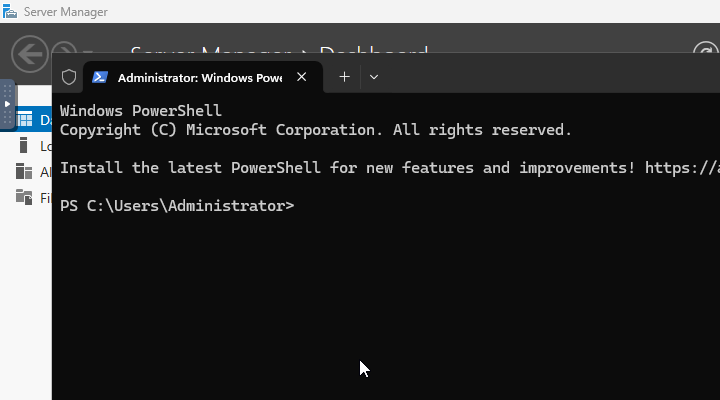
Open PowerShell
- Connect to the Windows VPS using Remote Desktop or the VPS console.
- Right-click the Windows Start button.
- Click Terminal (Admin), Windows PowerShell (Admin), or PowerShell depending on the Windows version.
- Accept the administrator prompt if Windows asks for permission.
Moving around files and folders
| Command | What it does |
|---|---|
pwd | Shows the folder PowerShell is currently in. |
cd C:\Servers | Moves into C:\Servers. |
mkdir C:\Servers | Creates a folder if it does not already exist. |
dir | Lists files and folders in the current folder. |
copy file.txt C:\Backups\file.txt | Copies a file. |
Remove-Item C:\Temp\old.zip | Deletes a file. Check the path before running this. |
Downloading and extracting files
PowerShell can download files directly without using a browser. Replace the URL and output path with the file you need.
Invoke-WebRequest -Uri "https://example.com/file.zip" -OutFile "C:\Tools\file.zip"
Extract a zip file:
Expand-Archive -Path "C:\Tools\file.zip" -DestinationPath "C:\Tools\file" -Force
This is useful for tools such as SteamCMD, server utilities, mod loaders, and backup archives.
Checking network information
| Command | What it does |
|---|---|
ipconfig | Shows the VPS network adapters and IP information. |
Test-NetConnection example.com -Port 443 | Tests whether the VPS can reach a remote host and port. |
Get-NetTCPConnection -LocalPort 7777 | Checks whether something is listening on local TCP port 7777. |
Opening Windows Firewall ports
Use this when a game server or service is running but outside connections cannot reach it. Replace the port and display name with the service you are allowing.
New-NetFirewallRule -DisplayName "Allow TCP 7777" -Direction Inbound -Protocol TCP -LocalPort 7777 -Action Allow
New-NetFirewallRule -DisplayName "Allow UDP 7777" -Direction Inbound -Protocol UDP -LocalPort 7777 -Action Allow
For a dedicated firewall walkthrough, use How to open Windows Firewall ports on your VPS.
Checking processes, services, and resources
| Command | What it does |
|---|---|
Get-Process | Lists running processes. |
Get-Process | Sort-Object CPU -Descending | Select-Object -First 10 | Shows the highest CPU processes. |
Get-Service | Lists Windows services. |
Restart-Service -Name "ServiceName" | Restarts a Windows service. |
Get-PSDrive C | Shows disk usage for the C: drive. |
Restarting or shutting down the VPS
Restart Windows from PowerShell:
Restart-Computer
Shut Windows down from PowerShell:
Stop-Computer
If Remote Desktop is not responding, use the VPS panel power controls instead: How to reboot, shut down, or start your VPS.
Running SteamCMD-style commands
Many Windows game-server guides use PowerShell to run SteamCMD or a server executable. Move into the folder first, then run the command from there:
cd C:\SteamCMD
.\steamcmd.exe +login anonymous +force_install_dir C:\Servers\MyServer +app_update APPID validate +quit
Replace APPID with the Steam dedicated server app ID for the game you are installing. If a command begins with .\, it means “run this program from the current folder”.
If you are following one of our Windows VPS game-server guides, copy commands exactly and run them one line at a time unless the guide specifically says otherwise.


