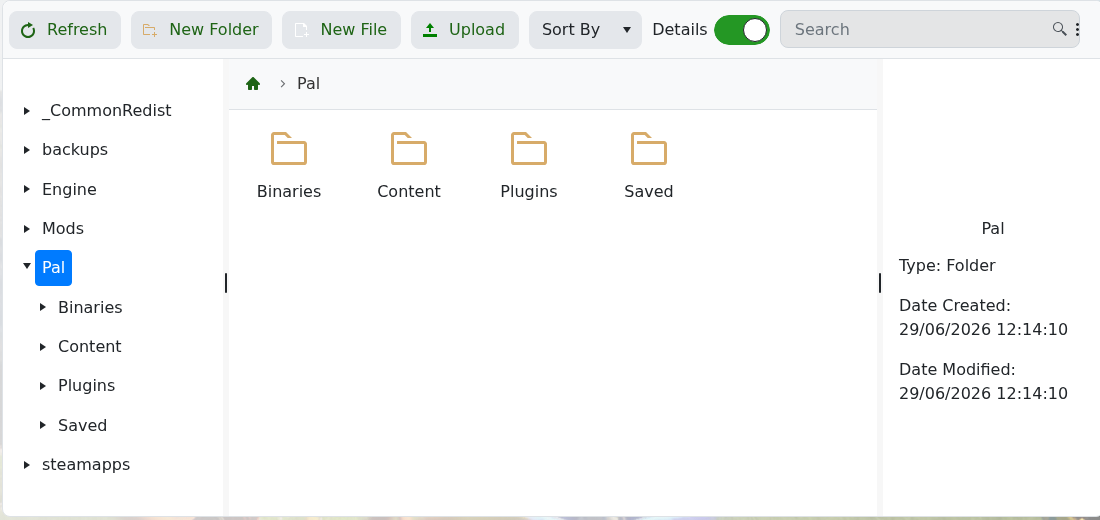
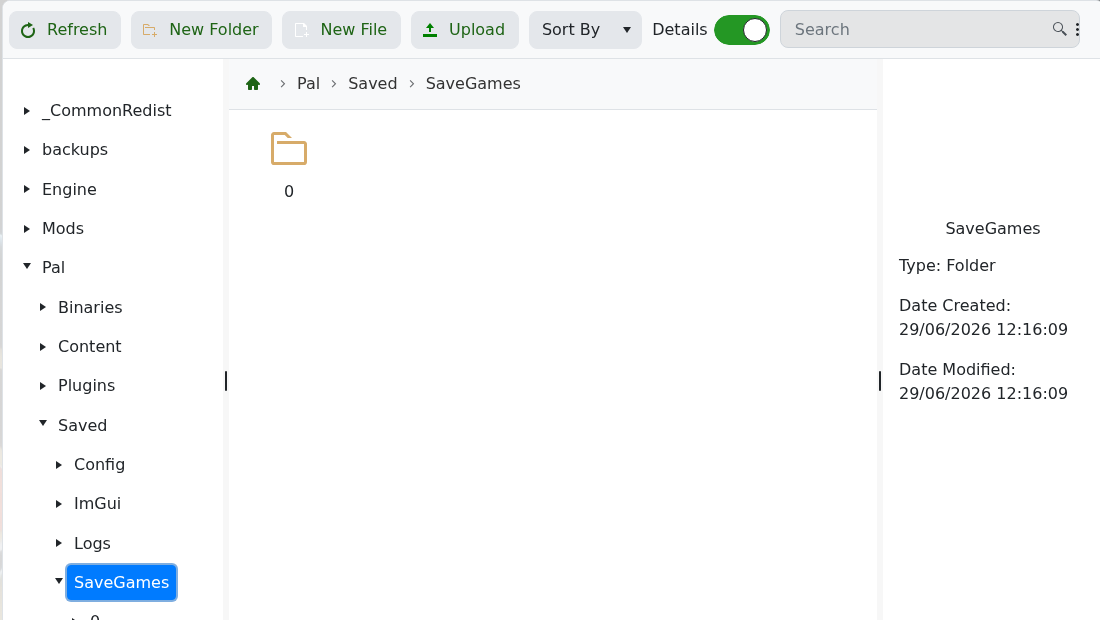
You can move an existing Palworld save to your server by uploading the correct save folder into Pal/Saved/SaveGames. Back up the server first, then stop it before replacing or uploading world files.

  1. Take a backup of the current server: How to Backup your Palworld Server.
  2. Stop the server.
  3. On your own PC, locate the Palworld save you want to upload. Keep the full save folder structure intact.
  4. Open File Manager, or connect with SFTP for larger uploads: How to connect to SFTP using FileZilla.
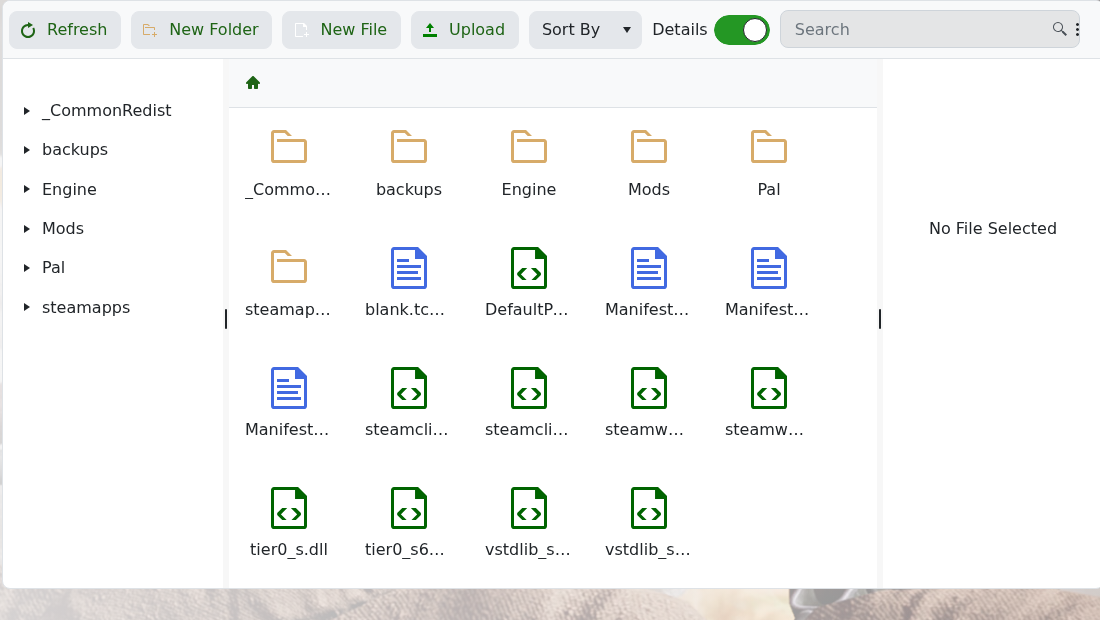
    Palworld File Manager root folder with upload button

  5. Open the Pal folder.

    Palworld File Manager showing the Pal folder contents

  6. Open Saved, then SaveGames.

    Palworld File Manager showing Pal Saved SaveGames

  7. Upload the save folder into this location. If the upload is a ZIP file, extract it so the folder structure is visible.
  8. Start the server and check whether the world loads correctly.

If the uploaded world does not load, confirm you uploaded the correct folder level. Do not delete your local copy until the server has started and players can join the uploaded world.


  • 0 أعضاء وجدوا هذه المقالة مفيدة
هل كانت المقالة مفيدة ؟

مقالات مشابهة

What are the admin commands for a Palworld server

Palworld admin commands let you save the world, broadcast messages, kick or ban players,...

How to ban or unban players on your Palworld server

Ban disruptive players by using the in-game admin command or by adding their SteamID to the...

Adding a password to your Palworld Server

Add a server password when you want your Palworld server to be private or limited to invited...

How to edit the Configuration Files on your Palworld server

Most Palworld server settings are changed from PalWorldSettings.ini. Use Config Editor for common...

How to join a Palworld server

Use the Palworld multiplayer menu to search for your server by name, or use direct connect with...