
A manual backup saves a copy of your Aloft server files before you make changes. Use one before editing settings, uploading a world, creating a new world, or running a Steam update. The backup is stored remotely, with a small entry left in the server backups folder so the restore script knows which backups are available.

  1. Open your Aloft server in the control panel.
  2. Stop the server if you want the cleanest backup.
  3. Click Backup Server on the left side menu.
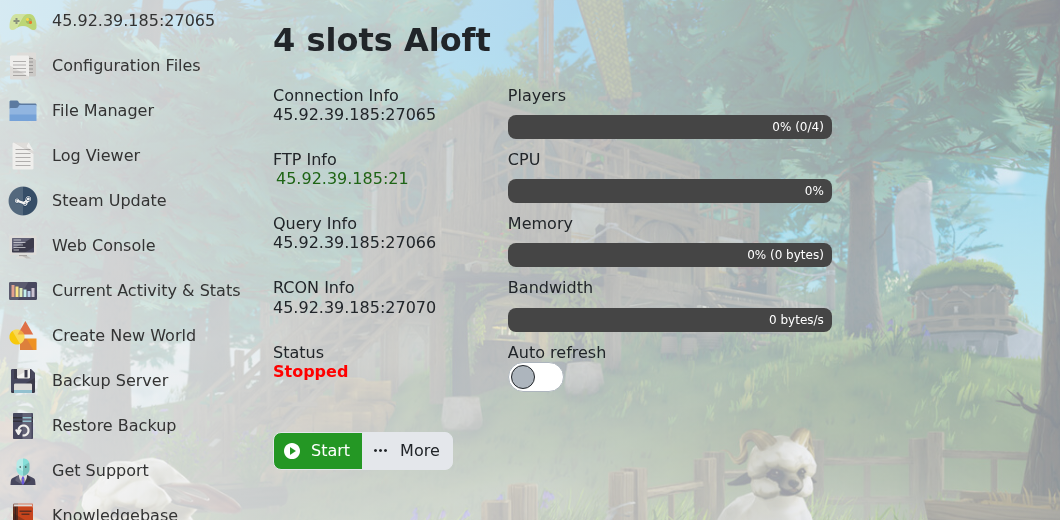
    Aloft control panel Backup Server button

  4. The panel opens a console-style backup window. Wait for the backup process to finish before making more changes.

Need to roll back later? Use How to restore a backup to your Aloft Server.

  • 0 کاربر این را مفید یافتند
آیا این پاسخ به شما کمک کرد؟

مقالات مربوطه

How to update your Aloft Server

Use Steam Update when Aloft has released a new server update on Steam. Take a backup before...

Changing the name of your Aloft Server

The server name is controlled from AloftServer.ps1 in the Config Editor. Open your Aloft server...

Hiding your Aloft server from the server list

Use Is Visible to control whether your Aloft server appears publicly in the server list. Open...

How to upload a world to your Aloft Server

Aloft world saves are stored in the server file manager under AppData/Data06/Saves. Upload the...

How to join an Aloft Server

You need the server address from the control panel before joining your Aloft server. Open your...

