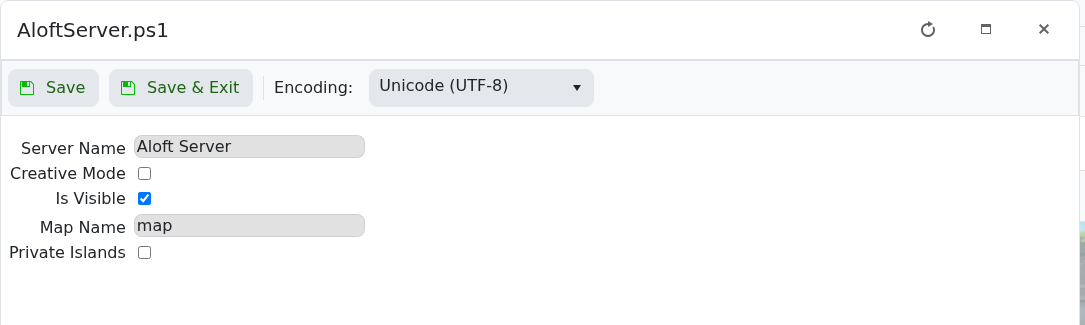
Creative Mode is controlled from AloftServer.ps1 in the Config Editor. Enable it when you want the server to run with Creative Mode turned on.

  1. Open your Aloft server in the control panel, then click Configuration Files.
  2. Click Config Editor next to AloftServer.ps1.
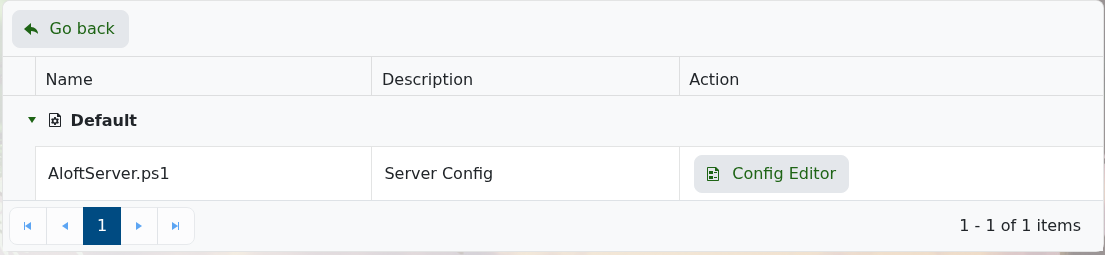
    Aloft Configuration Files page with Config Editor

  3. Tick Creative Mode.

    Aloft Config Editor showing Creative Mode

  4. Click Save & Exit, then restart the server.

For the other settings on this page, see Modifying the settings of your Aloft server.

  • 0 Пользователи нашли это полезным
Помог ли вам данный ответ?

Связанные статьи

How to update your Aloft Server

Use Steam Update when Aloft has released a new server update on Steam. Take a backup before...

Changing the name of your Aloft Server

The server name is controlled from AloftServer.ps1 in the Config Editor. Open your Aloft server...

Hiding your Aloft server from the server list

Use Is Visible to control whether your Aloft server appears publicly in the server list. Open...

How to upload a world to your Aloft Server

Aloft world saves are stored in the server file manager under AppData/Data06/Saves. Upload the...

How to join an Aloft Server

Aloft uses a World Code and World Region when joining a multiplayer world. Ask the server owner...