
You can change the main Windows VPS login password from the VPS control panel. This is useful if you have lost the administrator password, want to rotate access after sharing it, or need to set a fresh password before giving the VPS to another admin.
This changes the VPS password stored by the panel and used for normal Windows administrator access. Keep the new password somewhere safe before closing the page.
Change the password in the VPS panel
- Open your VPS service from the client area.
- Open the VPS control panel.
- Open the Windows VPS you want to update.
- Click Settings.
- Click Change Password.
- Enter the new password, then enter it again to confirm.
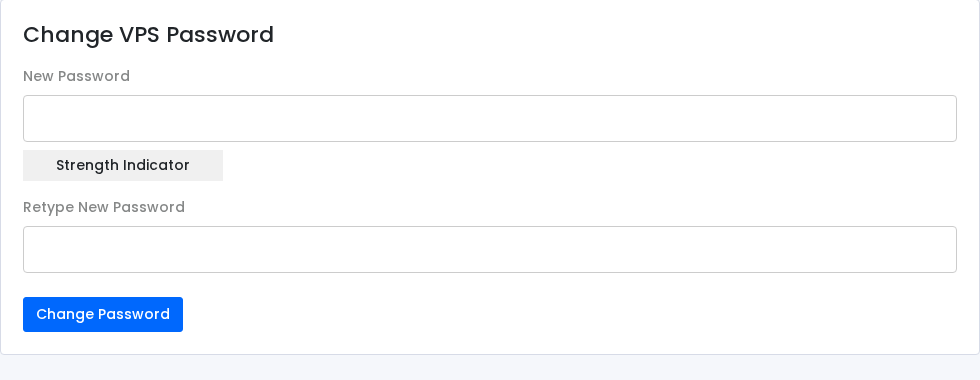
- Click Change Password.
- Restart the VPS if Windows does not accept the new password immediately.
After changing the password, test Remote Desktop again with the new password. If you still cannot sign in, open the VPS console and check that Windows has finished booting.
Recover the password from the Windows console
Use this only for a Windows VPS you own or manage. Try the panel password change first, because it is faster and does not require booting into recovery tools.
This method boots the VPS from Windows Server recovery media, opens Command Prompt before Windows starts, and temporarily replaces the accessibility launcher on the login screen with Command Prompt.
After resetting the password, restore the original accessibility launcher. Do not leave the recovery change in place.
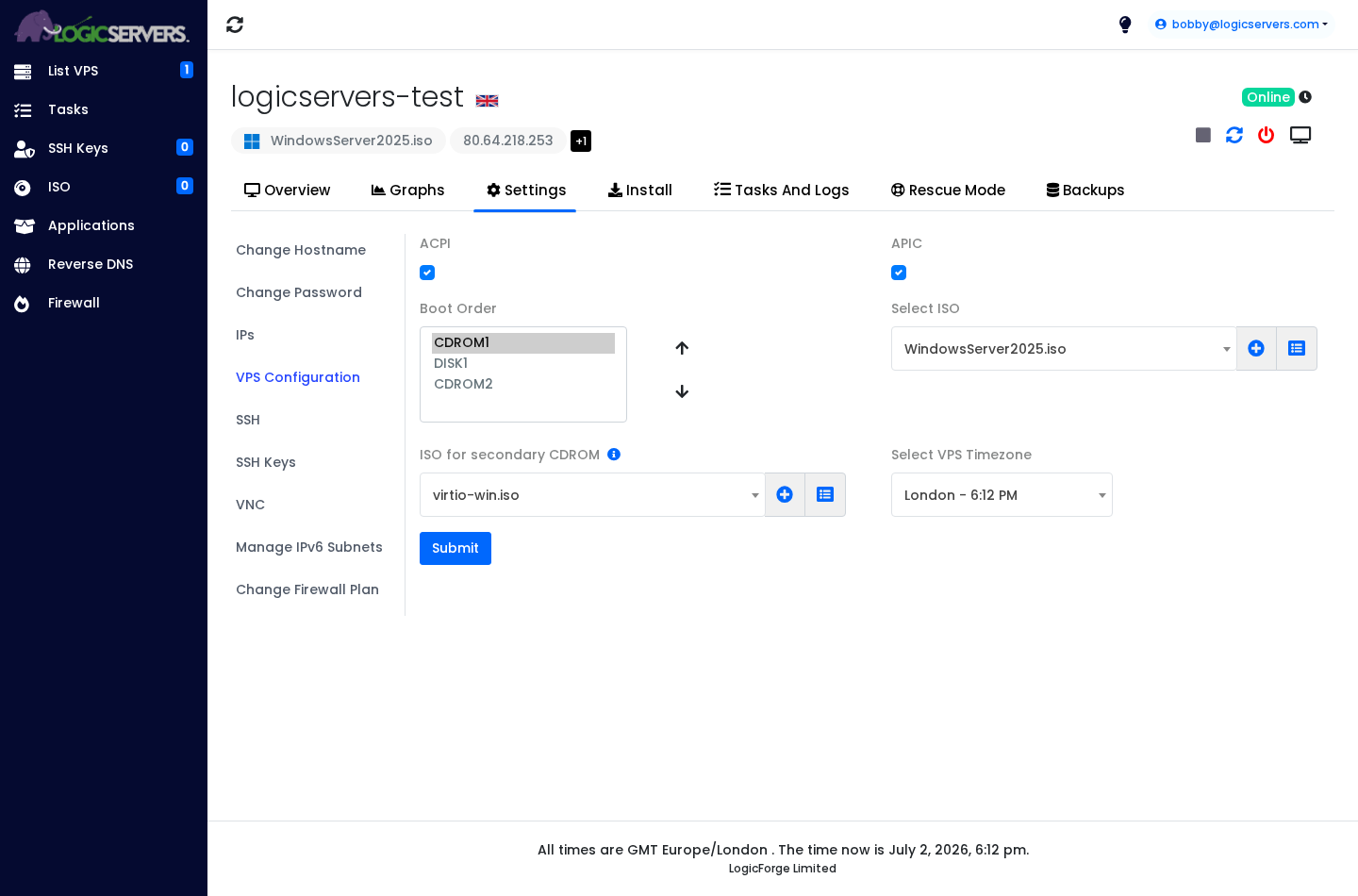
- Attach the Windows Server recovery or installer ISO and the VirtIO driver ISO to the VPS. In VPS Configuration, set Select ISO to WindowsServer2025.iso, set ISO for secondary CDROM to virtio-win.iso, move CDROM1 above DISK1 in Boot Order, then click Submit. If you need the full ISO mounting process, use How to add and mount an ISO on your VPS.
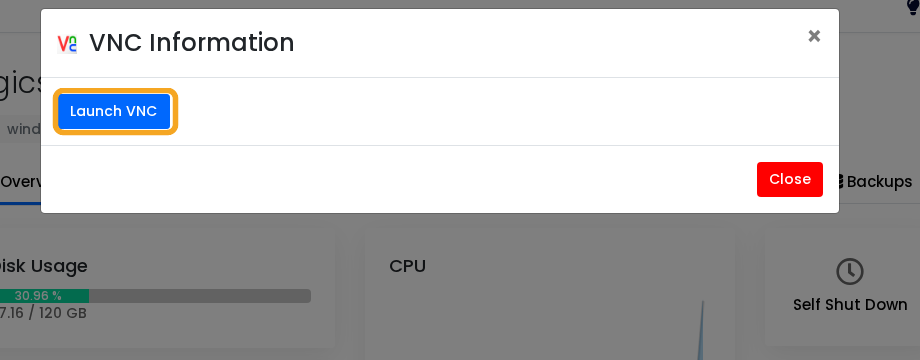
- Open the VPS console or VNC so you can watch the boot screen: How to use the VPS console or VNC.
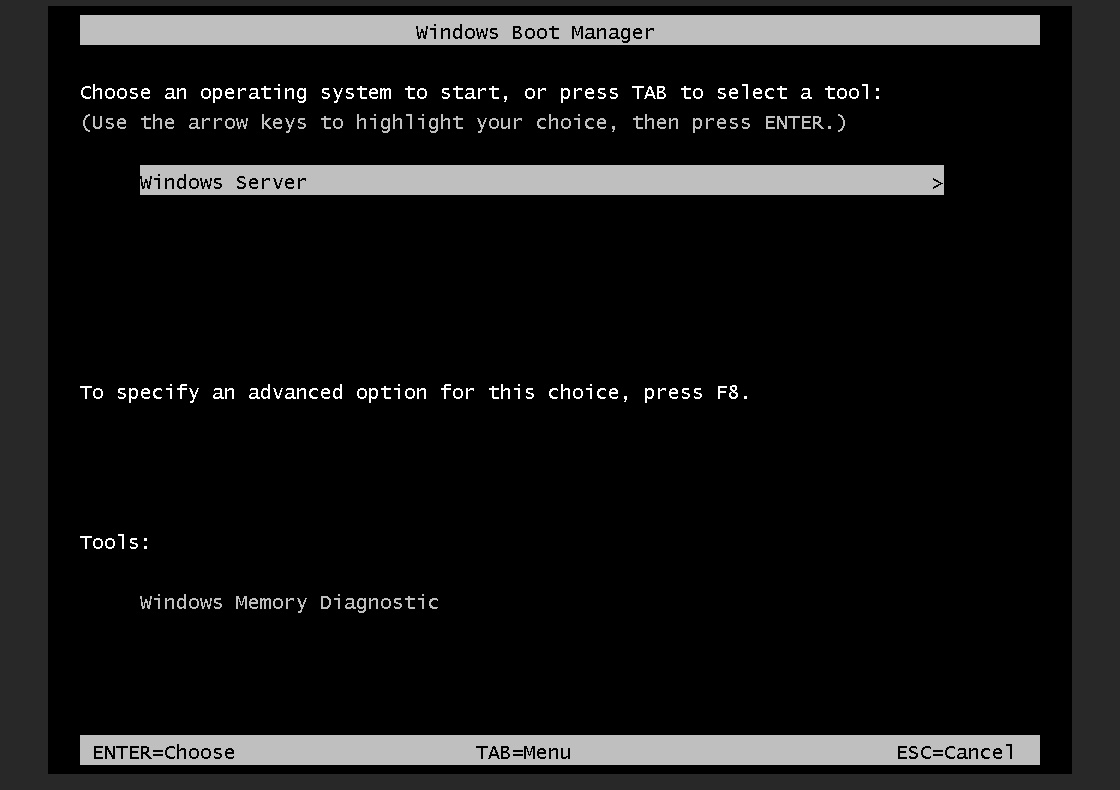
- Restart the VPS. If the console asks you to press a key to boot from CD or DVD, press a key quickly. If you see Windows Boot Manager, keep Windows Server selected and press Enter. The same screen also shows F8 for advanced boot options.
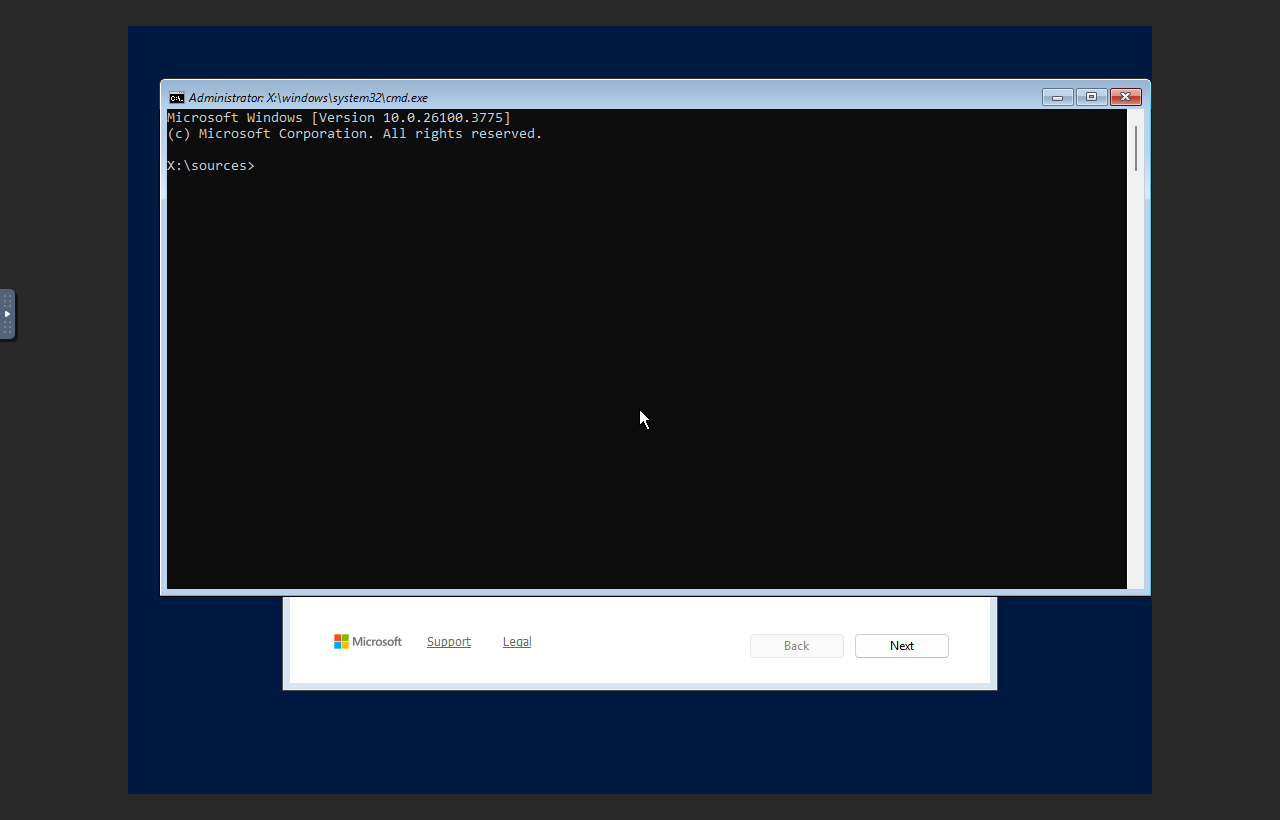
- When the Windows Setup or recovery screen appears, do not click Install now. Press Shift + F10. This opens Command Prompt from the recovery environment, before the installed copy of Windows starts.
- Find the Windows drive. It is often
C:, but recovery mode can assign a different letter. If the disk is not visible, load the VirtIO storage drivers from the secondary ISO. For the full driver-loading walkthrough, use How to load VirtIO drivers in Windows VPS recovery.drvload E:\amd64\2k25\viostor.inf drvload E:\amd64\2k25\vioscsi.inf diskpart list volume exit
In this example the Windows disk appears as
C:after loading the drivers. Use the drive letter that contains the realWindowsfolder in the next commands.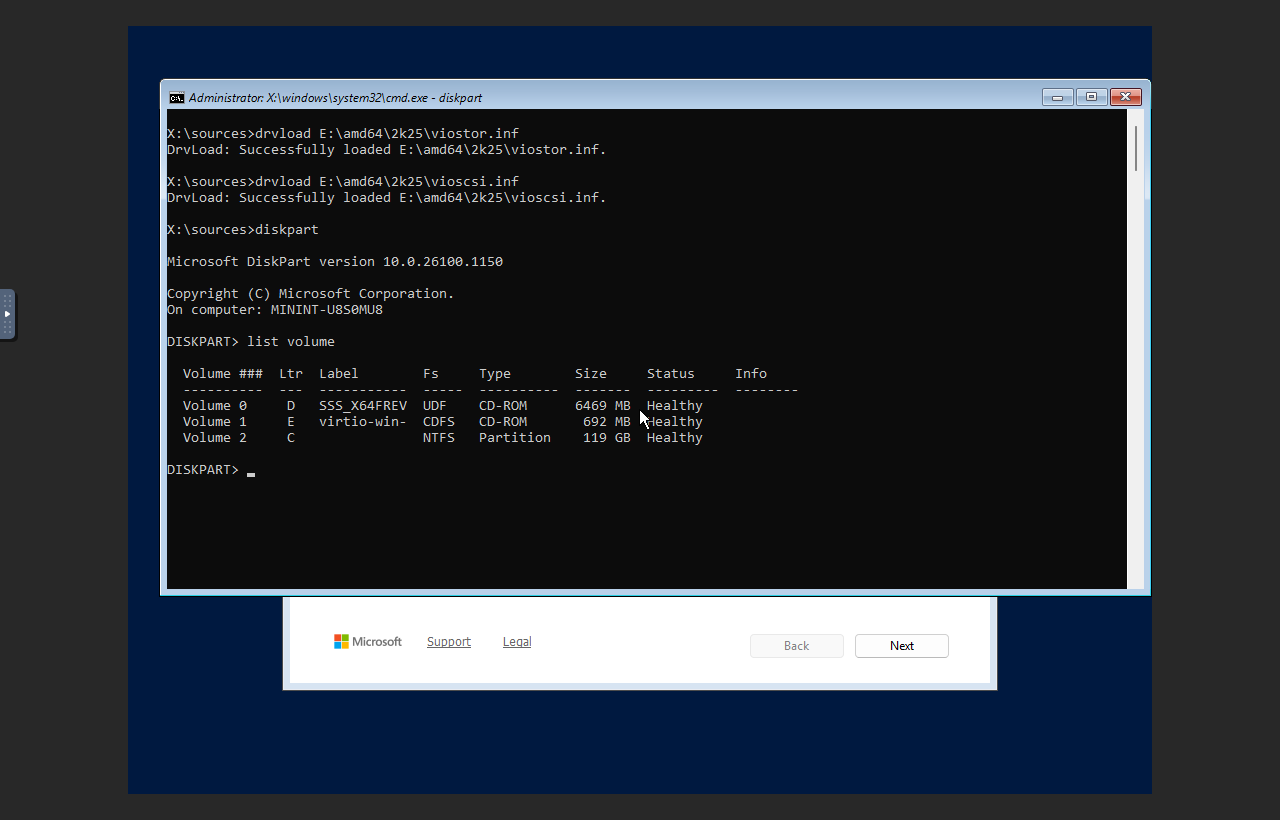
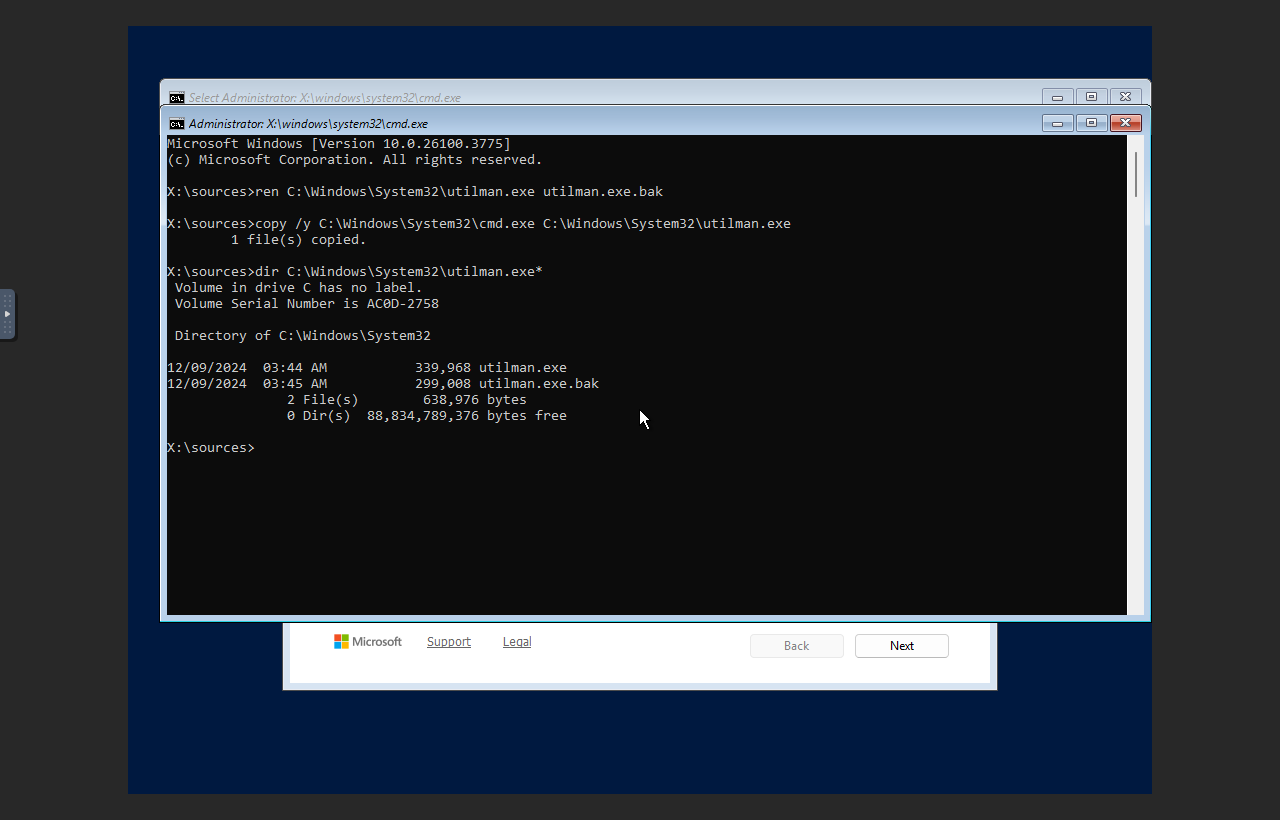
- Back up the accessibility launcher, then replace it with Command Prompt. These commands use absolute paths so you do not need to change directory first:
ren C:\Windows\System32\utilman.exe utilman.exe.bak
copy /y C:\Windows\System32\cmd.exe C:\Windows\System32\utilman.exe
dir C:\Windows\System32\utilman.exe*
- Go back to the VPS panel before rebooting into Windows. Set Boot Order back to DISK1, set the ISO fields back to None, then click Submit.
- Reboot the VPS normally back into Windows. You can restart it from the panel, or run this from the recovery Command Prompt after removing the ISO:
wpeutil reboot
- At the Windows login screen, press CTRL + ALT + DELETE if Windows asks for it.
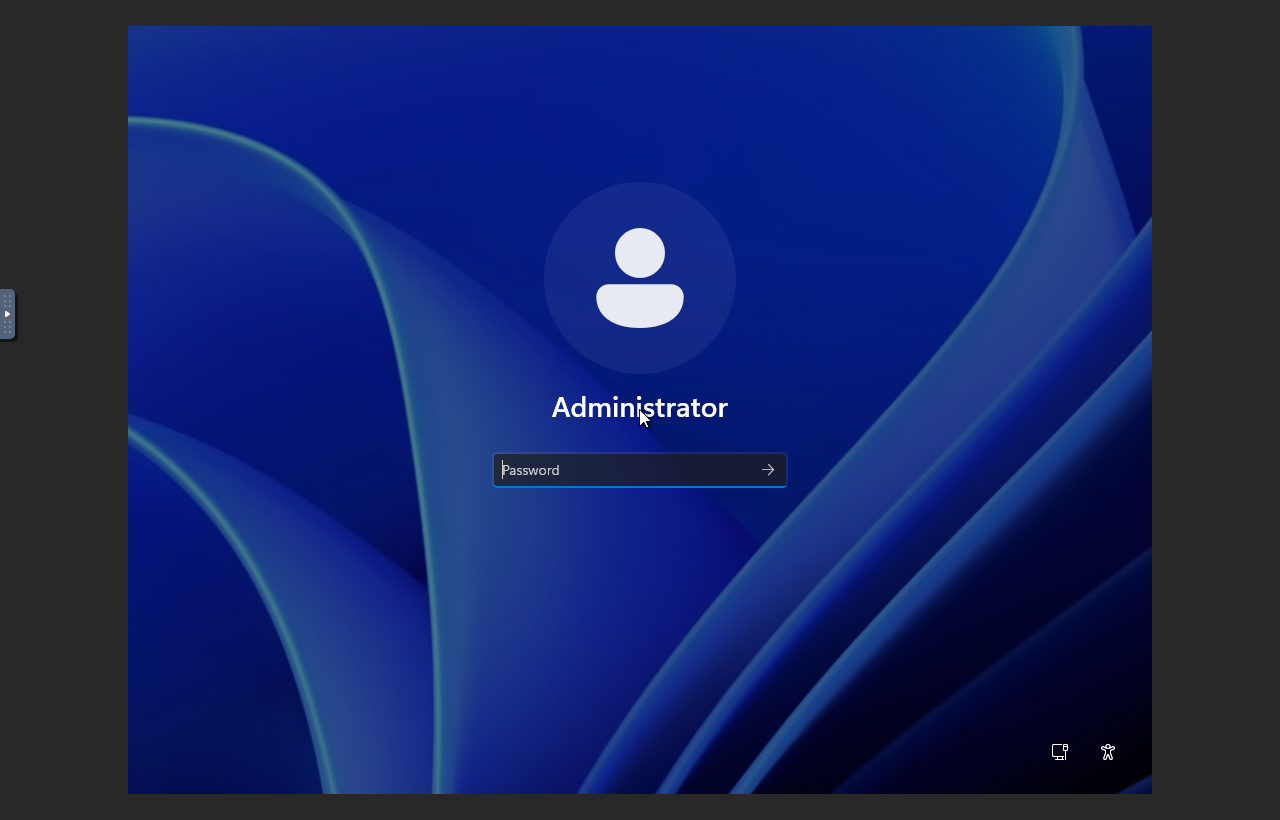
- Click the accessibility icon in the bottom-right corner. Because
utilman.exewas temporarily replaced from recovery Command Prompt, a Command Prompt window should open instead of the normal accessibility menu.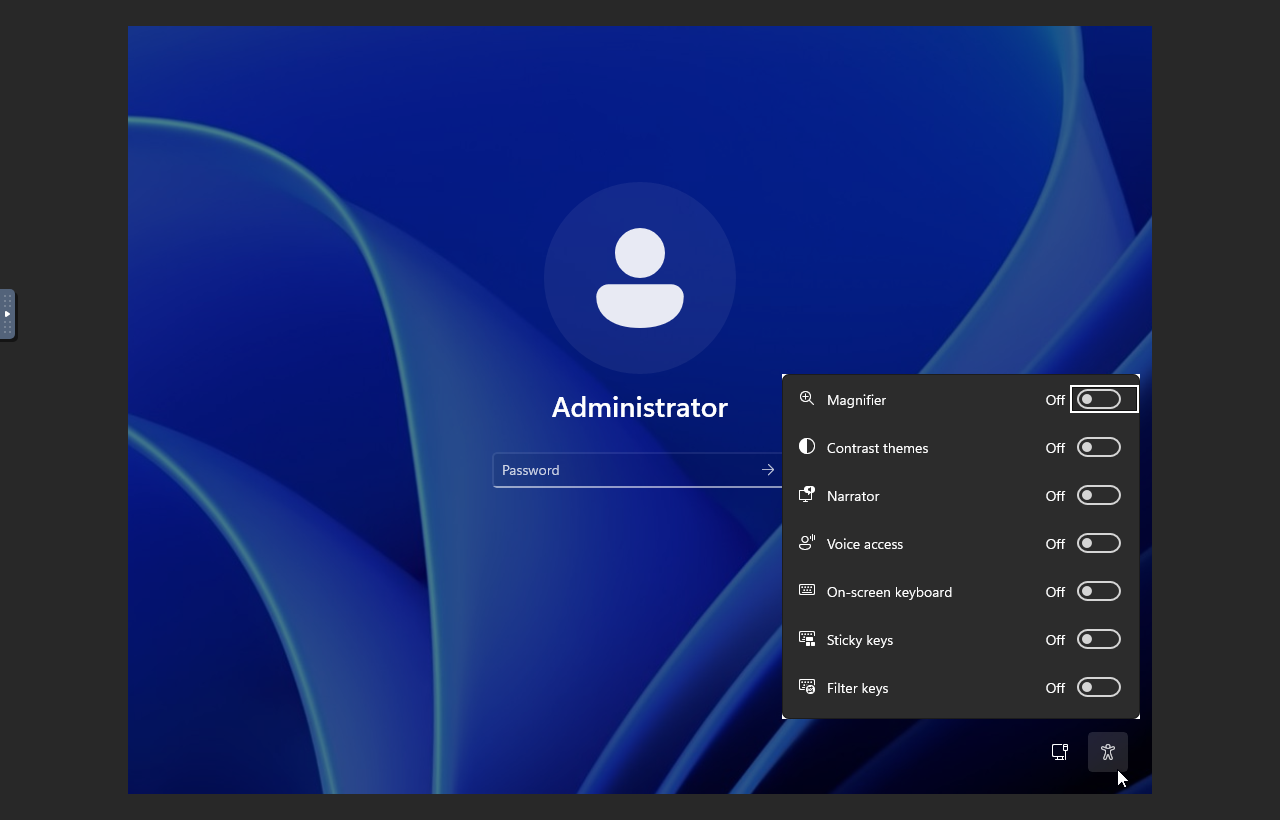
- If you are not sure what the local admin account is called, list the Windows users first:
net user
- Set a new password for the account. Use quotes if the password contains spaces or special characters:
net user Administrator "NewStrongPasswordHere"
If the VPS uses a different admin account name, replace
Administratorwith the account name shown bynet user.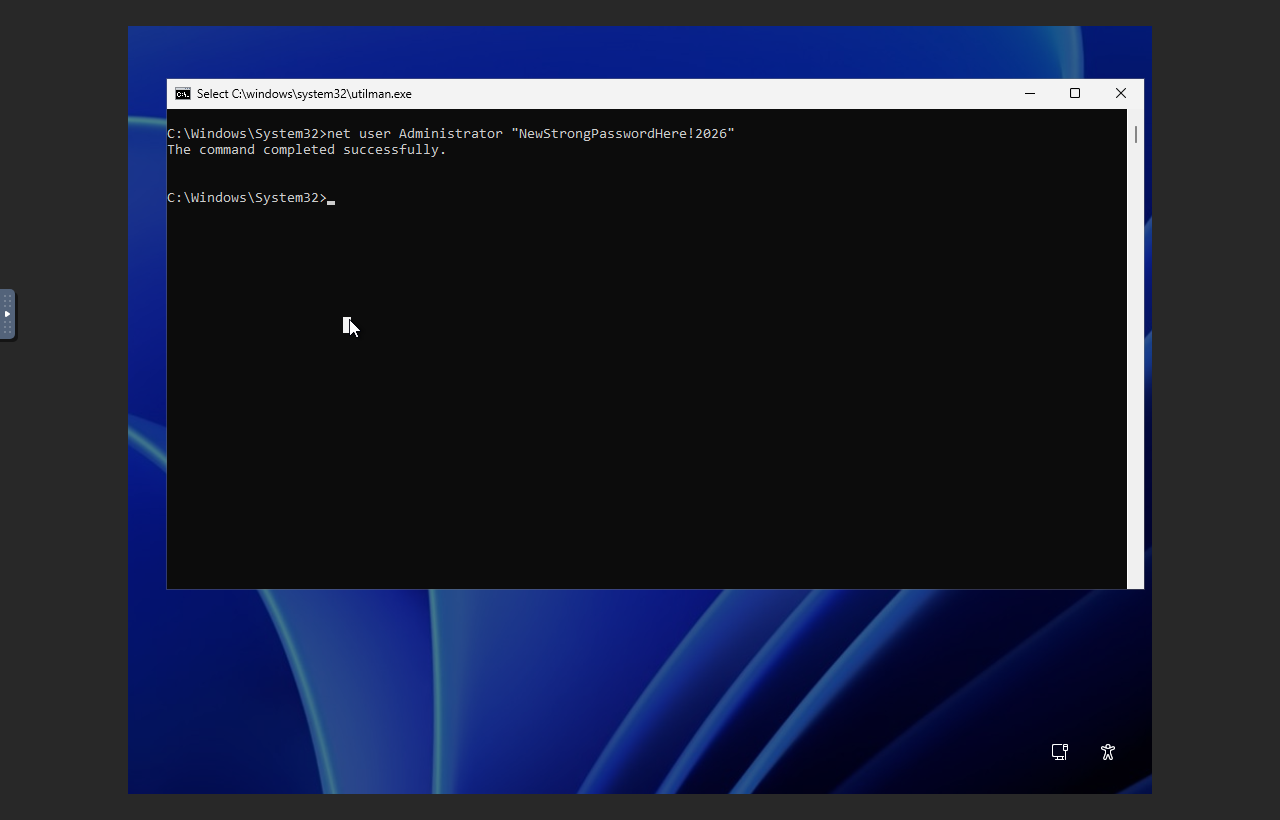
- Sign in with the new password.
- Open Command Prompt or PowerShell as Administrator inside Windows.
- Restore the original accessibility launcher:
copy /y C:\Windows\System32\utilman.exe.bak C:\Windows\System32\utilman.exe
del C:\Windows\System32\utilman.exe.bak
After restoring it, the accessibility icon should open the normal accessibility menu again, not Command Prompt.
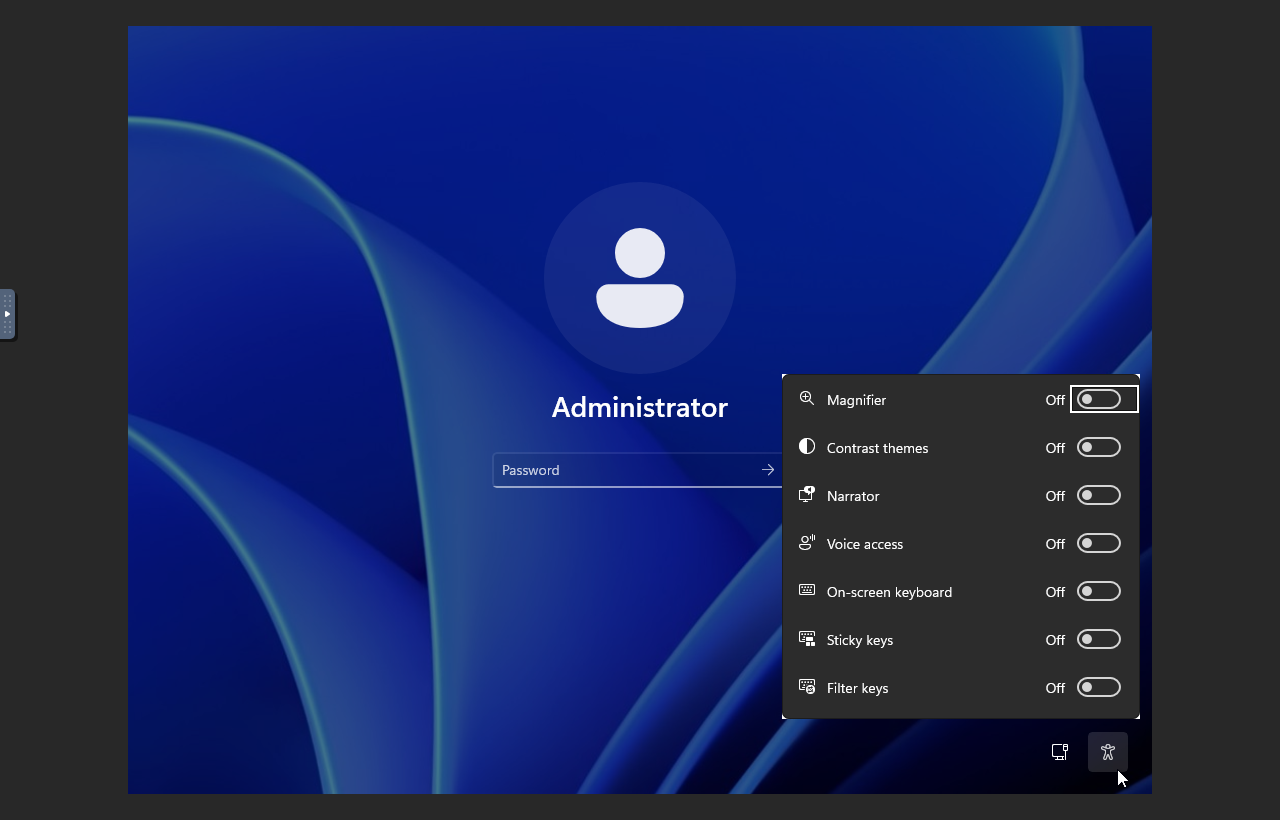
Do not leave utilman.exe replaced with Command Prompt. Restore it after confirming the new password works.
If Windows still does not accept the new password, check that you changed the correct local account and that you typed the same password in Remote Desktop. You can repeat the recovery process if you need to set a different password.


