After your VPS has been created, you need to connect to it before you can install software, upload files, or configure a game server.
Your VPS IP address, username, password, and any panel details are normally sent by email after setup.
You can also check the service in the client area if you need to confirm the IP address or open the VPS control panel.
Opening the VPS panel
- Open your VPS service from the client area.
- Open the VPS control panel.
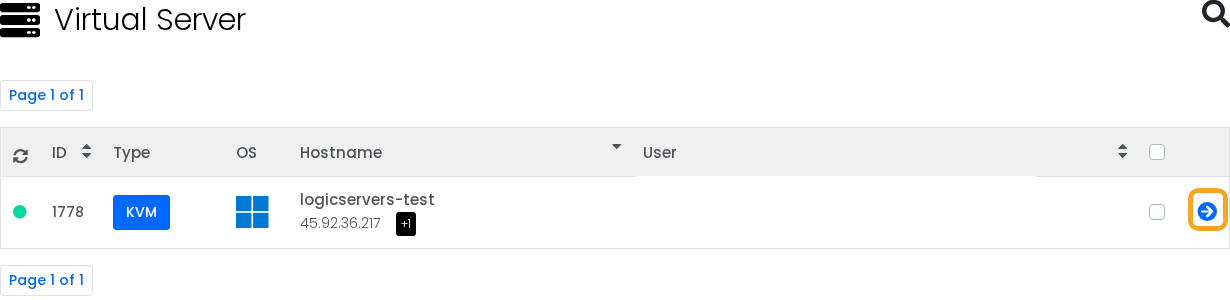
- Find the VPS you want to manage, then click the arrow button to open it.
Before you connect
- Check whether the VPS is running Linux or Windows.
- Have the VPS IP address ready.
- Have the login username and password ready.
- Use the VPS console from the control panel if normal remote access is not responding.
Accessing a Linux VPS with SSH
Linux VPS servers are normally accessed with SSH.
On Linux or macOS, open Terminal and connect with:
ssh root@your-vps-ip
Replace your-vps-ip with your real VPS IP address.
If your VPS uses a different username, replace root with that username.
On Windows, you can use PuTTY or the built-in Windows Terminal SSH client.
The default SSH port is usually 22, unless you or your image changed it.
Using SSH keys
For long-term Linux VPS use, SSH keys are safer than logging in with a password.
Add your public key to the server, keep your private key on your own computer, and only disable password login once you have confirmed the key works.
If you are using PuTTY, add your private key under Connection > SSH > Auth.
Accessing a Windows VPS with Remote Desktop
Windows VPS servers are normally accessed with Remote Desktop Protocol, often shortened to RDP.
On Windows, open Remote Desktop Connection, enter the VPS IP address, then sign in with the Windows username and password.
On macOS, install Microsoft Remote Desktop from the App Store, add a new PC, then enter the VPS IP address and login details.
On Linux, use an RDP client such as Remmina, then enter the VPS IP address, username, and password.
Using the VPS console
The VPS console is useful when SSH or RDP is not working, the firewall is misconfigured, or the operating system is still starting.
- Open the VPS in the control panel, then click the console icon in the top-right action row.

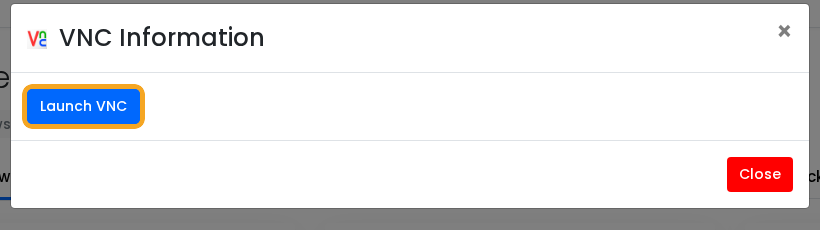
- When the VNC Information window opens, click Launch VNC.
The console is slower than SSH or RDP, but it is useful for recovery work because it does not depend on the guest operating system accepting remote connections.
What to do after connecting
For a Windows game-hosting VPS, a common next step is installing SteamCMD: Installing SteamCMD on your Windows VPS.
If you are setting up ARK Survival Ascended, continue with How to install or update an ARK Survival Ascended server on a Windows VPS.
If you cannot connect and the VPS console also does not load, submit a support ticket with the VPS IP address and the connection error you are seeing.